Why the effects can overpower the conversation
- For muffled streaming dialogue, check that the service's audio format matches what your playback system supports.
- Next, try your TV's Speech or Dialogue preset. If quiet voices compete with loud effects, try dynamic range compression when available.
- Check for a speech-enhanced version of the show, and consider a soundbar with voice enhancement if your TV's speakers still lack clarity.
When explosions have plenty of weight but conversations disappear, more overall volume isn't the only option. We'd check the streaming format before shopping for speakers, because a service can select surround audio that doesn't match your system, leaving you with poorer sound before the TV's own settings enter the picture.
There are several possibilities worth separating. A mismatched stream can leave speech garbled, excessive bass can cover the frequencies that carry voices, and small built-in speakers can limit clarity. That gives you a practical order: check the selected audio, work through the speech-focused settings, then decide whether the speakers need an upgrade.
Match the stream to the system you have
Open your streaming service's audio settings and compare the selected format with your playback system's capabilities. Automatic detection generally handles that match, but it can get it wrong. The useful question is whether your equipment supports the selected audio format, including any surround format you're asking it to play.
Netflix is one example. Sonos notes that it may default to 5.1 surround sound without detecting an appropriate 5.1 system, and that the mismatch can hurt sound quality. A title offering Dolby Atmos or another surround option still needs a playback system that supports that format. Follow the streaming-format compatibility check (opens in a new tab) when choosing the audio option.
Your TV's or laptop's built-in speakers may support only stereo output. If that's your setup, match the stream to those stereo capabilities. Downmixing generally works precisely, but it can sometimes leave dialogue sounding garbled or too low in the mix. After correcting a mismatch, listen for whether the words are easier to distinguish before moving to the TV settings.
Your show may have a speech-enhanced version
Before playing your chosen show, look for a speech-enhanced version among the available title options. Some services offer these for certain titles, with Amazon Prime as one example. Availability belongs to the particular service and title, so check the show you actually want to watch.
This option is worth trying even when the audio levels seem technically fine. Hushed lines alongside big explosions, or accents you're finding difficult to follow, can make an extra dialogue boost useful. The speech-enhanced title guidance (opens in a new tab) points you toward a version intended to emphasize speech, giving you another choice before changing hardware.
Give voices more room in the TV's sound
Once the streaming settings match your equipment, open the TV's settings menu and look through its audio presets. Keep this check in your plan even if you already use external speakers. The TV's audio settings can also affect the sound coming from a home theater system.
Look for a preset called Speech or Dialogue and try it first. Many TVs offer modes that emphasize the human voice. If neither name appears, try another preset that emphasizes midrange frequencies. These are the speech-focused preset choices (opens in a new tab) to explore before adjusting individual equalizer frequencies.
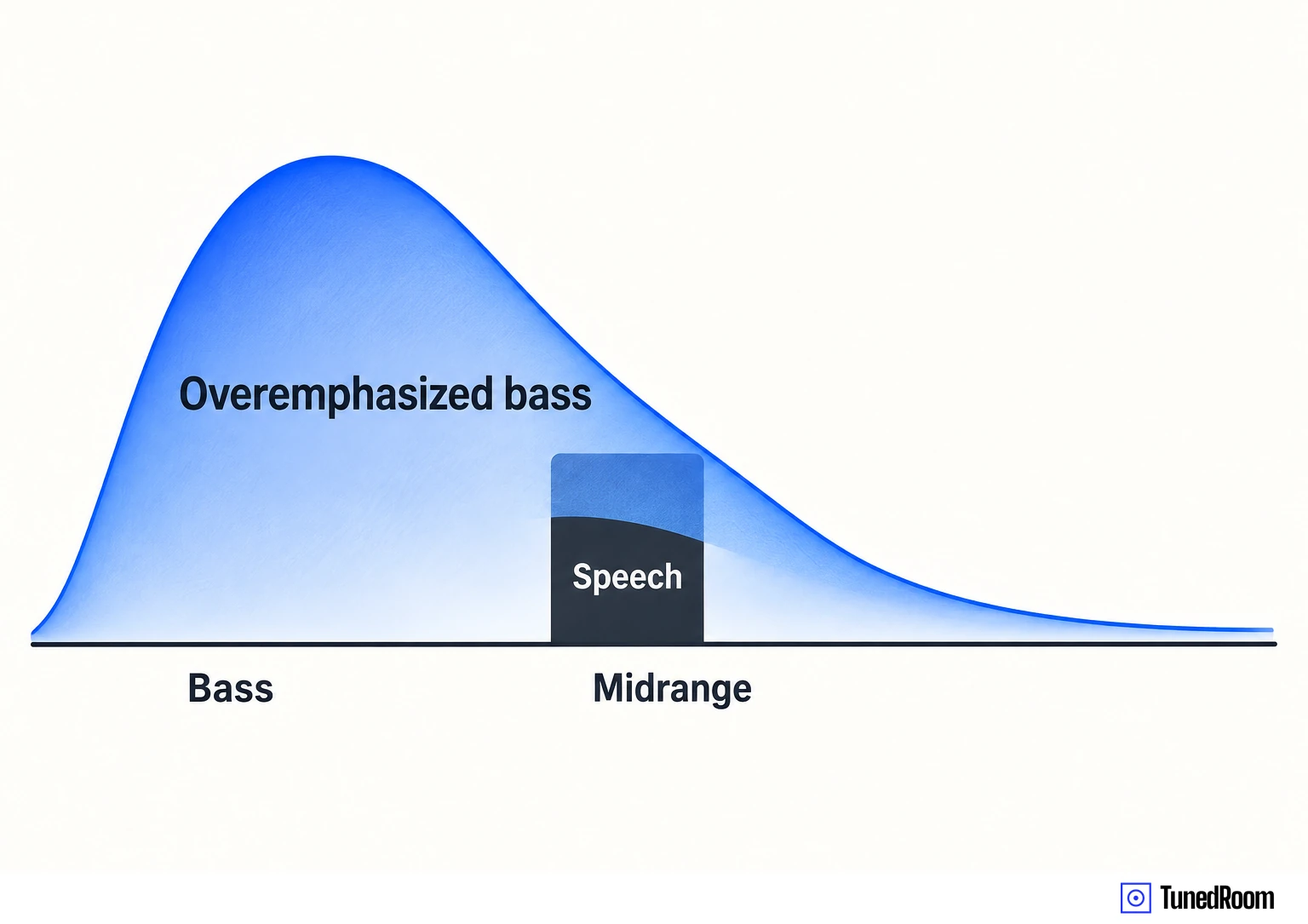
The reason is the balance between bass and midrange. Most human speech falls in the midrange, while the bass that gives explosions and orchestral music their weight can drown it out when overemphasized. As you try the presets, judge whether you can follow the words more clearly through the soundtrack. A mode that makes effects sound richer can still leave you struggling with the conversation.
Bring quiet lines and loud effects closer together
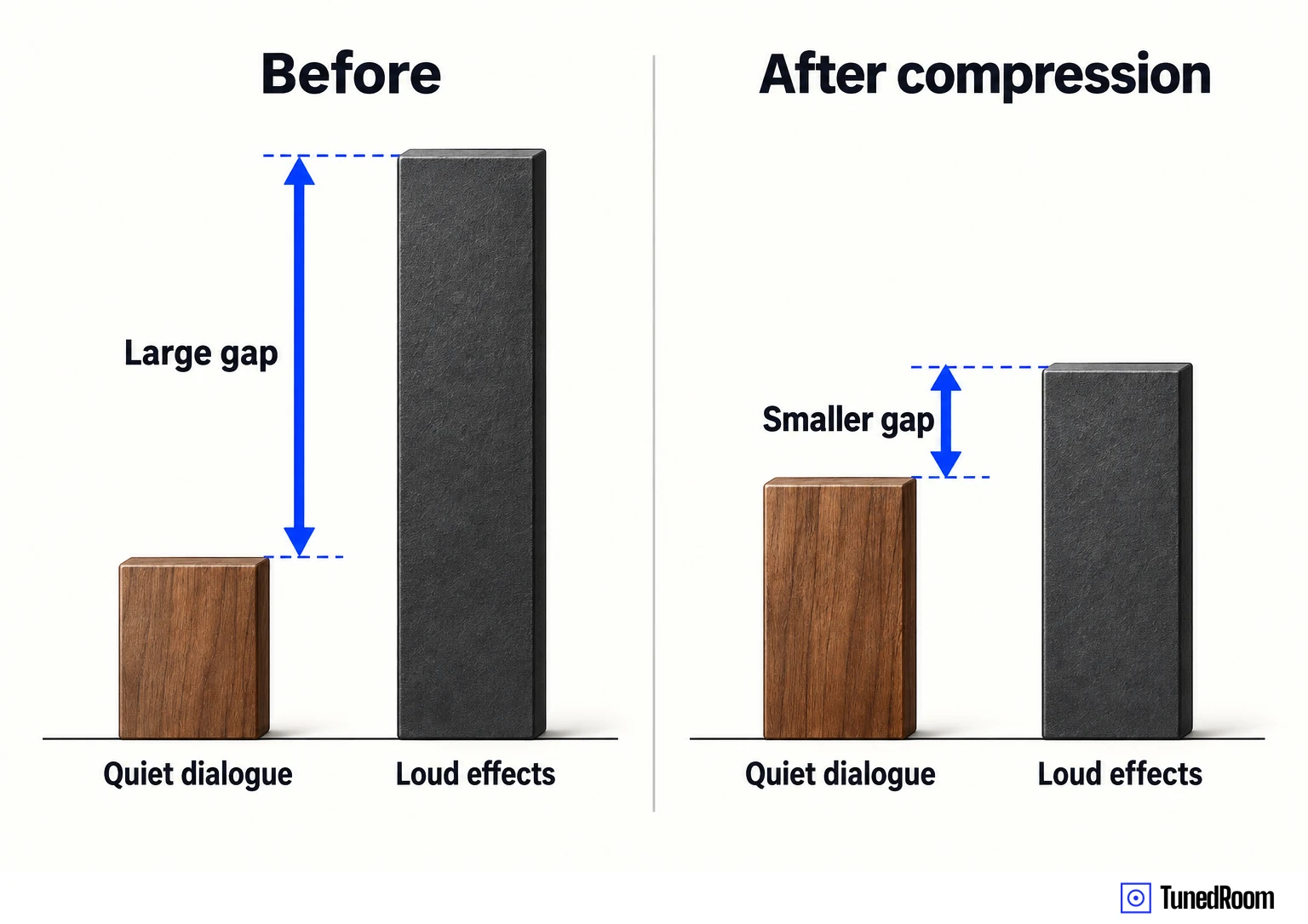
If the problem is the jump between hushed conversation and loud effects, look for dynamic range compression. Some TVs offer it as an audio feature. Try it when the quiet parts need more presence but you don't want to raise the TV's overall volume to hear them.
Compression reduces the difference between quiet and loud sounds: the quiet sounds become louder, and the loud sounds become quieter. That can make dialogue more intelligible without turning up the volume control. You're listening for a smaller gap between the conversation and the louder moments around it, so the words are easier to follow.
There's a tradeoff to weigh while you listen. An explosion or cymbal crash can lose some of its dramatic impact because those loud peaks are being reduced. The dynamic range compression explanation (opens in a new tab) describes both effects. Choose it when following the conversation matters more to you than keeping the soundtrack's full loud-to-quiet contrast.
When the TV's speakers are the limiting factor
If you've worked through the available settings and the built-in speakers still leave voices indistinct, a soundbar is a reasonable next consideration. TV speakers tend to be small and handle a limited range of frequencies. That physical limit is a reason to consider different speakers when you're seeking more clarity and detail.
A soundbar can bring multiple speaker components into one unit. In KEF's explanation of soundbar drivers (opens in a new tab), tweeters handle high-pitched sounds, midrange drivers help dialogue stand out, and woofers handle bass. For your conversation problem, that midrange role is the relevant part of the hardware explanation.
Shop for features that bring out speech
When comparing soundbars, look specifically for voice enhancement as a feature. These modes are developed to bring dialogue forward, so they address the part of the soundtrack you're struggling to hear. Keep clearer speech at the center of your choice if that's what prompted the purchase.
A center channel is another dialogue-related feature to look for. KEF describes the center-channel speaker's job as reproducing dialogue accurately and making it seem to come from the actors' mouths. That gives you a concrete feature to consider alongside voice enhancement when reading a soundbar's description.
A soundbar may improve clarity, but the useful buying question is which features support that goal. Use the explanation of center-channel dialogue and voice enhancement (opens in a new tab) to focus your comparison on speech reproduction and the available dialogue modes.
More in this category