Figure out which way it's off first
- Watch someone talk. Is the sound ahead of their lips or behind them? The fixes go in opposite directions.
- Switch channels, inputs or apps first. If only one is off, the trouble is likely that broadcast, app or service.
- Restart the TV, soundbar and source, then reseat the cables before you open any menus.
- Sound behind: cut audio processing, try PCM, or set Sony's A/V sync to Auto or On. Sound ahead: Sony A/V sync Off, or Sonos TV Dialog Sync.
- Still off on a Sony after all that? Sony says service may be required.
Mouths moving a beat before or after the words means sound and picture are reaching you on different schedules. Video generally needs more processing time than audio, and a soundbar or home theater system can add a delay of its own.
We'd pin down the direction before touching a single setting, because the documented fixes pull opposite ways. Sony's A/V sync holds back the picture, which helps when the sound is late, while turning it off may help when a soundbar runs ahead, and Sonos's TV Dialog Sync slider delays the audio.
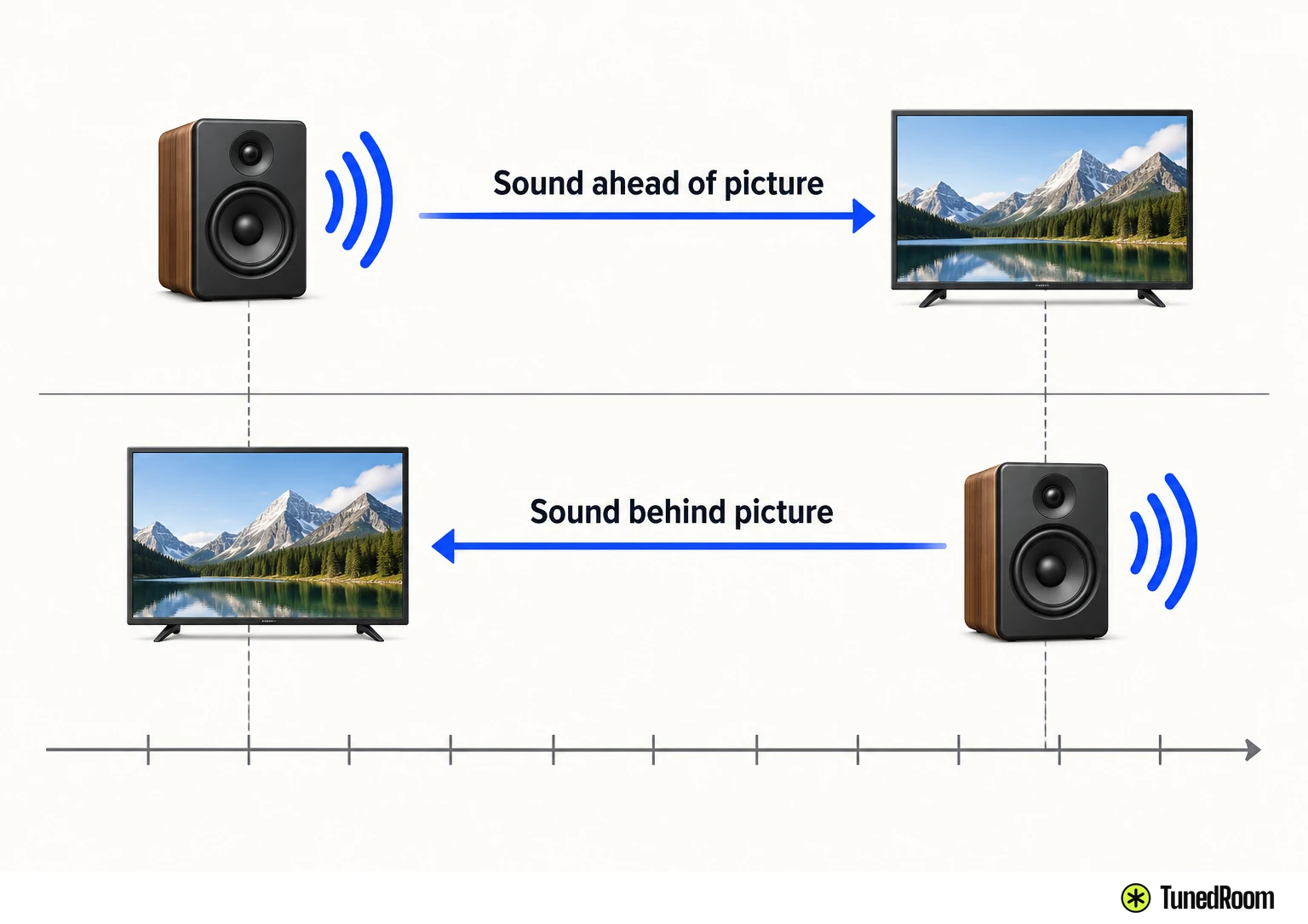
We'd also change one thing at a time. Sony treats each step as its own possible fix and says to check whether the problem's gone after every one, which tells you exactly which change did the job.
Is it one channel, one app or everything?
Flip to another channel or input and watch whether the lag follows. If only one channel is off, Sony's sync troubleshooting (opens in a new tab) says it's likely a broadcast problem, since some channels carry sync trouble of their own.
With a cable or satellite box, changing channels is the test too. TCL says that if switching helps, the issue is likely with your TV network.
For streaming, switch to a different app and see if the problem follows. If it disappears there, it may be down to that show or service.
Off on every channel, input and app? Then the suspects are the TV, the source device, the connection or the soundbar, and the checks below work through them.
What pulls sound and picture apart
TCL lists a wide spread of possibilities: the TV itself, the source device, the content, the connection, outdated software, incorrect settings, or problems with the HDMI cable or soundbar.
- The broadcast. Sometimes a TV channel has sync problems of its own.
- Cables. Loose or damaged cables between devices can throw the timing off.
- Processing. Encoding and decoding take time, and video generally needs more processing than audio.
- The sound system. A soundbar or home theater on HDMI or optical can delay the sound with its own processing.
- Settings. Game Mode or audio output settings on the TV, or the setup of playback devices and sound systems.
When a soundbar's processing causes the delay, Sony says there's nothing wrong with the TV speakers, which is why the fixes below focus on the audio path.
Restart everything in the chain
Sonos starts with a reboot of the TV and any external source device, like a game console, cable box or DVD/Blu-ray player.
Sony BRAVIA TVs run Android, and Sony calls a restart an effective fix for many issues. Hold the remote's Power button until Cancel or Restart shows on screen, pick Restart, and wait for the TV to switch off and back on.
For a full power reset, TCL's power reset steps (opens in a new tab) go further than a restart:
- Shut down the TV and any connected sound system with the remote or the power buttons on the devices, until each one is fully off.
- Pull every power cord from the wall outlet. TCL says this is what makes sure the devices fully reset.
- Leave everything unplugged for at least one minute so residual power can drain and internal memory resets.
- Plug back in, turn everything on, and check whether the sound now lines up with the picture.
TCL's regional guide (opens in a new tab) times it differently. It has you turn off the TV first, then the soundbar, wait about 5 seconds and power back on, and if that fails, unplug each piece of hardware for 30 seconds or so. We'd go with the full minute when you unplug, since it's the longer wait and still covers the shorter one.
Check the cables between each box
Look over every cable on the TV and sound system for wear: frayed cords, loose connectors or bent pins.
Then unplug each one and plug it back in firmly. Sony's check is the same idea: every cable between the TV and external devices should be firmly connected.
If your soundbar connects over HDMI, the cable has to sit in the ARC or eARC port on both the TV and the soundbar. An optical connection needs to be securely plugged in at both ends too.
Still off? Swap in new, high-quality HDMI or optical cables, push them in until there's no loose fit, and check the sync again. TCL's cable steps (opens in a new tab) frame this as ruling out defective wiring.
Sound lagging behind? Cut the extra processing
Sonos's sync troubleshooting (opens in a new tab) names a common cause of late audio: a setting on the TV or source device that processes the sound before it reaches a Sonos product. Check the audio output settings on both, or ask that device's manufacturer how to switch those features off.
Some TVs and source devices add processing for surround sound. Changing the TV or source device's audio format to Stereo or PCM removes that delay, but it also turns off surround sound.
On a Sony TV, the menu name depends on the set. Google TV and Android TV models from 2024 or later change Post Process Setting from Dolby Audio to Standard. Other models switch Sound Mode to Standard, and sets with a post-processing option use Picture & Sound → Sound (TV Speakers) → Post-processing or Post process setting → Standard.
If your TV has Game Mode, Sony says to turn it on while playing a console game and off for TV or a Blu-ray player.
With a soundbar that lags, set the TV's digital audio output to PCM (or LPCM where it's offered). Paths Sony lists include Display and sound → Audio output → Digital audio out → PCM, Display & Sound → Audio output → Digital audio out → PCM or LPCM, Bravia Settings → Digital audio out → PCM, and Sound → Digital audio out → PCM. Another variant runs Display and sound → Audio output → Optical digital audio output settings → Digital audio output → PCM.
On some Sony models from 2019 or later, sync trouble can show up when an HDMI device sends bitstream audio such as Dolby Digital, Dolby Digital Plus or DTS. Switch that device's audio format to PCM using its own manual, and make sure its output settings are compatible with your TV's audio format.
Use the TV's own sync control
Sony's A/V sync explanation (opens in a new tab) matters here: turning A/V sync on delays the TV picture to match sound from devices like soundbars. That works when the sound is late, and when the soundbar's sound runs ahead of the video, turning it off may help.
| What you hear | Set A/V sync to | Menu paths Sony lists |
|---|---|---|
| Sound behind the picture | Auto or On | Display and sound → Audio output → Audio system settings → A/V sync, or Display & Sound → Audio output → A/V sync, or Sound → A/V sync |
| Sound ahead of the picture | Off | Display and sound → Audio output → Audio system settings → A/V sync, or Display & Sound → Audio output → A/V sync, or Sound → A/V sync |
Menus differ by model, and some settings won't be on every set. Not every Google TV or Android TV has A/V sync at all, so check your model's manual, which Sony posts on the model support page.
On a TCL TV, open the audio settings, usually under Settings or Sound Settings, and look for Audio Sync, Audio Delay or something similar. TCL's sync steps (opens in a new tab) note it can sit under advanced audio settings.
Use the slider or manual entry to raise or lower the delay, and stop when the audio matches the video.
Setting the delay on a Sonos or home theater system
This part covers Sonos home theater products. When the sound is ahead of the picture, Sonos's TV Dialog Sync steps (opens in a new tab) delay the audio from the Sonos app:
- Open the Sonos app on iOS or Android.
- Go to the Settings menu (the gear icon). In the Sonos S1 Controller app, open the Settings tab and choose System instead.
- Under Your System, pick the home theater product you want to adjust.
- In the Home Theater section, choose TV Dialog Sync.
- Slide it to the right to delay the audio, and stop when it's in sync with the video.
The slider's job is delaying sound, so it suits audio that's ahead. For Sonos sound that lags, Sonos points you to the reboot, processing and Stereo or PCM fixes above.
With another home theater system on an optical cable, Sony says to set the Audio/Video Sync or Audio Delay control on the home theater system itself, if it has one. Those adjustments usually run from 0ms to about 250ms.
Check the system's operating instructions to see whether it has that setting. For a third-party system, check its manual or contact its maker for the steps.
Checking the fix, and when to call for service
After each change, play something and check whether sound and picture line up. If one step fixes it, you can stop there and leave the rest alone.
If a Sony TV is still out of sync after every step, Sony says service may be required. Head to Sony's Product Repair page, which Sony's sync troubleshooting (opens in a new tab) links to.
More in this category