First tell a dropout from a pause
- Sound skips but stays connected? Play downloaded audio with your phone close to the headphones.
- Music pauses? Check whether an app or headphone feature paused it.
- The Bluetooth connection disappears? Reconnect the headphones, then try them with another phone or computer.
- Sound moves to another device? Check which paired device is playing.
- Headphones switch off? Charge them and check their automatic power-off setting.
When the music stops, first check whether the headphones are still connected. We'd play downloaded audio with the phone close before changing any settings, because streaming can cut out even while Bluetooth stays connected.
| What happens | Where to look first | First check |
|---|---|---|
| Sound skips; Bluetooth stays connected | The audio stream or connection conditions | Play downloaded audio with the source close by. |
| Playback pauses; Bluetooth stays connected | The music app or a pause feature | Check whether it happens when the phone locks, you talk or another device gets a call. |
| Bluetooth disconnects | The source device or headphones | Reconnect, then compare with a second source. |
| Sound moves to another device | Automatic switching or another paired device | Stop playback there and select the headphones on the device you want. |
| Headphones switch off | Charge or automatic power-off | Charge them, then check the power-off setting. |
The sound skips but stays connected
Keep the phone close and play something downloaded. If that plays cleanly but a stream stutters, check your internet connection and try the same audio in another app. On a Galaxy phone, if only one app has the problem, close it and check for app updates.
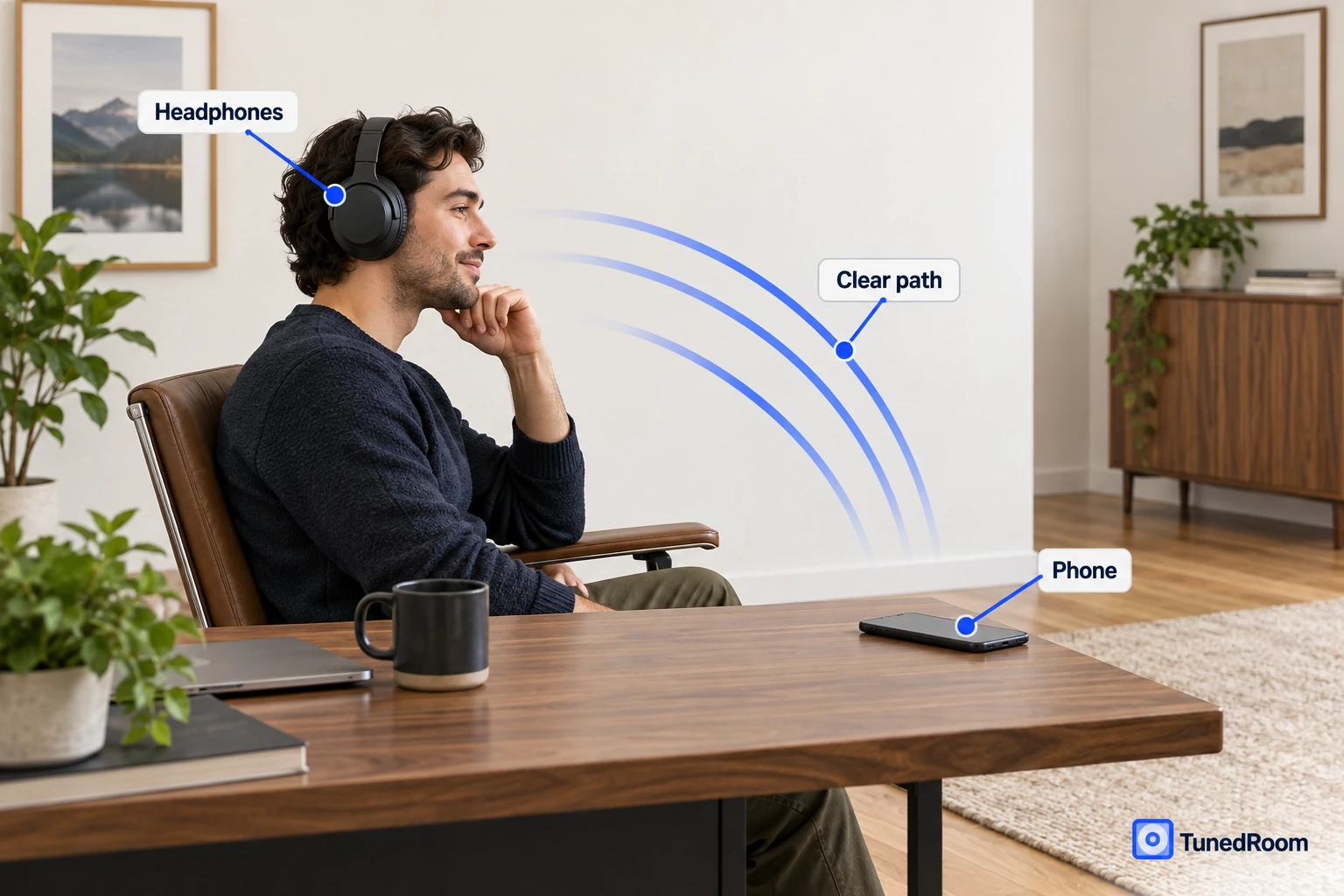
If downloaded audio skips too, move away from busy Wi-Fi equipment, microwave ovens and wireless speakers, then try again. Keep the phone near the headphones while you compare the result.
The music pauses by itself
If playback stops when your phone locks or you switch apps, check the music app's background battery setting. On a Samsung Galaxy phone, you can remove the app from Sleeping apps and Deep sleeping apps, or turn off Power saving.
On a Galaxy phone, close recently used apps and restart the phone, then check for app and phone updates if playback still pauses.
Check the headphones' pause features too. On Pixel Buds Pro, Conversation Detection can lower or pause audio when you talk. Turn that feature off and play the same audio again.
The Bluetooth connection disappears
First, make sure the headphones are charged and both devices have Bluetooth on. If the connection still drops with downloaded audio and the source close by, remove the headphones from that source's Bluetooth list, restart the source and pair again. If it still drops, check for available software updates for the source device and headphones.
If you have Galaxy Buds, a low battery can make them disconnect from the phone. For Galaxy Buds, Galaxy Buds+, Galaxy Buds Live or Galaxy Buds Pro, check that they're seated correctly in your ears.
Next, pair the headphones with a second phone or computer and play downloaded audio under the same conditions. If they stay connected there, focus on the original source and its settings. If they drop on both, note that result for the service check below.
Reconnect on an iPhone
Use this path when the headphones have disappeared from your iPhone's Bluetooth connection.
- Open Settings > Bluetooth on the iPhone. If the headphones are still listed, tap the information button beside them. If you're using AirPods, forgetting them here also unpairs them from your other Apple Account devices. You'll need to pair them again there. Tap Forget This Device, tap Forget Device to confirm, then restart the iPhone.
- Turn on the headphones and put them in pairing mode.
- Look for the headphones in the devices list and tap their name. Apple's pairing steps (opens in a new tab) show where they appear.
Play downloaded audio once they're connected. If the connection drops again, run the second-device test above.
Reconnect on Android
The saved Bluetooth device should show “Connected” when the link is active.
- Turn on the headphones and open the phone's Bluetooth settings.
- Select the saved headphones. Look for “Connected” beside them.
- If they won't connect, remove the saved pairing, restart the phone and pair the headphones again. Android's Bluetooth steps (opens in a new tab) show the connection state.
Once they show as connected, play downloaded audio. If they disconnect again, compare with a second source.
Reconnect on Windows
Start with the Bluetooth troubleshooter in Get Help if Windows can still see the headphones but won't keep them connected. The numbered steps below use Windows 11.
- Turn on Bluetooth and wake the headphones.
- Open Start > Settings > Bluetooth & devices > Devices. Find the headphones, select More options, then Remove device > Yes.
- Restart the PC and pair the headphones again. Microsoft's Bluetooth steps (opens in a new tab) cover the removal path and troubleshooter.
On Windows 10, open Settings > Devices > Bluetooth & other devices. In Bluetooth, select the headphones, then Remove device > Yes. Restart the PC and pair them again.
If the connection still drops, search for Device Manager, open Bluetooth, right-click the Bluetooth adapter and select Update driver > Search automatically for updated driver software.
Play downloaded audio through the headphones. If Windows loses the connection again, try the headphones with another source.
Reconnect on a Mac
Try the saved connection first so you can see whether the Mac can reconnect without pairing again.
- Turn on the headphones and open Bluetooth settings on the Mac.
- Find the headphones in the device list, hold the pointer over them and click Connect.
- If they still won't connect, remove the saved pairing, restart the Mac and pair them again.
Play downloaded audio after they connect. If the link drops again, compare it with a second phone or computer.
The sound moves to another device
Some headphones can connect to more than one source or switch between paired devices. Stop playback on the other device, then select the headphones in the Bluetooth settings of the one you want to use. If the sound moves again, check that headphone model's automatic switching setting.
The behavior varies by product. Supported AirPods can switch to an iPhone when you make a call. Supported Galaxy Buds can switch between compatible Galaxy devices signed in to the same Samsung account when you start a video on the tablet. With Pixel Buds 2a or Pro connected to two sources, a call on one pauses music on the other. For Sony WH-ULT900N headphones, use the other device's Bluetooth settings to switch back.
The headphones switch themselves off
Charge them first, then look in their app or manual for an automatic power-off setting. Try the same audio after charging to see whether the shutdown returns.
If the connection still fails on two devices
If you have Galaxy Buds, check for earbud software updates in Galaxy Wearable before you seek service.
If the headphones disconnect from two sources during the same downloaded-audio test after charging and pairing again, stop resetting them and contact the headphone maker's support. Tell them which devices you tried, whether Bluetooth disappeared or playback only paused, and what changed after charging and pairing.
Check your warranty terms for repair, replacement or a refund, and have your proof of purchase ready. Ask for a service quote before authorizing a paid repair. The FTC's warranty guide (opens in a new tab) explains the options to check.
Check that the connection holds
After a change appears to help, replay downloaded audio on the original device in the same place. Then try the stream or second device that exposed the problem. That tells you which change helped and whether the dropout has returned.
More in this category
Encore
Why Do My Headphones Sound Muffled?
Why Are My Headphones Crackling?
Why Are My AirPods Not Showing Up on Bluetooth?
- How to Connect Bluetooth Headphones to a Roku TV
- Bose QuietComfort 2nd Gen Review, the Cable Finally Beats the Radio
- How Long Does It Take for Beats to Charge?
- How to Use AirPods
- Baseus Bowie MC2 Review, Music With the Room Left In
- What Does HDMI Not Supported Mean?
- How to Connect Multiple Bluetooth Speakers