What the message points you toward
- “Mode Not Supported” is a reason to check the video resolution your source is sending. A cable problem can also bring up that message on some TVs.
- First make sure the source is on and the display is set to the HDMI port you used.
- Then compare the source’s output with the modes your display supports.
If your player is on or your laptop still shows a picture on its own screen, you can begin without changing any video settings. We’d check power and the selected HDMI input first, because the display has to be looking at the connected source before an output change can help.
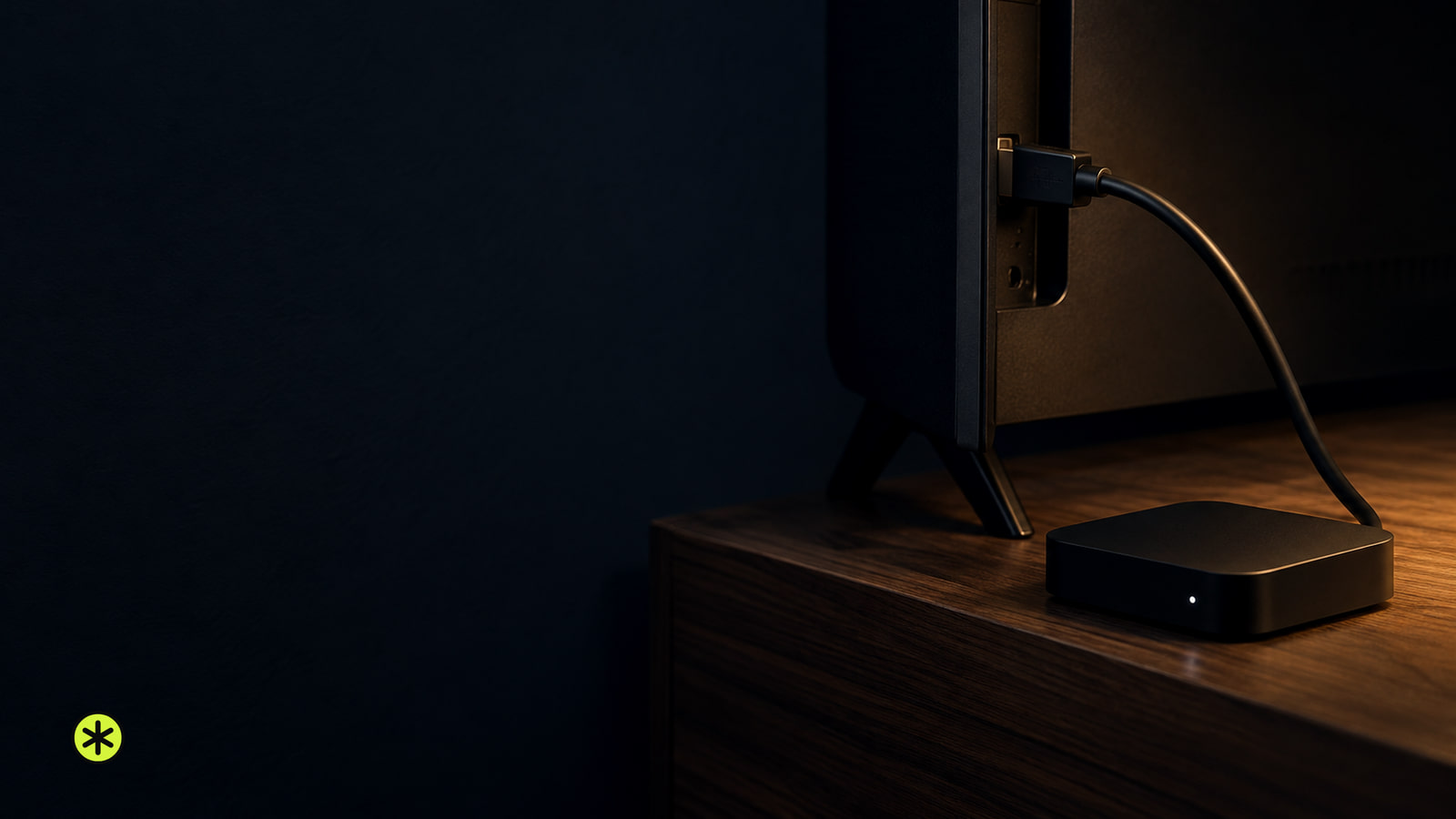
Make sure the source is powered on, the HDMI cable is connected and a laptop is awake. Select the input for the port you used. The input button and port names vary by TV.
Match the source’s output to the display
Look up the supported resolutions for your exact TV or display, then choose one the source can send. An unsupported computer resolution can leave a TV with a distorted picture or no picture.
Check the source’s own display controls for its output setting. A mode also has to be available from the source: some computers or graphics cards cannot send HDMI or HD signals in certain video modes.
When the source is a computer
On a computer, write down the current resolution before changing it so you can restore it. Use the computer’s help or instructions to find its resolution controls; if you’re unfamiliar with those settings, contact the computer’s maker for help.
If a compatible lower resolution brings back the TV picture, you’ve found a usable output setting. On an Epson projector showing “Not Supported,” the computer’s resolution must also stay within that projector’s frequency limit; use the computer’s instructions to select a different resolution if needed.
Try the connection and cable again
For a computer connected to a TV, turn both devices off and on again, or disconnect and reconnect the HDMI cable. Check whether the picture returns when they connect again.
Next, try a different HDMI cable. If you’re connecting a computer to a TV, try another TV HDMI port too, then select that port and repeat the connection setup. A picture that returns with the other cable suggests the original cable may be faulty.
If your TV offers more HDMI checks
On a Samsung TV with a Connected devices menu, press Home, choose Connected devices, then Sources to select the connected HDMI port. If the screen says “Mode Not Supported,” check that the source is sending a resolution the TV supports. A fixed output set to the highest resolution supported by both devices is another option for that message.
If that message remains, turn off the TV and source. Turn on the TV, wait about 15 seconds, then turn on the source. This checks whether they establish their HDMI connection.
For that Samsung message, you can also try an HDMI cable 6 feet or shorter. A long cable can bring up “Mode Not Supported”; if you need one longer than 12 feet, use an ISF-rated cable. Use a certified HDMI cable when comparing cables, since a non-certified one can cause a blank screen or connection error.
If your Samsung TV offers a built-in cable check, press Home and go to Settings > Support > Device Care > Self Diagnosis > HDMI Troubleshooting. Check the connected ports in order. The test looks for problems in the connected HDMI cable; the TV’s HDMI checks (opens in a new tab) show that menu path.
What a second source tells you
After comparing the cable and port, connect a second HDMI source. On a Samsung TV showing “Mode Not Supported,” try the second source at the same resolution as the first so its result helps you judge the original signal.
| Result | What it suggests | Next move |
|---|---|---|
| A different cable brings back the picture | The original cable may be faulty | Use the cable that works |
| Another TV port works after you repeat the setup | The picture works through that input | Keep the TV on the working input |
For a Samsung TV, a second device working at the same resolution indicates that the original source’s signal may be the issue. After completing the connection checks, contact the original device’s maker if the second device works. If both devices fail after all those checks, arrange TV service.
The picture returns at a supported setting
If the picture returns at a supported setting but disappears when you select a higher-feature mode, check the cable, source and display capabilities together. Matching HDMI plugs do not give both devices the same features; the least capable part of the connection limits what you can use.
Leave the source on a mode the display supports and check that the picture stays visible through the cable and input that worked.
More in this category