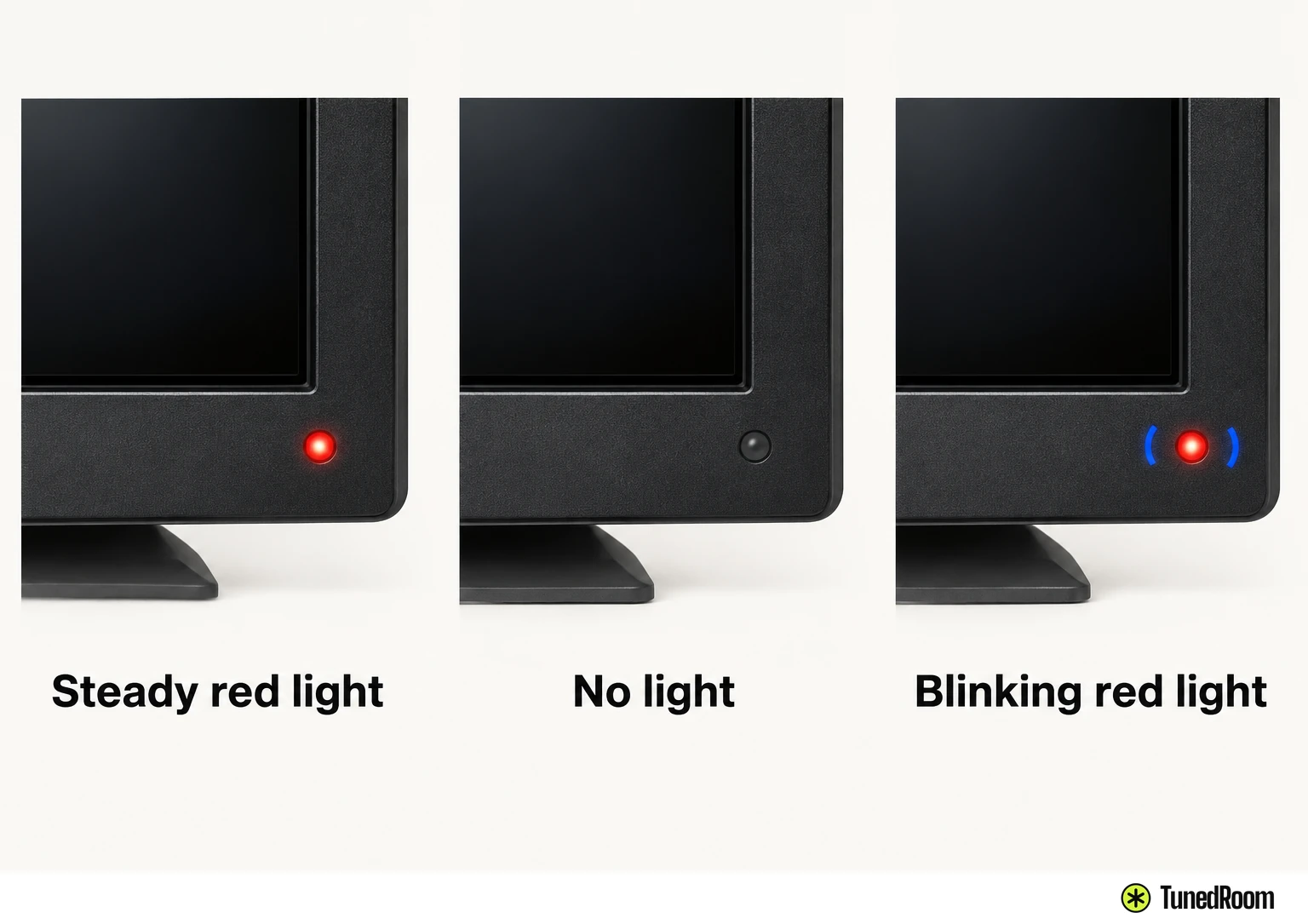
What the power light tells you
- No power light? Try another outlet without the strip, verify power with a lamp, then press Power on the TV.
- Blinking light with no picture or remote response? Disconnect the cables, unplug the TV for 60 seconds, then try a different outlet without a strip or surge protector.
- TV on but no picture? Check the input and connected source, then see whether Menu appears.
- A TV that stays unresponsive on a working outlet or keeps blinking after these checks needs authorized service.
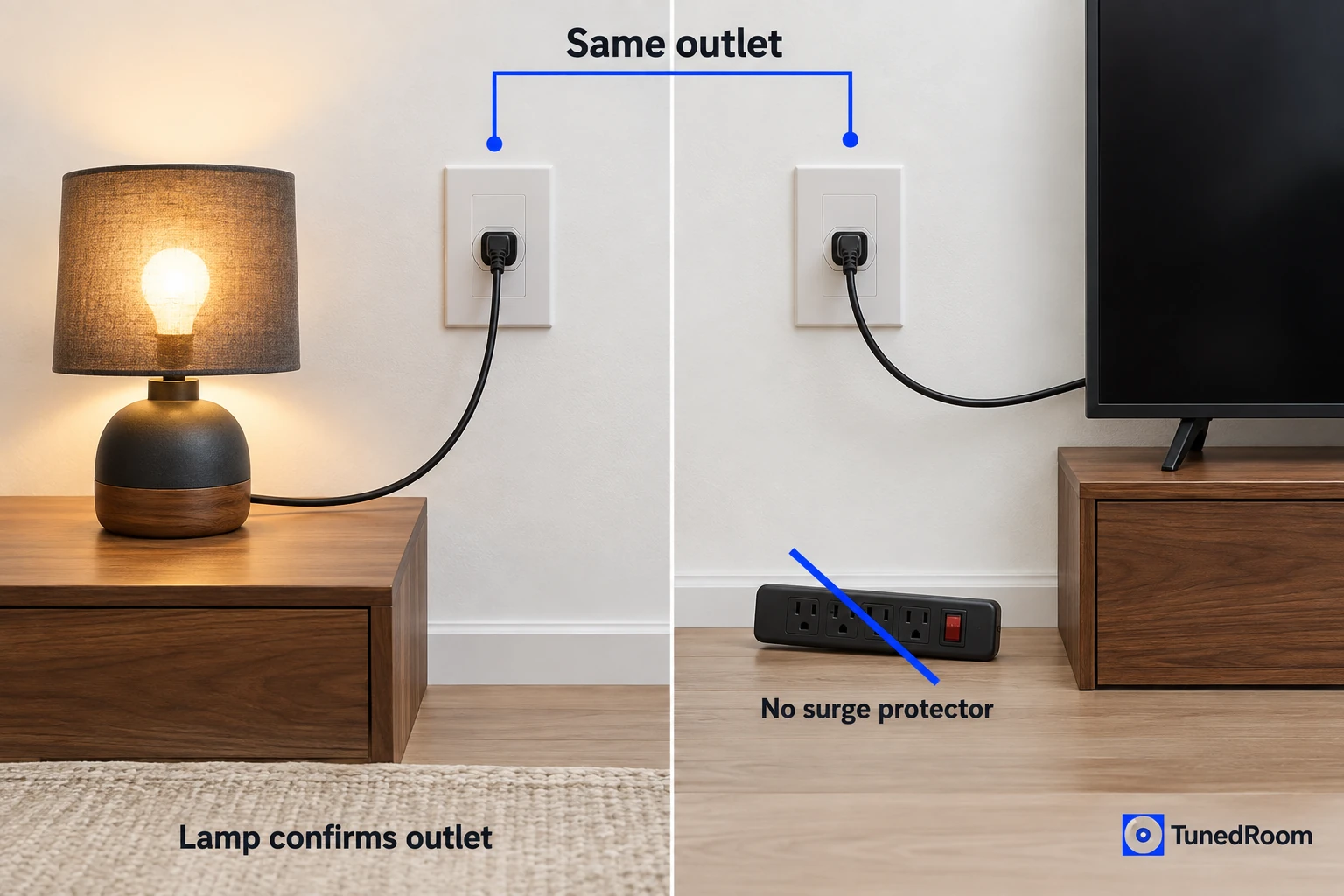
A lamp that lights in the TV’s outlet gives you a firm starting point. We’d check wall power before judging the set, because the TV’s own Power button is useful as a test only after you’ve verified the outlet.
An outlet without power can leave the TV dark. A flashing power light points to an internal failure; if the TV starts again with a steady light after the power test, a temporary power fluctuation may have been involved. A TV that responds but shows no picture calls for input and source checks.
No light from the front of the TV
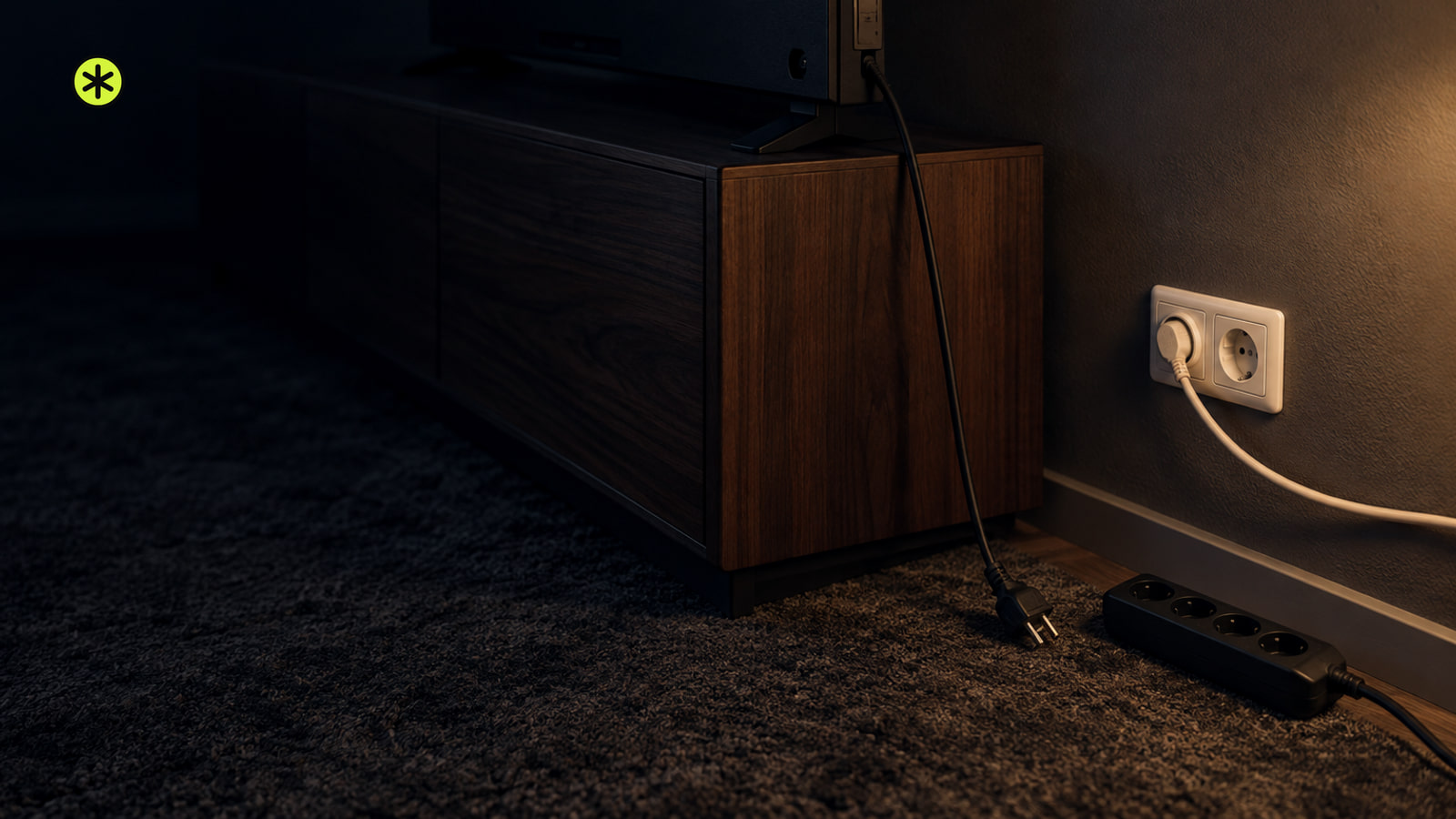
Use these checks when neither the remote nor the TV’s Power button brings on its front light. Work through the outlet before trying the button again, so a powerless receptacle doesn’t look like a TV failure.
- Plug the TV into another wall outlet. See whether its light comes on or it starts.
- If you use a power strip or surge protector, bypass it for this test and plug the TV directly into the wall. Check again for a response.
- If the TV is still dark, test that wall outlet with a lamp or small appliance. If the lamp stays off, check whether a wall switch controls the outlet or a GFCI needs resetting, then test the outlet again.
- If the outlet still has no power, check your home’s breaker or fuse box for a tripped breaker. Find an outlet that powers the lamp before testing the TV again.
- With the TV plugged into a working outlet, press Power on the TV instead of the remote. Look for a light, picture or other response.
If the TV still won’t respond to its own Power button on a working outlet, contact a Panasonic Authorized Service Center through its no-power support page (opens in a new tab). If it starts but the screen remains blank, use the picture checks below.
If another TV was affected by the outage, follow the outlet and TV-button checks for that set too.
The light keeps blinking
This sequence fits a TV with no picture, no remote response and a blinking front light. Keep the order: remove the cables first, leave the power cord unplugged for the full interval, then test a different outlet.
- Unplug all cables from the TV. They should be disconnected for the power test.
- Unplug the TV’s power cord for 60 seconds. Leave it unplugged until the interval is over.
- Plug the TV into a different outlet and try to turn it on. Don’t use a power strip or surge protector for this test; watch whether the light becomes steady or keeps blinking.
If the TV powers back on with a steady light, a temporary power fluctuation may have been involved. Reconnect the cables you removed. If your audio hookup needs attention afterward, reconnect your TV speakers.
If the blinking problem persists, count the flashes and contact a Panasonic Authorized Service Center using the blinking-light support page (opens in a new tab). Tell the technician the blink count and what happened during the different-outlet test.
The TV responds but the screen is blank
For most Panasonic models, a black, blue or snowy screen belongs on the picture path once the TV has power. Use your model’s operating instructions for its specific controls while following this order.
- Confirm that the power cord is plugged in and the TV is on. For this picture check, the front red light should be on without blinking.
- Press Input on the remote and select the source you want to watch. See whether its picture appears.
- Check that the connections to the TV are correct and secure. If your set has Component and Video connections, check them carefully because those terminals are shared; look at the screen again.
- If you use an external source such as a cable box or DVD player, check that it is on and working. Look again for its picture on the TV.
- Press Menu on the TV remote. If the menu appears, the TV is working; recheck the selected input, connections and external source.
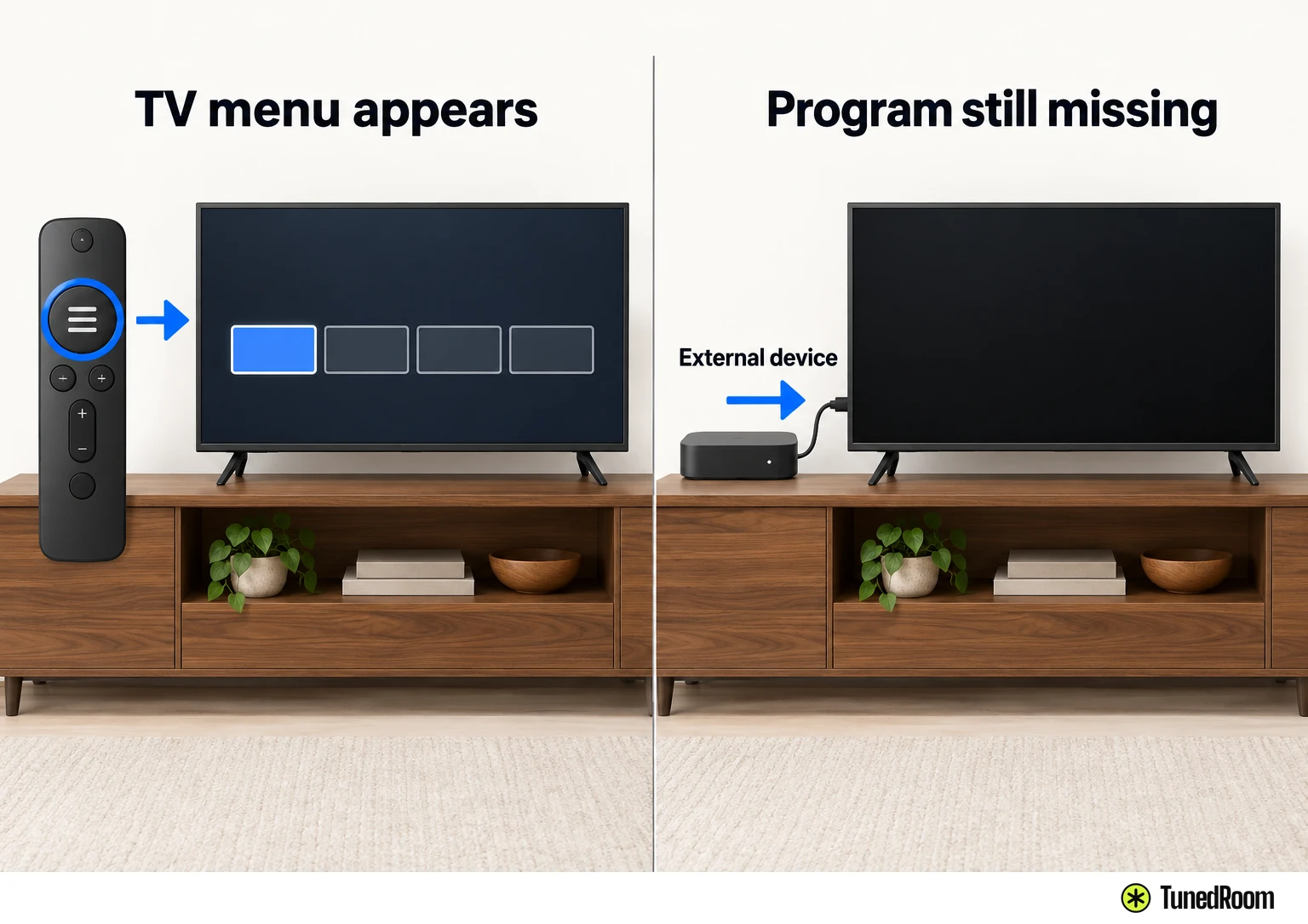
If you can see the TV’s menu but not the program or device you selected, stay with that source and its connection checks. On a model with a Help menu, you can also check the picture using TV Self Test.
A Help menu offers another picture check
On a model that offers Help, TV Self Test checks the TV’s picture and sound. Menu details can differ by model, so use your operating instructions if the controls don’t match these steps.
- Press Menu. Look for the menu on the screen.
- Scroll to Help and press OK. The Help options should appear.
- Scroll to TV Self Test and press OK. Look for the test picture.
If the test picture doesn’t show correctly, use your model’s operating instructions for its specific picture checks. If it shows correctly, check the external device and its connection to the TV, then select that input again and look for the device’s picture.
More in this category