Picture but silence, and where to look first
- Turn the volume up and clear mute on the projector and on whatever's feeding it.
- Then make sure the source is sending its sound to the HDMI or audio output that goes to the projector.
- If the projector has never made a sound, check whether it has built-in speakers. Some don't.
- Still silent? Swap in a known working HDMI cable and restart both devices.
Sound can be stopped at the source, at the projector or at the speakers, even while the picture looks perfect. We'd check volume and mute at both ends before touching a cable, because either device can silence the sound on its own and you don't have to unplug anything to rule it out.
These are the things that can leave you with a picture and no sound, roughly in the order they're easiest to check.
- Volume turned down or muted on the projector or the source
- The source sending its sound through a different channel instead of the connection to the projector
- The projector set to a different input from the one you're using
- A damaged or faulty HDMI cable
- A cable or adapter that carries video but not audio
- A projector with no built-in speakers
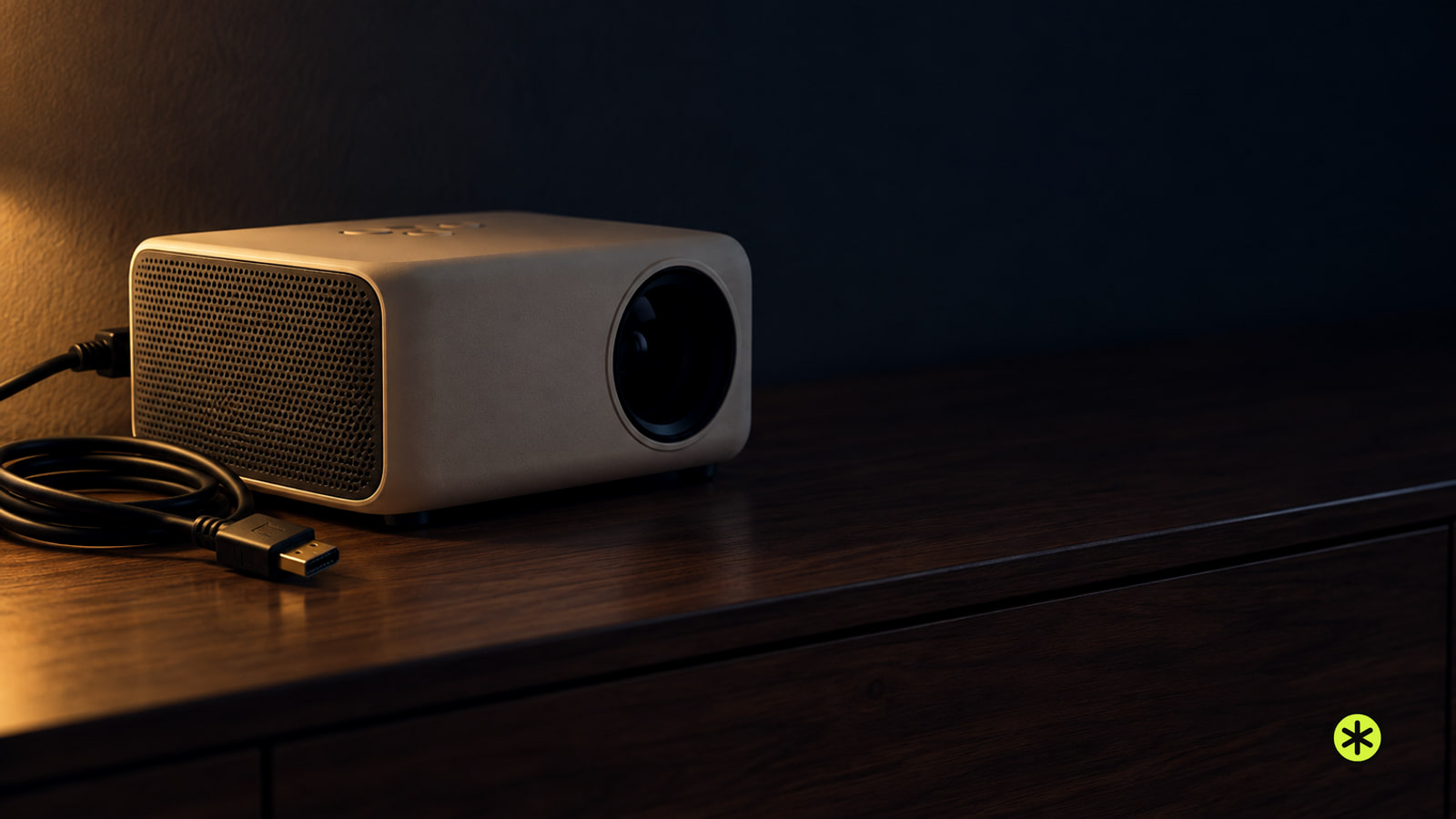
The projector's own speakers stay quiet
Start with the projector's own volume, since it's set separately from the volume on your laptop or player. Turn it up and make sure it isn't muted.
Next, check that the projector's input matches the connection you're actually using, such as HDMI or VGA.
If the projector has never played a sound at all, it may simply have no built-in speakers. Some projectors, especially older models, don't, and in that case the sound has to go out to external speakers, a soundbar or an audio system.
Sound is stuck on your laptop or player
The source decides where its sound goes. Open the audio settings on your laptop, console or player and set the output to the HDMI connection or the audio output that runs to the projector.
While you're in there, check the source's volume level and make sure the device isn't muted.
On a Mac with no sound over HDMI, make sure your Mac supports audio through its HDMI port. If it doesn't, connect an audio cable from the Mac directly to your speaker system instead.
It went quiet after a cable or adapter change
Check the cable connection between the source and the projector, and make sure it's secured at both ends.
- Unplug the HDMI cable and plug it back in, then play something with sound.
- If it's still silent, connect the source directly to the projector with the HDMI cable alone and play the same thing again.
- Still nothing? Replace the cable with a known working HDMI cable. If sound comes back, the old cable was damaged or faulty.
Look at any adapters in the chain too. Some video-only cables and adapters don't carry audio, so use cables and adapters that support both video and audio.
Your external speakers or soundbar are silent
For a projector without built-in speakers, external speakers, a soundbar or an audio system connect to the projector's audio output ports. Ports vary from model to model, so match your cable to an audio output your projector actually has.
Then check the speakers themselves. Make sure they're powered on and their volume is set to a level you can hear.
Still nothing after all of that
Restart both the source device and the projector. That can sometimes clear a sound problem the settings and cable checks didn't.
After the restart, play something with sound and recheck volume and mute on both devices before you change anything else.
If you have a ViewSonic projector and you still can't find the answer, contact ViewSonic support directly.
Once the sound is back, leave the source's audio output set to the HDMI or audio connection that goes to the projector, so the next movie night starts in the right place.
More in this category