The likely causes and where to begin
- A wrong TV input, a connection or cable problem, or insufficient player power can leave you without a picture.
- Check connections first, then the TV input, then power. Reconnecting everything comes last.
- These checks apply to an external Roku player that powers on but has no picture on its connected TV.
When your player turns on but the screen stays empty, we'd begin with its physical connection, because input selection needs to match where the player actually connects. Roku calls the TV input the most common issue, but puts connections and cables first in its troubleshooting order.
The possibilities are distinct. A cable can be loose or faulty, the TV can be looking at a different input, and some players can have too little power even with their indicator lit. Work through those checks in order so each change answers a specific question about the missing picture.
Keep the setup boundary clear before you begin. This procedure is for a separate Roku player connected to a TV, including the Streaming Stick branches below. It's not a procedure for troubleshooting the built-in Roku functions of a Roku TV.
Check the screen and connect directly
Make sure the TV is turned on, then press a button on your Roku remote. That checks whether standby or a screensaver is behind the empty screen before you start changing connections. If a picture appears, you've reached a different outcome from a screen that remains blank after the button press.
If the player connects through an audio/video receiver, also called an AVR, or through a soundbar, unplug it from that device and connect it directly to the TV. For this check, follow the direct player-to-TV connection guidance (opens in a new tab).
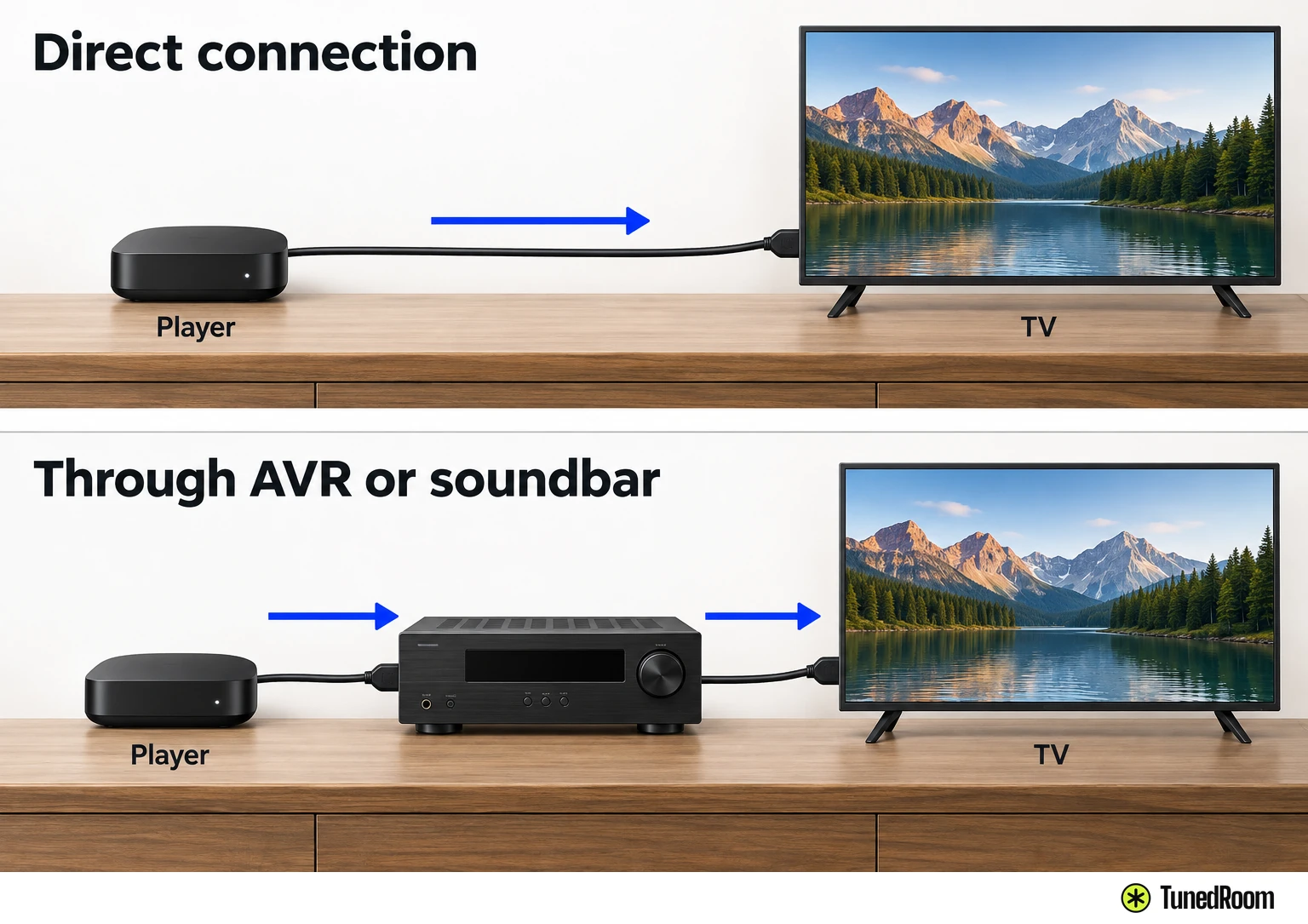
That gives you a player-to-screen connection to check without the receiver or soundbar between them. Keep track of the TV connection you're now using, because that's the input you'll select in the next stage. The relevant input is the one receiving the player directly during this check.
Check the cable or Streaming Stick
For a Roku player with a video cable, check that the cable is firmly connected at both ends. Follow it from the player to the TV and check each connection, rather than stopping after looking at the player end. Both ends belong to the picture path you're checking.
For a Roku Streaming Stick, check the stick itself where it plugs into the TV's HDMI port. Make sure it's securely seated. This is the stick-specific version of the connection check, so focus on that direct HDMI connection instead of looking for a separate video cable.
If your player uses a video cable and the connections are firm, try a different cable to rule out a faulty one. Seating the existing cable and substituting another answer different questions: the first checks the connection, while the second checks whether the cable is the problem.
Match the TV input to the connection
A connected player still needs the TV to display the matching input. TVs can list choices such as HDMI 1, HDMI 2, Video and AUX. Match the selected input to the connection your Roku uses, including its number when the TV has multiple HDMI inputs.
Use the TV remote for this part. Press Input, Source or Video to reach its input controls. You're choosing which TV connection to display, so keep the physical connection you just checked in mind while you work through the choices on the screen.
If the TV cycles through inputs, pause 10 seconds on each one so it has time to detect video. If it displays a menu instead, select the inputs one by one until the Roku home screen appears. That home screen is your visible endpoint for this picture check.
If you need help finding or using those input controls, contact the TV manufacturer. The control you need at this stage belongs to the TV, and Roku's input-selection guidance (opens in a new tab) directs you to that manufacturer for further help.
Try another HDMI port on the same TV
If selecting the matching input leaves you without a picture, plug the Roku player into a different HDMI port on the same TV. This keeps the TV in the check while changing the physical HDMI connection the player uses.
The selected input must now match that new port. For example, moving the connection from HDMI 1 to HDMI 2 means the TV needs to display HDMI 2. Leaving the TV on the old input would leave it looking at a connection the player has just moved away from.
This adds something the input-menu check couldn't: you've changed the actual port as well as selecting it. If the Roku home screen appears, you've found a connection that gives you a picture on this TV.
Compare the result on another TV
Next, try plugging the player into a different TV. Roku includes this in the input-stage checks to help distinguish a problem with the original TV from a problem with the Roku player. It changes the display being tested, which trying another port on the original TV doesn't do.
Use the same connection-to-input matching principle on the second TV. The useful observation is whether you can get the Roku picture there when it wasn't appearing on the first TV. If it works, that result directs attention back toward the original TV setup.
A missing picture on both TVs doesn't, by itself, establish a failed player; it means the problem remains across the TV comparison, and the next check is player power.
Check power even when the light is on
An illuminated indicator can coexist with insufficient power on some Roku players. That makes power worth checking even after the player has visibly turned on. A light and a usable picture are separate observations in this troubleshooting sequence.
Use the Roku-supplied power adaptor when possible. Keep this check focused on the player's power connection after working through its video connection and the TV inputs.
If you see a flashing red light or a low-power warning, plug the player directly into a wall outlet with the supplied cable. Follow both parts of Roku's power guidance (opens in a new tab): the wall-outlet destination and the supplied-cable instruction go together for that warning condition.
Reconnect the cables and player power
If the preceding checks still leave you without a picture, disconnect and reconnect all cables, including the power cord to the player. This is the final connection step in Roku's sequence, after the cable, input and power checks.
For a Streaming Stick, disconnect the stick from the TV and reconnect it as well. The stick's connection to the TV is part of this final check, alongside reconnecting player power. Then look for the Roku home screen on the matching TV input.
More in this category