The projector is on, but the picture isn't reaching it
- No Signal means the selected input has no usable video.
- Select the port the cable uses, then wake the source and enable its video output.
- Reseat the cable at both ends. If the message remains, test a short cable and a direct connection.
- If no menu appears and the warning lights are abnormal, stop HDMI testing.
This is for a powered-on Epson projector showing No Signal from a wired video source. We'd select the connected input first, then work outward along the cable if the picture stays absent.
The projector draws its own menu, while external video must enter through the selected input. If Menu or Home appears, the projector can display its own image; only the source picture confirms external video. For a completely blank screen, press Menu or Home and inspect the power and warning lights.
| What you see | What it points to | First move |
|---|---|---|
| No Signal | The selected input has no usable video. | Match the input to the cable, then wake the source. |
| Not Supported or Out of Range | The source may be sending a format the input cannot display. | Test 1920 × 1080 at 60 Hz if the HDMI timing list includes it. |
| Picture repeatedly cuts out | The cable, source output, or an intermediate device may be interrupting video. | Test a short, direct connection. |
| No message or menu | The projector itself may not be displaying an image. | Press Menu and inspect its power and warning lights. |
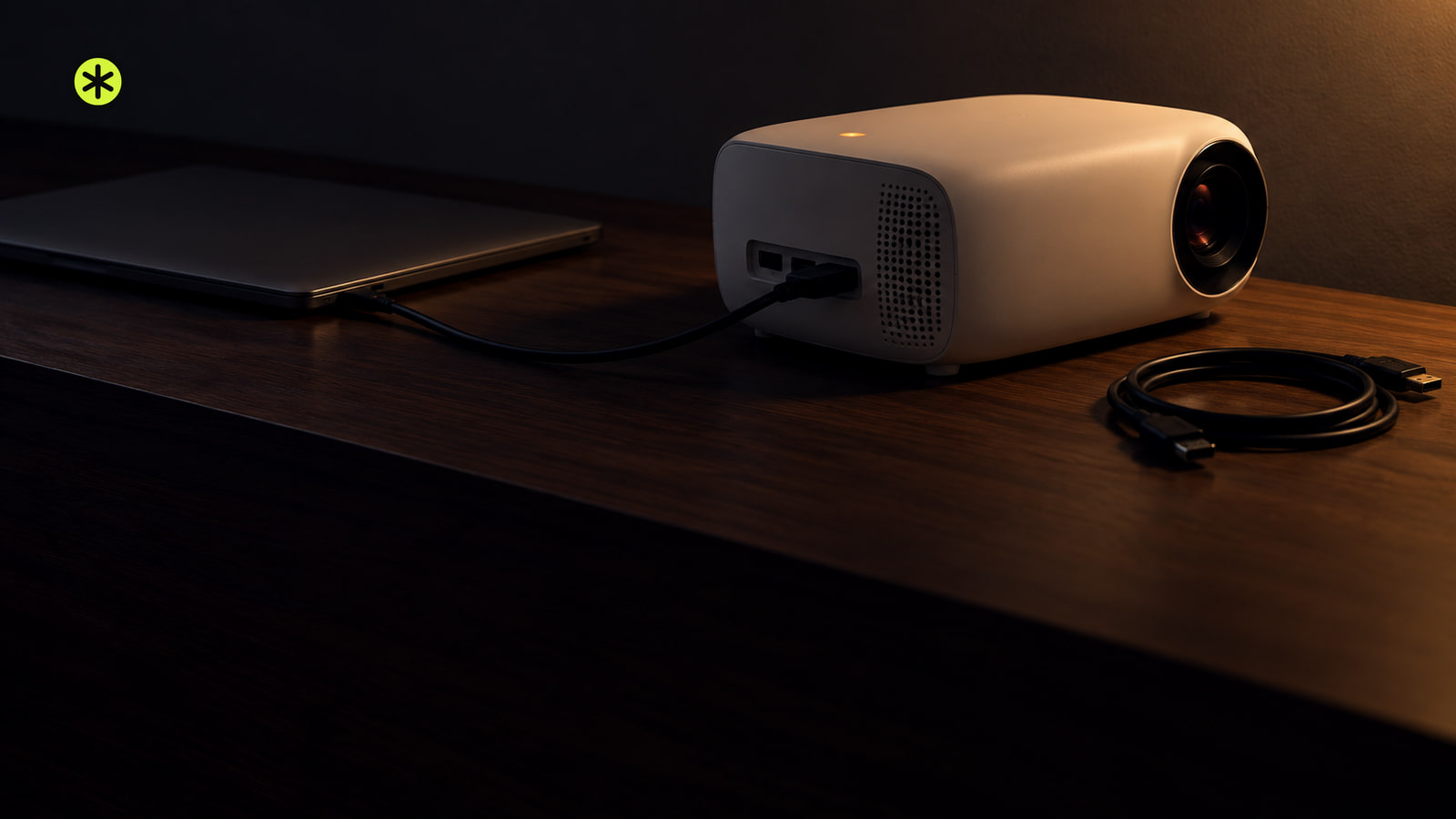
Choose the input that matches the cable
The label beside the socket determines the input: HDMI 2 for HDMI 2, or Computer for a VGA cable.
- Press Source or Source Search on the projector or remote. You can also press Home and open the source list if your projector offers one.
- Choose the numbered HDMI input printed beside the connected socket, or Computer for a VGA connection. If an HDMI button cycles through several sockets, press it until the connected number appears.
- Wait a few seconds before changing sources again. If the device's picture appears, keep that input selected. If only its source name or No Signal appears, wake the device and test its output next.
The HDMI cable is plugged in, but there's still no picture
- With both devices off, unplug and firmly reseat the cable at each end. Turn them on and select the connected input. If the picture returns, reseating and restarting restored it; confirm that it stays stable through playback and another startup. If cable movement cuts it out again, swap the cable.
- Keep the source and input, but use a short HDMI cable that works on another display. Watch startup and playback. Stable video points to the old cable or its length. If No Signal remains, test direct video.
- Connect the source to the projector with that cable, bypassing the dock, switch, splitter, or AV receiver while keeping any necessary video-capable USB-C to HDMI adapter; if the connection still fails, test the adapter separately. If video stays stable, restore those devices one at a time. The device whose return interrupts the picture, or its connecting cable, needs attention.
- If direct video still fails, shut down both devices normally, turn them on, and select the input. Allow a few seconds for video. If it returns, test playback and another startup.
For USB-C, the laptop port needs DisplayPort Alt Mode or Thunderbolt video, and the adapter must pass video. A charging or data-only port cannot send a picture. Test the port with an adapter and cable that work on another video-capable USB-C computer and external display: connect them directly to this laptop and that display, then select its input. If the laptop picture appears, try the adapter with the projector. If not, try another USB-C port and look for DisplayPort Alt Mode or Thunderbolt in the laptop's port specifications.
A High Speed HDMI cable normally handles 1080p. For 4K at 60 Hz, use a cable certified for that format and confirm each intermediate device supports it. The HDMI cable certification guide (opens in a new tab) identifies the cable classes. For a longer run, use HDMI cable length to choose a cable.
Make your laptop send video to the projector
- On Windows, wake the laptop, press Windows key + P, and choose Duplicate. The same desktop should appear on the laptop and projector. If the projector remains absent, open Settings > System > Display > Multiple displays > Detect, then try Duplicate again.
- On a current Mac, select the projector in Apple menu > System Settings > Displays and choose a mirroring option under Use as. If the projector is missing from Displays, hold Option to reveal Detect Displays, then select it and mirror the desktop. Apple's Mac display controls (opens in a new tab) show that route.
After the laptop image appears, disconnect and reconnect the cable; the image should return and stay visible.
Find the projector's model number and search it on Epson's support site. In your model's User's Guide, search for Supported Video Display Formats or Supported Monitor Display Resolutions; the section may be under Technical Specifications or Appendix. Under HDMI input signals, match both the resolution and 60 Hz for the input you're using.
Not Supported or Out of Range can mean the projector detects an output beyond that input's resolution or refresh-rate limits; if a listed format still fails, check the model's input-signal setting or HDMI IN EQ Level where available. For an HDMI input whose timing list includes it, test 1920 × 1080 at 60 Hz. If the picture appears, keep that format or choose another in the input's timing list. If it remains blank, try 1280 × 720 at 60 Hz when listed, then repeat the direct cable and source swaps.
On Windows, open Start > Settings > System > Display, select the projector, and choose 1920 × 1080 under Display resolution. Open Advanced display, select the projector, and choose 60 Hz under Choose a refresh rate. If that image stays blank, set Display resolution to 1280 × 720 and keep 60 Hz in Advanced display, after confirming that row in the format table. On a Mac, open Apple menu > System Settings > Displays, select the projector, and choose 1920 × 1080, using Show all resolutions if needed. Choose 60 Hz in Refresh Rate if offered. If the picture stays blank, try 1280 × 720 at 60 Hz after confirming its row. If a Mac resolution change blacks out the display, wait 15 seconds for it to revert or press Escape.
Find out whether the source, cable, or input has failed
Use the same short, working cable and projector input for each swap. Set the second source to a video format that input accepts.
Leave a visibly loose or damaged socket unused; repeated cable movement can worsen the connection.
- Connect a second working video source directly to the suspect input with the short known-good cable, then select that input. If its picture appears, investigate the original source, its output settings, or its cable.
- If the second source fails, move it and the working cable to another input that accepts them, then select it. A picture only there points to the first socket or its settings. If neither works, test the original source before judging the projector.
- Connect the original source to another display with the working cable. Test 1920 × 1080 at 60 Hz if both displays list it, or 1280 × 720 at 60 Hz if both list that format. Failure there points to the source's output. If it works there while two working sources fail directly on the projector, the projector needs evaluation.
A second input that shows a stable picture can serve as a workaround. A VGA substitute may accept different video formats, so match the source to that input.
When No Signal persists or returns
After a source or video-format change, wait a few seconds for the picture. Repeated loss during playback or lasting No Signal needs another test. Note whether it follows cable movement, source sleep, or a format change.
If cable movement causes loss, repeat the short, direct cable test. A stable result there points to the longer cable, receiver, or switch; restore each separately, secure the working connections, and route temporary cables away from walking paths. If loss follows idle time, wake the source and confirm video resumes.
If loss starts when a game, player, or computer changes format, set that output to 1920 × 1080 at 60 Hz if the active HDMI input lists it. Stable video there points to a format limit along the original path. Before raising the output, match the chosen format to the projector, cable, and receiver or switch. Epson's format-warning checks (opens in a new tab) cover Not Supported.
If the HDMI EQ or HDMI IN EQ Level menu appears, record its current value. Change the level and retest the same source and cable. Keep the change only if video stays stable; otherwise restore the old value.
If a higher-resolution source fails but lower-resolution video works, look for an HDMI EDID option for the active input. Choose the EDID setting that matches the source's output resolution, then replay the same signal through the same cable. Keep the setting if the picture appears and stays stable; otherwise restore its previous value.
Save a settings reset for after the input, source-output, cable, direct-connection, and second-source tests. Reset All Config puts most projector settings back to their defaults. Write down picture and installation adjustments you want to restore. Open Menu, then Reset > Reset All Config or Initial/All Settings > Reset All, whichever path your projector shows. Confirm the reset, reconnect the same known-good source and cable, select their input, and test playback. The reset worked only if that picture appears and remains stable.
We'd stop owner testing for a damaged socket, abnormal lights with no menu, or two known-good sources failing directly through the same short cable on each matching input. Contact Epson projector support or an authorized service center; outside warranty, request a written quote from a qualified projector repair shop. Give the model, serial number, purchase date, working inputs, cable and source-swap results, and any light pattern, heat, odor, or socket damage.
Look at the warranty terms before approving work. A covered failure may qualify for repair or exchange. For work outside warranty, get the full quote for diagnosis, socket or board work, labor, and shipping, then compare that total with a comparable replacement projector. The projector's age and whether another input still works matter to that decision.
For a replacement comparison, current Epson entry portable projectors cost $330 to $500, while Home Cinema 4K laser projectors cost $2,000 to $2,700.
Questions after the connection tests
Should I reset the projector if it still says No Signal?
Use the reset path in the dropout section only after the swap tests. If the same known-good direct source still fails afterward, report that result with the service details; a reset cannot mend a damaged cable or socket.
Can I keep using the projector through another input?
Yes, if that input and its cable are undamaged, the projector otherwise works normally, and there are no warning lights, unusual heat, or burning smells. Turn both devices off before moving the cable, and leave a loose or damaged socket unused.
What if only my streaming player shows No Signal?
Wake the player and start playback, then try it directly on the same input and short cable that displayed another source. If its picture works only with a receiver or switch removed, test that removed device and its connecting cables.
More in this category