Turn it down and bring it closer first
- Lower the volume on the phone or other device sending the music, then listen again.
- Next, bring the phone and speaker closer together with nothing solid between them.
- Keep both away from Wi-Fi routers, microwaves, cordless phones and power cables.
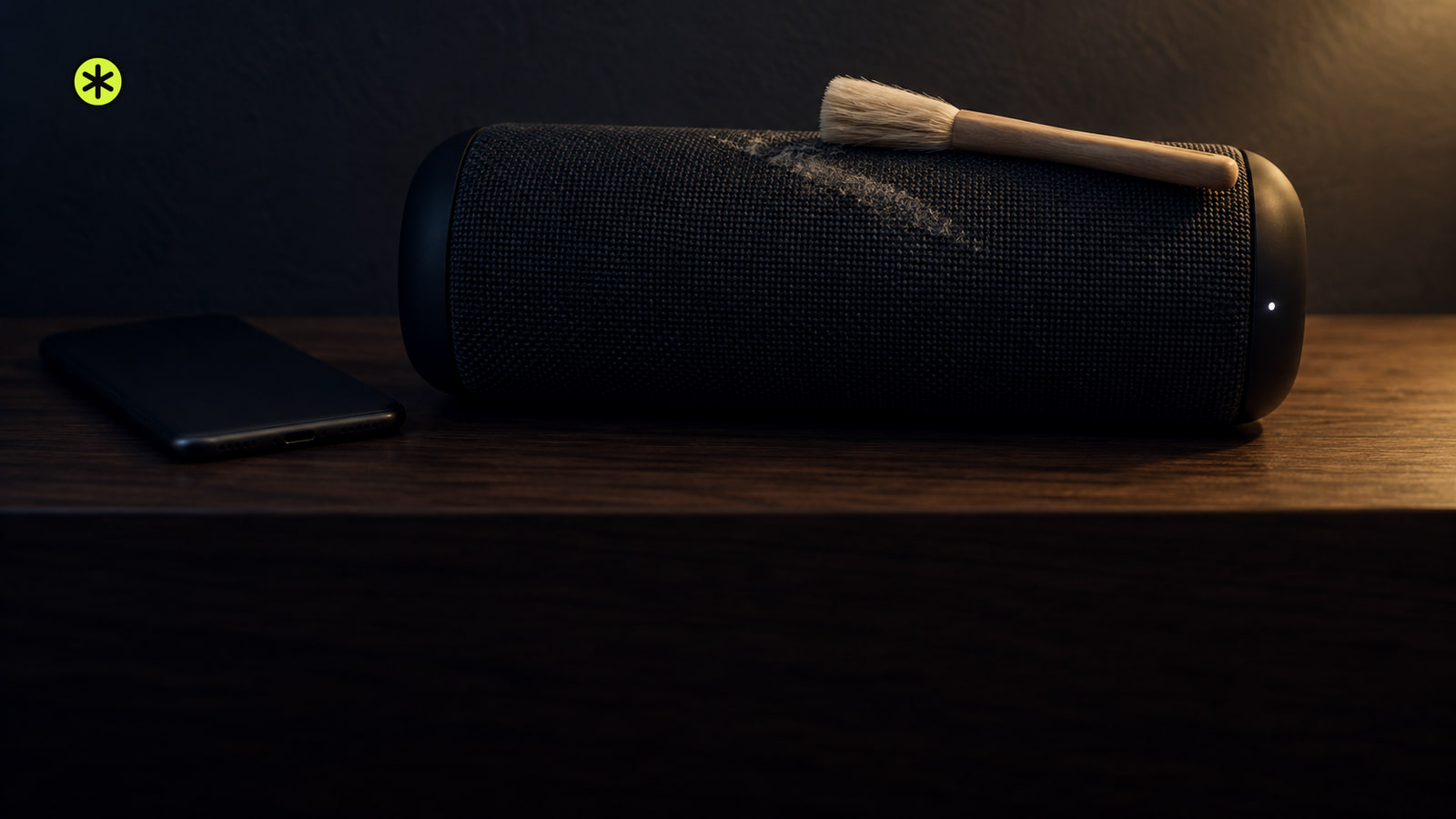
- Brush or blow the dust off the speaker, then play the same track again.
- Still crackling after all that? Check the cone for dents or tears and have an audio technician find the cause.
Those sharp, popping bursts that come and go can start anywhere from the volume slider on your phone to the cone inside the speaker. We'd always try the volume first, because feeding a speaker more than it can handle causes crackling, and turning it down is the easiest change to undo.
After that, we'd work on the wireless link and then the dust, and only then think about repairs. Static on Bluetooth audio is a known sign of interference, and dust can stop the cone moving freely, so both are worth ruling out before you pay anyone to open the speaker.
What can make a Bluetooth speaker crackle
First, make sure it really is crackling. Crackles are brief bursts, a buzz is continuous with no bursts, and distortion changes the sound of the music itself.
- Wireless interference: routers, cell phones and similar devices give off signals that can disrupt audio, and on Bluetooth that can show up as static, skips or dropouts.
- Overload: more power than the speaker can handle produces distortion and crackling.
- Dust: build-up on speaker parts can get in the way of the cone's movement.
- Connections: ELAC suggests loose or dirty connections in an audio system may be involved in crackling.
- Hardware: a failing amplifier or a damaged speaker cone.
A crackle on its own won't tell you which of these you've got, so work through the reversible checks below in order and listen after each one.
The crackle gets worse as you turn it up
Start at the source. Turn down the phone, tablet or computer sending the music so it isn't set to an excessively high level, then replay the same track.
Look up your speaker's recommended power rating and keep the system inside its limits. If the crackling fades at a lower level, you've found your answer, so stay below the point where it starts.
It crackles across the room or near other gear
Wireless interference can make Bluetooth devices perform poorly, and these general checks help you get a cleaner, stronger signal.
- Bring the phone and speaker closer together, play the same track and listen for whether the crackle eases.
- Clear the path between them. Solid obstructions such as metal surfaces can weaken a wireless link, so move them aside and listen again.
- Move the speaker and phone away from power cables, microwave ovens, fluorescent lights, wireless video cameras and cordless phones, then listen again.
- If a Wi-Fi router sits close to the speaker, move the router farther away and check whether the crackling stops.
There's a fuller list of ways to cut down wireless interference (opens in a new tab) if your home is packed with wireless gear.
Walls, metal and nearby signals all get in the way of the link, and our explainer on how Bluetooth works with speakers shows why.
Your home Wi-Fi is crowding the same band
Bluetooth and Wi-Fi both use the 2.4 GHz band, so it helps to cut the number of active devices on it. Many Wi-Fi devices can use 5 GHz instead, and if your router supports both bands, moving more of your Wi-Fi gear onto 5 GHz might help. Some dual-band routers do this for you automatically.
That switch is for your Wi-Fi devices only. The Bluetooth link between your phone and speaker stays on 2.4 GHz, and you're simply giving it less company there.
You can also set the router to a different Wi-Fi channel, or have it scan for the channel with the least interference. Most routers run that scan on their own at startup or when reset.
Dust is getting in the way of the cone
With the volume and the wireless path sorted, give the speaker a clean before you think about repairs. Dust builds up on speaker parts and can stop the cones moving freely, which causes crackling, and a soft brush or compressed air lifts dust and debris off.
Then play the same track at the level where you heard trouble and listen for those sharp, intermittent pops. Steady sound with no bursts means you're back to normal.
The crackle is still there after every check
With volume, the wireless path and dust ruled out, look at the speaker itself. A damaged cone can't vibrate smoothly, and the damage shows up as a change in shape or tears in the material.
If your setup feeds a separate amplifier, check the speaker wires first. When they're in good shape and the noise continues, have a professional inspect the amplifier.
A damaged cone may need replacing to get clean sound back. Take the speaker to a professional audio technician at that point, since they can identify the root cause and fix it directly.
Keeping the crackle from coming back
Clean your speakers regularly, because dust keeps settling on speaker parts. And leave the router where you moved it, so the interference you cleared up stays away.
More in this category