Find the connection your speaker supports
- For a Bluetooth speaker, make it discoverable, then select its name on the device you want to play from.
- Find the model number on the speaker’s bottom and check its supported connections.
- For a TV, check Bluetooth audio support and select the speaker as the TV’s sound output.
- For a cable or a speaker group, follow the path your models support.
We’d check the model number first, because the pairing control and available connections depend on the speaker. Look on the bottom, then use Sony support (opens in a new tab) to find your model’s instructions. Once you know what it supports, pick the path that matches the device sending the sound.
| What you’re connecting | Path to use |
|---|---|
| Phone | Make the speaker discoverable and select it from the phone’s Bluetooth device list. |
| Windows computer | Make the speaker discoverable, then pair it through Windows Bluetooth pairing. |
| Mac | Make the speaker discoverable, connect it in Bluetooth settings, then select it for sound output. |
| TV | Check that the TV supports Bluetooth speaker audio, then select the speaker as its sound output. |
| Wired source or receiver | Check for an AUDIO IN jack or speaker-wire terminals. Before using a receiver, check that the speaker’s nominal impedance is within the receiver’s supported range. |
| More than one speaker | Check whether the models support a two-speaker Stereo Pair or a compatible Party Connect group. |
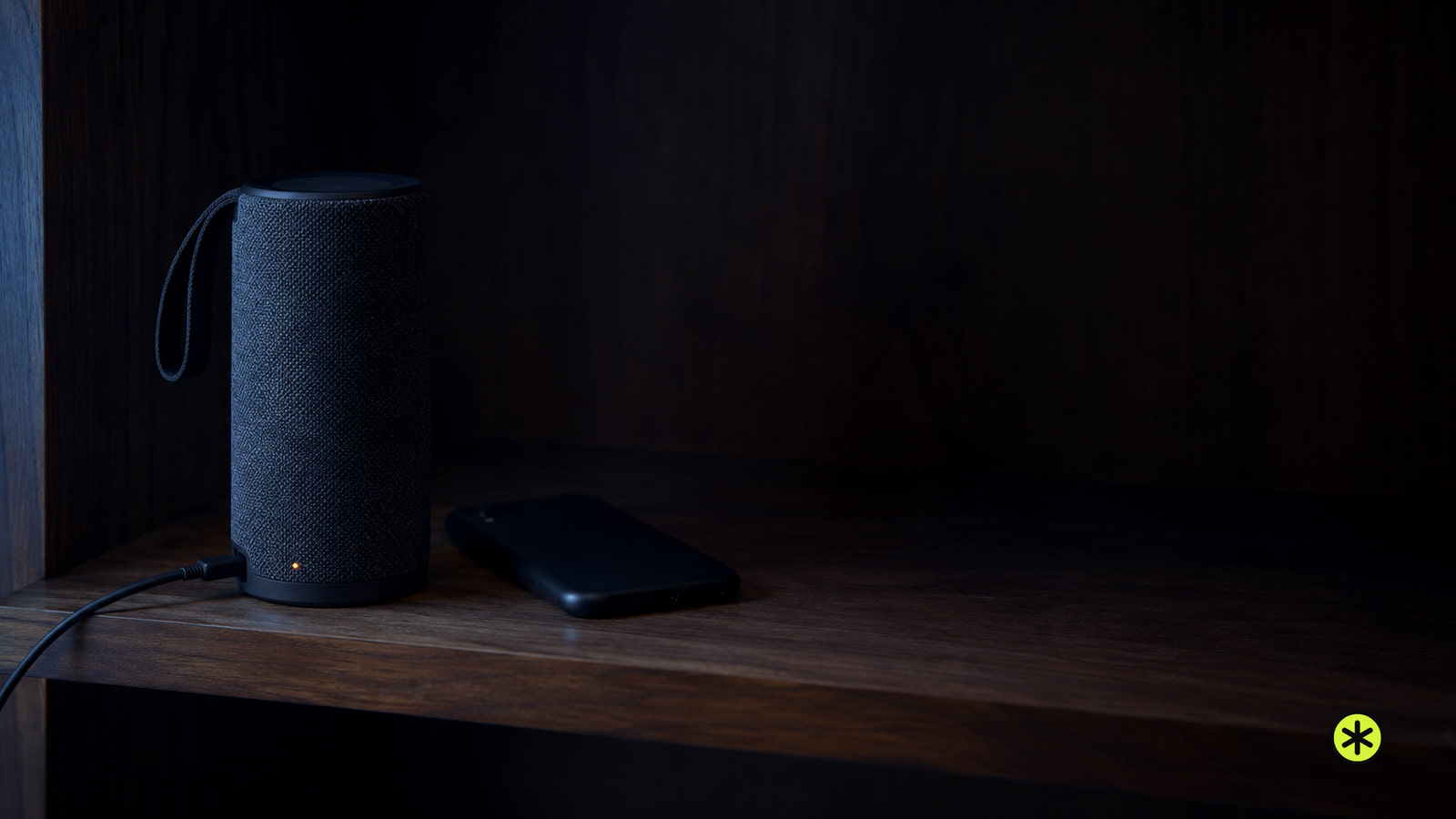
Connect a phone by Bluetooth
The shared step is selecting the speaker from a Bluetooth device list. The control that makes the speaker discoverable varies by model.
- Turn down the volume on the phone and speaker before connecting, then turn on the speaker and use its pairing control to make it discoverable. If you’re unsure which control to use, find the model number on the bottom and check that model’s instructions.
- Open your phone’s Bluetooth device list and select the speaker when its name appears. On an iPhone, go to Settings > Bluetooth, turn Bluetooth on and tap the speaker’s name.
- Start playback quietly to check the connection. If you hear nothing, check that you selected the speaker you meant to pair, then check and raise the phone and speaker volume before trying pairing again.
The iPhone Bluetooth steps (opens in a new tab) show where to find its device list.
Connect a Windows computer or Mac
Start with the speaker’s pairing control. Windows can find it once the speaker is discoverable.
- Turn on the speaker and make it discoverable using the control for your model.
- Start Bluetooth pairing in Windows and select the speaker from the devices it finds.
- Play audio to check the connection. If the speaker doesn’t appear, make it discoverable again and repeat the search.
If you need the pairing screen, follow the Windows Bluetooth pairing steps (opens in a new tab).
On a Mac, make the speaker discoverable, then open Apple menu > System Settings > Bluetooth and click Connect beside its name. If it pairs but you hear no sound, go to System Settings > Sound > Output and select the speaker.
Connect a TV and select its sound output
Check the TV’s Bluetooth audio support before pairing. Sony TV models need A2DP support to use a Bluetooth audio device such as a speaker.
- Make the speaker discoverable, then open the TV’s Bluetooth speaker settings. On most Samsung TVs, go to Home > Settings > All Settings > Sound > Sound Output > Bluetooth Speaker List.
- Select the speaker on the TV. On an LG TV, set Sound Output to Bluetooth to listen through the speaker.
- Play TV audio to check it. If the TV finds the speaker but you hear no sound, return to Sound Output and select Bluetooth or the paired speaker.
Use an audio input or a receiver
Look at the speaker’s connections before choosing a cable. An AUDIO IN jack and speaker-wire terminals call for different paths.
- Check the model for an AUDIO IN jack or speaker-wire terminals. For example, the Sony ULT FIELD 7 has an AUDIO IN jack.
- For that ULT FIELD 7 input, turn down the volume on the speaker and source before connecting, then disconnect any device from the PLAY/CHARGE OUTPUT (USB) port and connect the source with a commercially available audio cable that has a no-resistance stereo mini plug at both ends.
- After connecting an ULT FIELD 7, turn it on. Play audio from the source at a moderate volume to check the connection. If you hear nothing, check that the ULT FIELD 7 is on and that the cable ends are secure.
Before using a receiver, check that the speaker’s nominal impedance is within the receiver’s supported range. For the Sony STR-DN1080, that range is 6 to 16 ohms.
For speakers connected through a compatible receiver, unplug the receiver before wiring. Match + to + and − to − at the speaker and receiver terminals, twist the strands tightly, insert them securely and keep exposed strands from touching. Once the connections are secure, plug in and turn on the receiver, select the intended input, then start playback to check the sound.
The Sony STR-DN1080 is an example of the receiver path. Use your receiver’s terminal labels when making its speaker connections.
Choose a Stereo Pair or a speaker group
Check the models before linking speakers. A Stereo Pair can have a model-specific matching requirement: two SRS-XB33 speakers are required for an SRS-XB33 Stereo Pair. Party Connect is a separate group connection for compatible speakers.
- Check which connection the speaker models support. For a Stereo Pair, confirm the required matching models before starting.
- For a Party Connect group, confirm that each speaker is Party Connect compatible. On the ULT FIELD 7, Party Connect can link up to 100 compatible speakers; Wireless Party Chain devices cannot join that connection. Update the software on every speaker in a ULT FIELD 7 Party Connect group before setting it up.
- For a ULT FIELD 7 Party Connect group, bring all the speakers within 1 m of each other and stop any music playing. Use Sony | Music Center to set up the group, then play audio to check each speaker. If one stays silent, check its compatibility with the connection you chose before trying the pairing again.
For an SRS-XB33 Stereo Pair, put the two speakers within 1 m of each other and turn them on. Press ST PAIR behind the cap on one, then on the other within 1 minute; connect your source to the speaker whose Bluetooth indicator flashes and start playback. Close each cap fully after using the buttons.
If the speaker still won’t connect or play
If the speaker never appears in a Bluetooth list, make it discoverable again and repeat the search. If a TV finds it but stays silent, select Bluetooth or the paired speaker under the TV’s sound output setting.
If those checks still fail, use Sony’s repair assistance (opens in a new tab). Have the speaker model, the device you tried to connect and what happened during pairing ready to report. Check your model’s warranty terms and ask for a price quote before agreeing to paid repair.
Where do I find my Sony speaker’s model number?
Check the bottom of the speaker.
Can I connect it to a Sony TV?
Check whether the TV model supports Bluetooth A2DP audio devices such as speakers, then select the speaker as the TV’s sound output.
Why does my TV find the speaker but play no sound?
Open the TV’s sound output setting and select Bluetooth or the paired speaker.
Can I make a Stereo Pair with any two Sony speakers?
Check the pairing requirements for both models. An SRS-XB33 Stereo Pair, for example, requires two SRS-XB33 speakers.
Can Wireless Party Chain speakers join Party Connect?
No. Check for Party Connect compatibility before setting up that group.
After changing a connection or sound output setting, play audio once more to check which speaker is working.
More in this category