What the crackle points to
- If the iPhone got wet, disconnect cables, follow the splash cleanup, then dry it before brushing openings or charging.
- Otherwise, lower the volume, remove the case and compare a ringtone, two apps and a call.
- If only one app, one recording or phone calls crackle, try other content or another call before blaming the speaker.
- Stop using a swollen or physically damaged iPhone. If either opening still crackles after the home fixes, arrange an inspection.
This page covers crackling heard from the iPhone's own top call receiver or bottom loudspeaker, which handle different sounds. A blocked opening, moisture or loud playback can distort sound from the phone. An app or call connection can distort it before it reaches a speaker, so a crackle alone doesn't identify a broken part. We'd test a ringtone before considering repair, because it plays without the app or call connection.
| What you notice | What it suggests | What to do first |
|---|---|---|
| It began after a splash | Moisture may be affecting an opening | Disconnect cables and dry the phone. Retest when dry. |
| Only one item, app or call crackles | The content, app or call connection may be involved | Try another item or app, or repeat the call elsewhere. Listen for clear sound. |
| Ringtones and several local sounds crackle | One bad recording or connection is less likely | Remove the case and compare an ear call with speakerphone to locate the affected opening. |
Find which sound and opening crackles
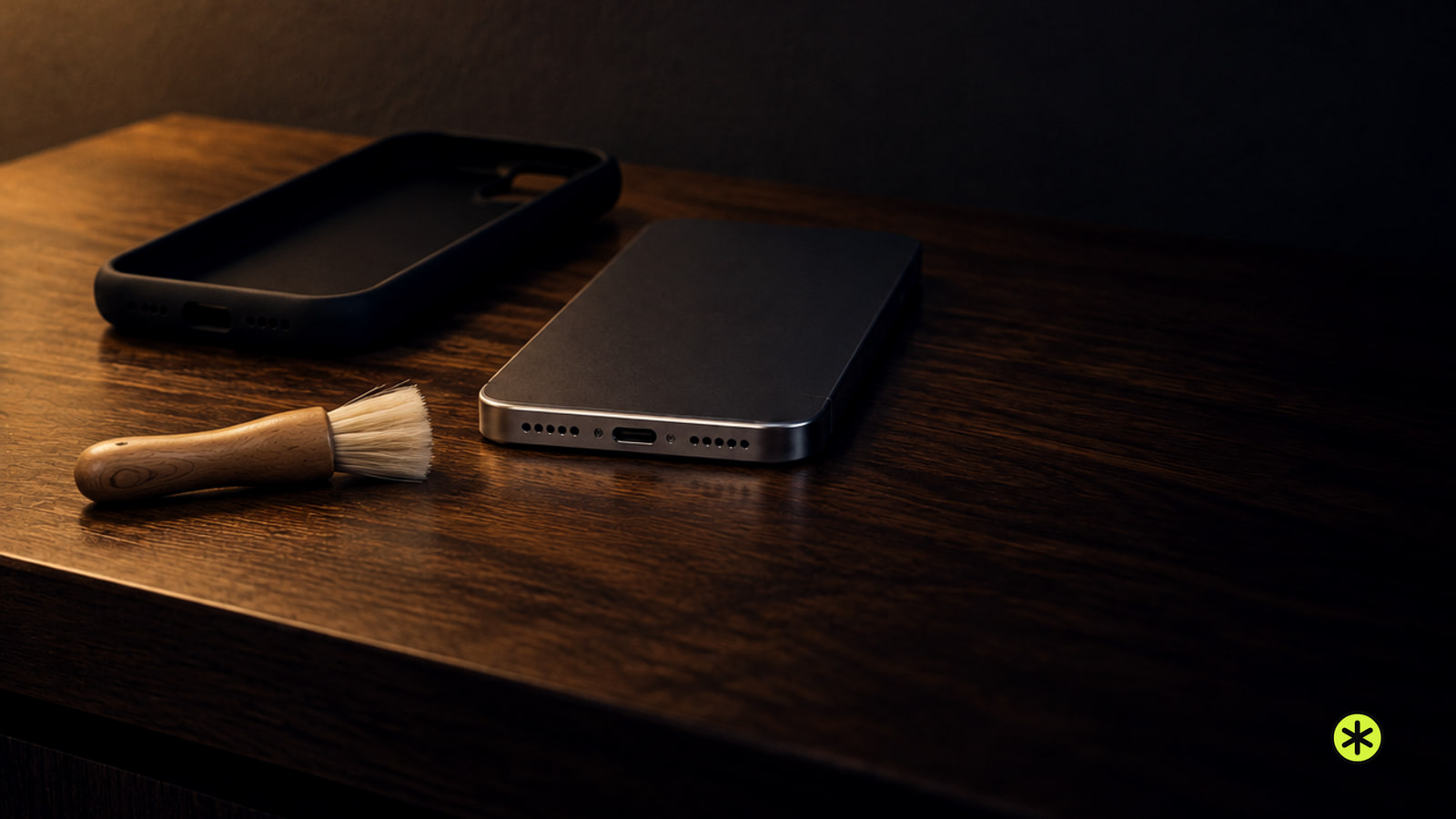
The small opening at the top is the call receiver. The bottom edge has a loudspeaker, but one bottom grille can house a microphone, so silence from that grille is normal. Media can use both speakers. A call at your ear gives you a clearer test of the top opening.
- On a dry iPhone, remove the case and play familiar, clean speech and music. Select iPhone as the audio output in Control Center while playback runs. If sound plays elsewhere, turn Bluetooth off in Settings and replay it; sound from the iPhone confirms the route. Open Control Center and set the media-volume slider to a comfortable position for each comparison, then briefly raise it. If the sound clears when you lower it, leave playback at the clear level.
- Play clean audio in a second app. If just one item crackles, try different content in that app. If the problem follows the app, update it later in the software steps.
- Open Settings > Sounds & Haptics, or Settings > Sounds, and move the Ringtone and Alerts slider back and forth. This tests an alert separately from an app or call. No sound or a dimmed speaker button is a service signal.
- Make a call at your ear, then tap Audio and switch to speakerphone during the same call. Crackling only at your ear points toward the top receiver. If the ringtone and apps are clear but calls crackle, retry later or in another location to test the connection.
- Play the same clean audio through headphones or a Bluetooth device, then through the iPhone. Clear external audio with crackling from the iPhone points toward its speaker path. If both crackle, try other songs or videos from different apps, including audio stored on the phone. Distortion limited to one item points toward that recording; a stream that crackles while stored audio stays clear points toward the connection. If the crackle follows your headphones across devices, use the headphones crackling checks.
If it got wet, dry it first
For coffee, soda or another nonwater splash on an iPhone 7 or later, disconnect cables, then follow Apple's wet-iPhone cleanup steps (opens in a new tab): rinse the affected area with tap water, then wipe it with a soft, lint-free cloth. On an iPhone 6s or earlier, disconnect cables, turn off the phone and wipe the affected exterior with a soft, slightly damp, lint-free cloth, keeping moisture out of openings.
Don't dry it with a heat source, and don't push a cotton swab, paper towel or anything else into the charging connector. Don't use compressed air.
- For a water-only splash, disconnect every cable and wipe the outside with a soft, lint-free cloth. For another liquid, use the cleaning method above.
- Gently tap the iPhone against your hand with its charging connector facing down to release excess liquid.
- Leave it in a dry place with airflow. Rest it speaker-side down on a lint-free cloth and look for drips. Replay the affected sound when the phone is dry. If it still sounds muffled, let it continue drying and test again when thoroughly dry.
Speaker sound can improve as water evaporates. After a minor splash, retest when the phone is fully dry; the next day is a useful second test if it needed more drying. If it is still damp, let it dry longer. Rice can leave particles in the openings, so use airflow instead. If the same sound still crackles once the phone is thoroughly dry, continue with the dry-opening and software steps.
Clean a dry speaker opening
- Disconnect cables, turn the iPhone off, and remove its case, film and screen protector. Look at the top receiver and bottom speaker openings for visible debris.
- If you see dry debris, use a clean, dry, small soft-bristled brush, as shown in Apple's distorted-sound guidance (opens in a new tab). Make light strokes across the affected mesh to lift debris from its surface.
- Turn the iPhone back on and replay the previously affected sound at the same volume. Clearer sound points to a blockage; unchanged sound sends you to the software steps.
Restart, then update what still crackles
On a dry iPhone with clear openings, restart to test for a temporary software fault. With Face ID, hold either volume button and the side button until the power-off slider appears. With a side power button, hold that button; with a top power button, hold the top button. Drag the slider, wait about 30 seconds for the phone to turn off, then hold the side or top button until the Apple logo appears. Replay the affected sound at the same volume. Clear sound means the restart worked.
If the ringtone and other apps are clear but one app crackles, open the App Store, tap your account photo, tap App Updates and tap Update beside that app if available. Replay the affected item and another clean item in it. Clear audio means the update helped; if only the original item crackles, try other content instead of changing the phone's settings.
Before updating or handing in a working iPhone for service, connect to Wi-Fi and open Settings > your name > iCloud > iCloud Backup. Tap Back Up Now, stay connected until it finishes, and confirm the new backup date and time beneath Back Up Now.
If iCloud is full, use a Mac or Windows PC with enough free disk space. Connect the iPhone by cable, tap Trust and enter its passcode if prompted. Select the iPhone in Finder on a Mac running macOS Catalina 10.15 or later, or in Apple Devices on Windows. Use iTunes on an older Mac or a Windows PC without Apple Devices. Choose to back up all data to the computer, then click Back Up Now. To include Health and Activity data, encrypt the backup and save its password; an encrypted backup cannot be recovered without it. When it finishes, confirm the updated last-backup time in Finder or iTunes, or open Manage Backups in Apple Devices to confirm the backup file appears.
If several apps crackle or the problem began around a software change, back up the iPhone, then connect the dry iPhone to Wi-Fi and power. Open Settings > General > Software Update, tap Download and Install if offered, and follow the prompts. Compare the previously affected sounds at the same volume afterward. Clear sound points to a software fault.
If the same sounds still crackle
If either the top receiver or bottom speaker still crackles at moderate volume after the iPhone is fully dry, its openings are clear, and the relevant cleaning and software steps have failed, arrange an inspection. An accepted manufacturing-defect claim inside Apple's one-year limited warranty can cost nothing. An accepted AppleCare+ other-accidental-damage claim carries Apple's own $99 service fee (opens in a new tab). For uncovered work, get a diagnosis and an itemized quote for the affected speaker on this phone. Inspection determines whether the job involves the bottom speaker, top receiver, other damaged parts or device replacement.
If Apple assigns out-of-warranty other-damage service, the estimate is $600 to $700 for an iPhone 17 or iPhone Air and $850 to $900 for an iPhone 17 Pro, 17 Pro Max, 18 Pro or 18 Pro Max. Those broader service estimates are not speaker-only repair prices; Apple sets the final fee after inspection.
Before booking service, open Settings > General > AppleCare & Warranty and tap your iPhone to see its coverage and expiration date. If the phone is unavailable, use checkcoverage.apple.com. Select your model on Apple's iPhone repair page for an estimate, then request a quote for the affected speaker after inspection.
Use Apple Support or an authorized service provider for a warranty or AppleCare+ claim, or an established independent repair shop for an out-of-warranty quote. Tell them which opening crackles, which calls and apps are affected, whether external audio is clear, and whether the problem followed water, a drop or an update. Include the drying, cleaning and software steps you've tried. Back up the iPhone before handing it in, because service may erase its data. Never give a service provider your Apple Account password or iPhone passcode.
Apple's US one-year iPhone warranty (opens in a new tab) covers manufacturing defects during normal use. Accidental damage is excluded, and liquid damage is outside that limited warranty.
Questions that come up next
Why does my iPhone speaker crackle only at high volume?
At the loudest setting, the small speaker can distort, or a case or lint can vibrate against the opening. Compare the same voice or music at moderate and high volume with the case removed. If it stays clear at moderate volume, keep playback below the level that distorts. If it crackles there across a ringtone and audio from two apps after cleaning, restarting and updating, the affected speaker needs a diagnosis.
What if the crackling started after I dropped my iPhone?
The glass can stay intact while an impact loosens a connection inside. With the case off, replay clean audio from two apps at a comfortable volume. If one opening keeps crackling after the home fixes, follow the inspection path above. A fall counts as accidental damage under Apple's coverage terms; an eligible AppleCare+ plan may reduce the service fee.
Can I keep using my iPhone while the speaker crackles?
If it's dry, otherwise normal and only its sound is affected, you can use it at a comfortable volume while arranging repair. Use headphones or Bluetooth when calls or alerts must be reliable. Keep a wet phone unplugged until dry, and stop using one with swelling or suspected battery or physical damage.
How do I stop my iPhone speaker from crackling again?
Keep cases and protectors clear of the openings, remove visible dry lint with a soft brush, and keep liquid and grit away from the phone. Let a wet phone dry before cable charging and stay below a volume that distorts. These habits cannot undo impact damage or prevent a hardware defect.
Does the iPhone have a water-eject feature, and do water-eject tones work?
The iPhone has no built-in water-eject feature. Its water-eject tones come from third-party shortcuts, while Water Lock is built into Apple Watch. A tone may move droplets near the speaker opening, but it cannot replace the wet-phone drying steps above.
More in this category