Get one speaker playing before you add another
- Turn on one JBL speaker, press its Bluetooth button, choose it in your device’s Bluetooth list, and play a track.
- To add a speaker, confirm both use Connect, Connect+, PartyBoost, or Auracast. Press the matching link control on the playing speaker, then the one you’re adding.
- Choose Stereo separately when two speakers of the same model are playing together and the app offers it.
- If the speaker used to work, try its saved Bluetooth entry before erasing any pairings.
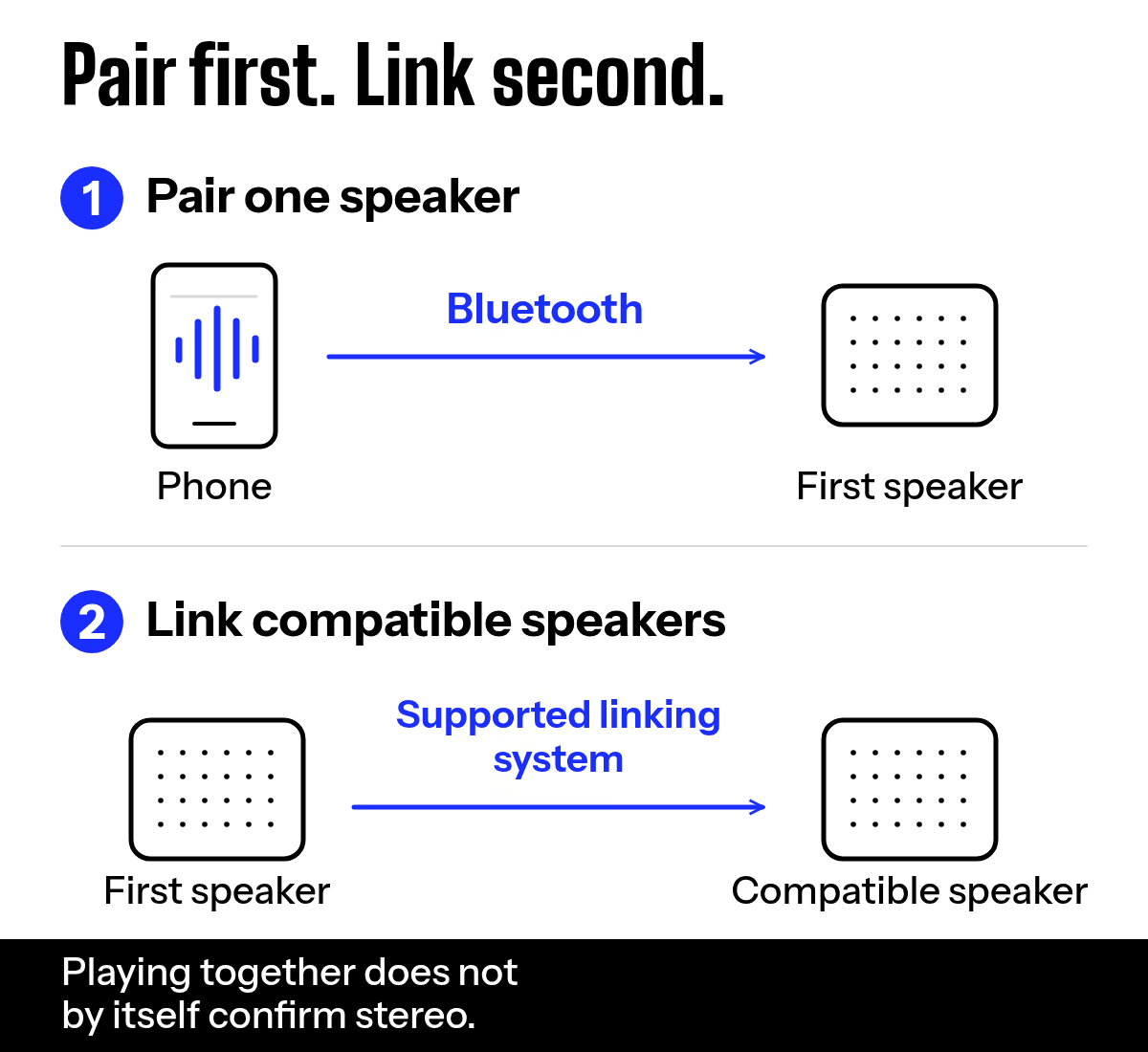
Pairing connects your phone or computer to one speaker. Linking makes another speaker play with it; Stereo then gives the two speakers separate left and right channels. We’d get a track playing from the first speaker before touching the second, because that tells you the source connection works.
Pair the speaker with your phone or computer
- Turn on the speaker. Press and release its Bluetooth button. If there is no flashing light or pairing tone, hold the Bluetooth button until the light flashes or the tone sounds, then release it.
- Turn on Bluetooth on the source and select the speaker’s full name from the available devices. Wait until the source shows it as connected.
- Play a track and listen at the speaker. If the track plays elsewhere, select the JBL as the sound output and try again.
| Source | Where to select the speaker |
|---|---|
| iPhone | Open Settings > Bluetooth, turn it on, then tap the speaker’s name. |
| Android | Open Bluetooth settings, tap Pair new device or Available devices, then tap the speaker’s name. |
| Windows 11 | Open Settings > Bluetooth & devices, turn Bluetooth on, then choose Add device > Bluetooth. |
| Mac | Open Apple menu > System Settings > Bluetooth, then click Connect beside the speaker. |
For a connected but silent computer speaker, select it under Settings > System > Sound > Output in Windows 11, or System Settings > Sound > Output on a Mac. Play the track again and listen at the JBL. If the speaker never appears in the Bluetooth list, move to the connection checks below.
A previously paired phone and speaker remember each other. Turn on Bluetooth and select the speaker under saved devices before starting a fresh pairing. To use a second phone, press the speaker’s Bluetooth button again and select it on that phone. If the first phone keeps taking the connection, disconnect the speaker there or turn that phone’s Bluetooth off; music should then play from the phone you intended.
See whether your two speakers can link
Read both full model names before linking. JBL Connect, Connect+, PartyBoost, and Auracast are separate systems: each normally links with its own family. A Bluetooth pairing is separate from the speaker-link feature, and the Connect button alone cannot tell you whether a Charge 3 uses original Connect or Connect+. A Charge 3 originally used Connect but can be upgraded to Connect+, so check whether its firmware was upgraded before choosing a linking partner. If the systems differ, use one speaker at a time or look at ways to connect multiple Bluetooth speakers through the source instead.
| Speaker | Route | Action and confirming result |
|---|---|---|
| JBL Flip 7 | Auracast | Start music, press Auracast on this speaker, then on the addition. Both play. |
| JBL Xtreme 4 specs (opens in a new tab) | Auracast or PartyBoost | Press Auracast on both, or select PartyBoost in JBL Portable. Both play. |
| JBL PartyBox Club 120 | PartyBox Auracast | Pair one, group two through Auracast, then test left and right. |
Make speakers in the same family play together
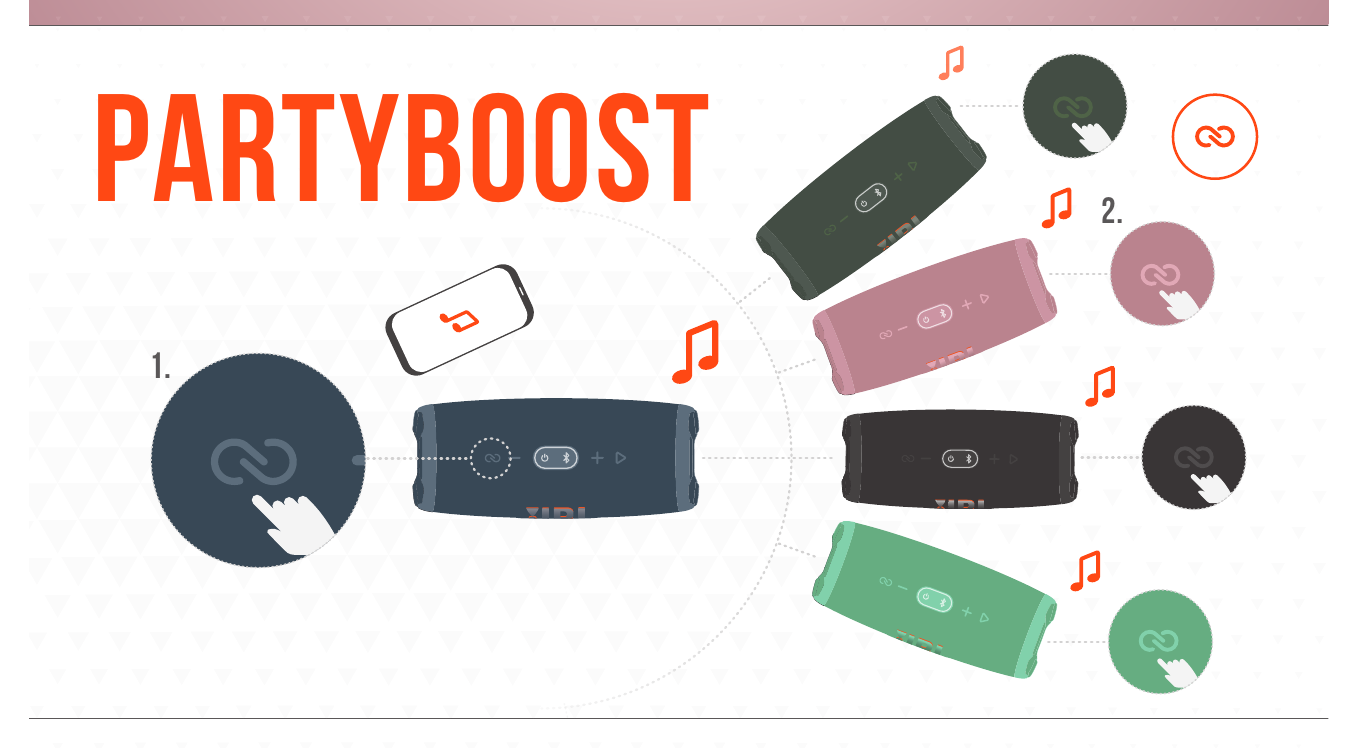
Pair only the first speaker to your phone and start music. Keep it playing as you add speakers with their link controls. For PartyBoost, play from a phone: grouping is unavailable when the first speaker receives Bluetooth audio from a computer.
- Turn on the speakers and confirm they use the same linking system. Play a track through the first speaker so you can recognize the audio each addition should pick up.
- Press the system’s link control on the playing speaker: Connect for original Connect or Connect+, PartyBoost for PartyBoost, or Auracast for Auracast.
- Press that same link control on the speaker you’re adding. Listen at both speakers for the same track. Repeat on each speaker in that linking family you want in the group.
If a speaker stays silent, confirm the first still plays and compare the full model names and linking systems again. To remove one Connect+ or PartyBoost speaker, press its link control again and wait for it to drop out. Press Auracast again on an added speaker to remove it; pressing it on the first Auracast speaker stops group playback.
Give each speaker a left or right channel
Party mode sends the same mix to both speakers; Stereo separates left and right. Get the pair playing together first. For two matching portables whose app offers Stereo, select it there.
- Leave the first speaker playing and link its matching partner. Listen at both to confirm the group formed.
- Open the app that supports the pair. For PartyBoost portables in JBL Portable, choose Stereo instead of Party. For Auracast portables using JBL Portable, open PartyTogether and select Stereo Group.
- Assign or swap left and right in the app when that control appears. Play a channel test: the spoken left cue should come from your left speaker, and the right cue from your right.
If Stereo is absent, confirm the two speakers are the same supported model and that both appear in the app. Then place them for your listening seat; speaker spacing can help once the channel test passes.
Connect a PartyBox or Wi-Fi speaker
For Bluetooth playback on a PartyBox, turn it on, press Bluetooth, select its name on your phone, and play a track. For a pair with TWS buttons, press TWS on both speakers; for an Auracast pair, use the Auracast control on both. Listen at each speaker. Two PartyBoxes of the same model can form a stereo pair; play a left and right channel test to confirm each side.
A Wi-Fi speaker takes a different first route. Put your phone on the home Wi-Fi network, power on the speaker, open JBL One, and follow its setup prompts. Choose the speaker in a music service that lists it and play a track; sound should come from that speaker. For direct phone playback on a Wi-Fi speaker that also has Bluetooth, press its Bluetooth control and pair it from the phone’s device list.
If JBL One cannot find the speaker, confirm it is powered on and that the phone is using the intended home network, then retry setup. A PartyBox that plays alone but will not join another needs the two units’ grouping systems compared before another pairing attempt.
Get a missing speaker back in the device list
Start with power, pairing mode, Bluetooth on the source, distance, then saved connections. We’d reset last because it wipes speaker pairings. Keep the devices close: the Bluetooth SIG’s paired-audio range (opens in a new tab) is about 10 meters, or 33 feet, and obstacles can shorten it.
- If the charging port is wet, unplug it, wipe visible moisture with a soft dry cloth, and let it dry completely at room temperature before charging. If the speaker will not turn on, secure its charging cable and power supply, try the outlet, and turn it on. A powered speaker can now enter pairing mode.
- Turn on Bluetooth on the phone or computer. Press the speaker’s Bluetooth button and look for the flashing light or listen for its pairing tone. Move the two devices close together and search again. If its name appears, select it and test playback.
- If it used to connect, select its saved entry. Disconnect another phone that keeps reclaiming it. Turn the speaker off and on; toggle the source’s Bluetooth off and on, then restart the source if its list still does not refresh. Search again.
If a USB-C moisture reminder sounds, unplug the charging cable. Let the connector become completely dry and clean before trying again. Charging should resume without the reminder; if it sounds again, leave the cable unplugged.
If the saved entry still refuses to connect, forget or remove it on the source, put the speaker back in pairing mode, and add it again. On iPhone or Android, open the speaker’s Bluetooth details and tap Forget. On Windows 11, use Settings > Bluetooth & devices > Devices > Remove device. On a Mac, remove it from Bluetooth settings. This clears the old source-side pairing; a successful new pairing appears as Connected and plays your test track.
When those checks fail, turn off Bluetooth on the first source, put the speaker in pairing mode, and try a second phone or computer nearby. If the second source plays, return to the first source’s Bluetooth settings. If neither source pairs, follow the factory-reset instructions for the full model name, using Volume Up and Bluetooth for Charge 4 or Volume Up and Play for Charge 5 and Charge 6. A factory reset erases saved speaker pairings: remove the old entry on the source, turn the speaker back on, turn Bluetooth back on the source you will use, pair it again, and play a track.
Use the reset hold for the full model name. With the speaker on, hold Volume Up and Play for more than 3 seconds on Flip 4 through Flip 7, Charge 5 or Charge 6, Go 4, Clip 5, Xtreme 2 through Xtreme 4, or Boombox through Boombox 4. For Flip 2 or Flip 3 and Charge 2 or Charge 3, hold Volume Up and Phone for more than 3 seconds. For Clip 4 or Charge 4, hold Volume Up and Bluetooth for more than 3 seconds. For Go through Go 3, hold Volume Up and Bluetooth for more than 10 seconds. For Charge 5 Wi-Fi or Boombox 3 Wi-Fi, hold Moment and Play for more than 10 seconds, or use the factory-settings control in JBL One. Release the buttons when the speaker powers off. After turning it back on, remove its old Bluetooth entry and pair again; a Wi-Fi model also needs its home network set up again.
If neither source can pair after the reset, or the speaker does not power off during its listed reset hold, the owner connection checks have run out. Contact JBL Support for warranty assessment or request an itemized estimate from an electronics repair shop. Give them the full model and serial number, receipt, light or tone behavior, results from both sources, and any charging or moisture trouble.
Compare the complete diagnosis, shipping, and repair charge with a comparable new speaker. A Go-line replacement costs $40 to $55, a Flip-line replacement $110 to $150, and an Xtreme-line replacement $310 to $400. Have the repairer diagnose the fault before quoting an internal repair; if the complete quote approaches the cost of a comparable replacement, replacement is the practical choice.
Questions about sound and repair
Why does my JBL say connected but play no sound?
Start a track and make sure it is not paused or muted. Raise the app, source, and speaker volumes, select the JBL as the audio output, and pause or disconnect any other device using it. A short test sound from the JBL confirms playback is restored.
Is a JBL speaker that still won't connect worth repairing?
Try a second phone or computer before paying for service. Compare a complete quote that includes diagnosis and shipping with a new speaker from the same size line. Keep your receipt for JBL’s warranty assessment.
Will turning the speaker off erase its saved phones?
No. A normal restart leaves the saved pairing in place; a factory reset erases it. After a restart, select the saved speaker in Bluetooth settings.
More in this category