Start with the speakers you have
- Match the TV's audio OUT to an input on powered speakers, a soundbar or an amplifier.
- Passive speakers connect to the amplifier's speaker terminals.
- Select the matching output and input, then play a TV app. If it's silent, trace those settings first.
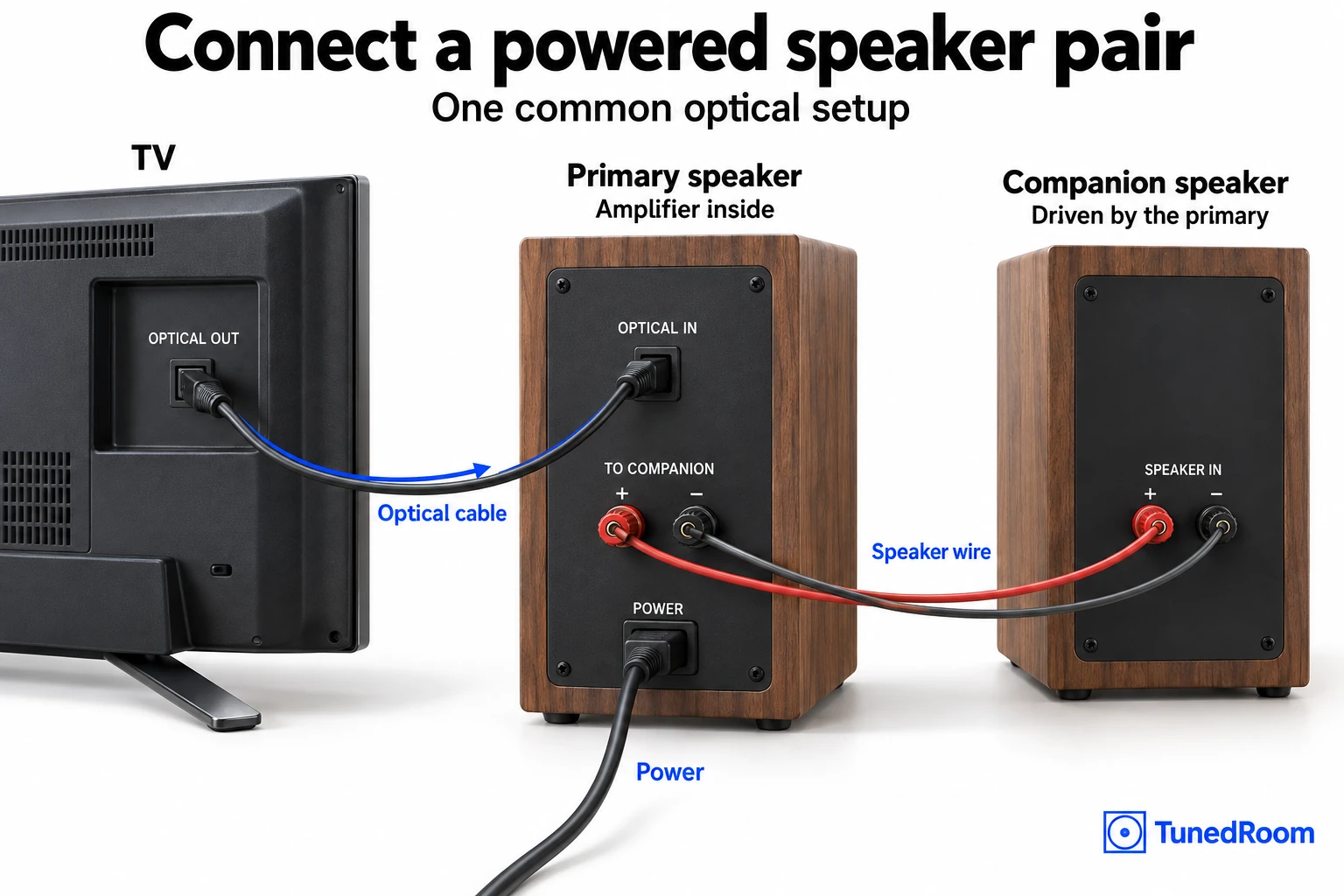
We'd identify the speakers first, because passive speakers need an amplifier. Powered speakers and soundbars contain one and need power. Some powered pairs use speaker wire between the two speakers, but the powered unit takes the TV's audio signal.
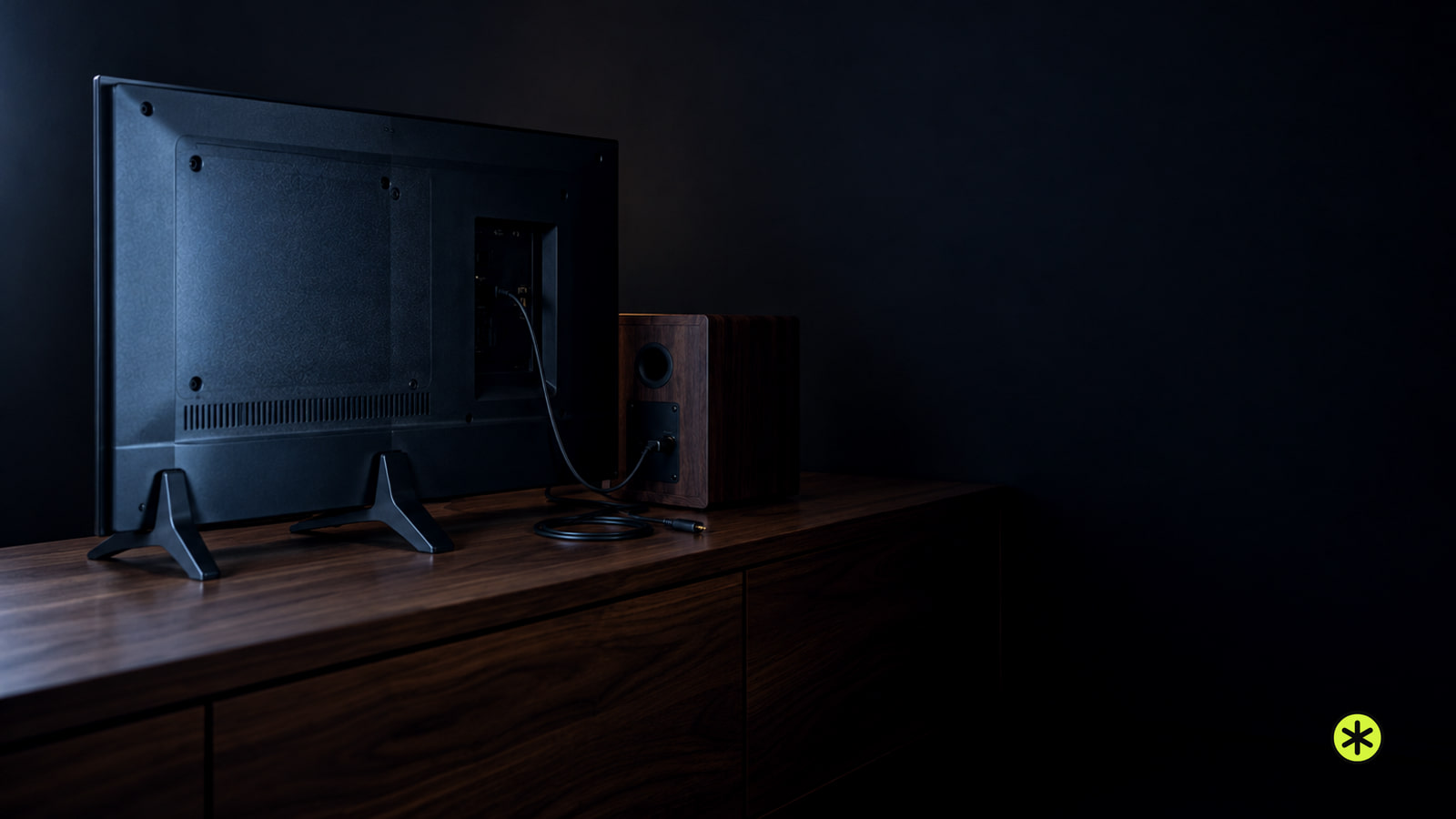
Which TV port and cable should you use?
Match TV audio OUT to audio IN. Compare ARC and optical if both are available.
| TV audio output | Connect it to | Use |
|---|---|---|
| HDMI IN marked ARC or eARC/ARC | Audio system HDMI OUT, TV OUT or ARC | HDMI cable between the marked ARC ports; Roku's ARC settings (opens in a new tab) show HDMI control. |
| OPTICAL OUT or DIGITAL AUDIO OUT | Audio system OPTICAL IN | TOSLINK optical cable |
| 3.5 mm headphone or AUDIO OUT | Powered speaker or amplifier AUX or line IN | 3.5 mm stereo or 3.5 mm-to-RCA cable |
| Red and white RCA AUDIO OUT | Powered speaker or amplifier red and white line IN | Dual RCA audio cable |
An ordinary TV HDMI input cannot send TV-app sound to a soundbar. Both ends must support ARC; both must support eARC to use eARC's higher-bandwidth formats. An eARC TV can work with an ARC audio system when those products support that combination.
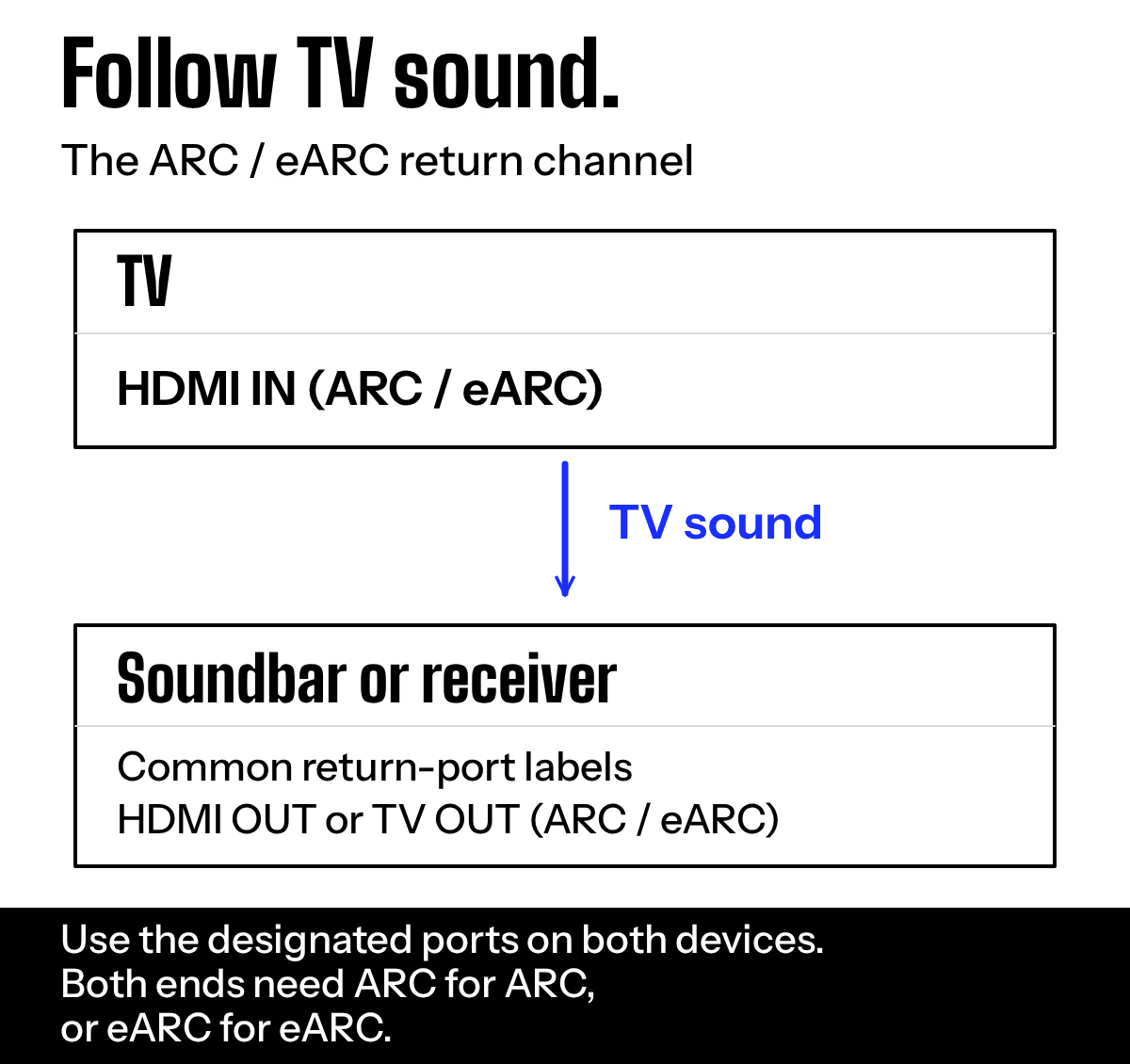
RCA jacks marked IN on the TV cannot feed speakers. An optical or ARC output needs powered conversion to feed an analog input.
Connect powered speakers or a soundbar
Power the speakers or soundbar before testing the connection.
- For HDMI ARC or eARC, connect the TV's marked ARC port to the audio system's marked ARC return port. Turn on both devices, choose HDMI ARC or external audio in the TV sound menu, and select TV or ARC on the audio system. Enable ARC or eARC and HDMI control, also called CEC, where the menus offer those settings. Play a TV app; sound should move to the audio system.
- For a headphone or RCA output, connect it to the powered speaker's or soundbar's matching AUX or line input. Choose analog or headphone output on the TV if it offers that choice, select AUX or line input on the audio equipment, and play a TV app. You should hear it through the connected speakers.
- An optical plug fits its socket in one orientation. Remove the small caps, align the plug, and stop if it resists; forcing it can break the terminal. For optical, connect TV OPTICAL OUT to audio equipment OPTICAL IN. Select optical or external audio on the TV and optical on the audio equipment, then play a TV app. If a stereo-only digital device stays silent, set the TV's digital audio output to PCM stereo and try again. The optical cable connection shows how the keyed plug fits.
- Play an HDMI-connected source as well as the TV app. Both should play through the speakers.
What if the ports do not match?
A powered converter changes digital TV sound into analog audio. A plug adapter only changes the connector shape.
- If the TV has optical OUT and the audio equipment has only analog line IN, connect TV OPTICAL OUT to a powered DAC's OPTICAL IN, then DAC analog OUT to line IN. Power the DAC and select that input. For a PCM-only DAC, choose PCM stereo in the TV's digital output menu. Play a TV app; if silent, inspect DAC power, cable seating and PCM.
- If the TV offers ARC or eARC output but the audio equipment accepts only analog line input, use an extractor rated to take TV return audio and provide analog RCA output. Connect the TV's marked ARC port to the extractor's TV return-audio port, power it, and connect its analog output to the equipment's line input. Choose ARC on the TV and the analog input on the equipment. A TV app should play; if silent, confirm the extractor sends return audio to its analog output and select PCM stereo if it requires it.
- If the TV has no usable audio output, connect a streaming or cable device's audio OUT to a matching input on the soundbar, powered speakers or amplifier. Keep its video connected to the TV, select its audio input, and play it. Its picture and sound should appear; if sound is missing, inspect the source's audio output setting and the selected input. TV apps need a separate audio path.
| Connection problem | Equipment to add | Price |
|---|---|---|
| TV optical OUT to analog line IN | Powered optical-to-analog DAC | $30 to $32 |
| TV ARC output to analog line IN | TV ARC-to-analog converter | $33 to $84 |
| Existing passive speakers need amplification | Standard TV-compatible AV receiver | $360 to $550 |
Connect bookshelf speakers with speaker wire
The amplifier supplies the power passive speakers lack.
- Read the speaker's impedance rating and the amplifier's supported speaker range before connecting them. An 8-ohm factory setting does not cover every speaker: if your speakers are rated 6 ohms, confirm the amplifier supports them and select its 6-ohm setting when its instructions call for that change. For 16 AWG copper wire, plan up to 48 feet per run to an 8-ohm speaker or 36 feet to a 6-ohm speaker; choose thicker wire beyond those lengths.
- Connect the TV audio output to a matching input on the amplifier. If the TV has only optical OUT and the amplifier has analog line IN, put a powered optical-to-analog DAC between them.
- With the amplifier unplugged, connect its left speaker output to the left speaker and its right output to the right speaker. Match red positive to red positive and black negative to black negative. Twist bare strands together and secure them so none touches a neighboring terminal or the case.
- Reconnect power, select the amplifier input fed by the TV, select the TV's external audio output, and play a TV app. Both speakers should play without a protection message. If PROTECT appears, turn the amplifier off, unplug it and inspect the wires and speaker impedance before using it again.
Connect a Bluetooth speaker
A TV with Bluetooth for its remote needs separate Bluetooth audio output to pair a speaker. We'd look for that output in its sound menu first.
- Turn on the speaker and put it in pairing mode. Its flashing pairing indicator tells you it is ready to be found.
- Open the TV's sound output or Bluetooth audio device list (LG's Bluetooth menu path (opens in a new tab)) and select the speaker. Choose it as the TV sound output, then play dialogue. You should hear voices through the speaker. If it pairs but stays silent, raise volume on both devices and reselect the speaker as the TV output. If voices lag the picture, try A/V sync or a wired connection.
- If the speaker does not appear, disconnect any phone or tablet already using it, restart pairing mode, and search again. Move it closer; ordinary Bluetooth audio commonly works within about 30 feet, and walls or interference can shorten that distance. If an old pairing entry remains on the TV, remove it and pair again.
If the TV has no Bluetooth audio output but has optical OUT or headphone OUT, connect and power a Bluetooth transmitter whose input matches that output. Select the TV output, put the transmitter and speaker in pairing mode, and play dialogue. Sound through the speaker confirms the connection.n.
Connected speakers still have no sound
- Play a TV app; turn on both devices and raise volume on the device that controls it. Select the connected TV output and matching audio input. If sound starts, those selections caused the silence. If the TV and external speakers play together, select external output alone or turn off the TV speakers, then replay dialogue; the echo should clear.
- If ARC remains silent, read both port labels and enable HDMI control and ARC or eARC where those settings appear. Turn off both devices, disconnect and firmly reconnect the HDMI cable at the marked ARC ports, then restart them. The audio equipment should show TV or ARC and play the app.
- For optical or analog, reseat both ends. If the optical device or DAC accepts only stereo, set digital audio output to PCM stereo and retest. Sound after that change identifies an unsupported audio format as the cause.
- Play the TV app and an HDMI-connected source without changing the speaker connection. If only one is silent, inspect that source's audio routing or format; the separate tests identify which source needs attention. When both play, press volume up, down and mute on the TV remote, then on the audio system's control if needed. Sound from both sources and a working volume control complete the setup.
If correct settings, a working cable, a restart and PCM stereo where required still produce no sound, try the audio equipment with another source that matches its input. If it stays silent, contact the audio equipment maker's support or authorized service; if it plays, contact the TV maker's support. Do the same if an amplifier still shows PROTECT with every speaker wire removed. Give them the port labels, selected output and input, audio format, and result of the TV-app test.
If the equipment has no shared audio connection, a standard TV-compatible soundbar costs $70 to $300, a standard powered bookshelf pair costs $190 to $300, and a standard TV-compatible AV receiver costs $360 to $550 if you want to keep passive speakers. These are equipment prices; missing cables and installer labor add to the bill. A home audio installer can handle a functional connection or wiring job you do not want to do yourself.
Keep every source and remote working
What if my TV has only a headphone jack or no matching audio output?
A headphone OUT can feed a powered speaker or amplifier line IN through a 3.5 mm cable or a 3.5 mm-to-RCA cable. A same-size service jack cannot send sound; for other mismatches, use the connection paths above.
Will my TV remote control the speaker volume?
Press volume while sound plays. HDMI ARC with CEC and variable analog output can follow the TV remote; fixed analog output needs the audio system's control. Optical output is generally fixed, but an optical soundbar with IR learning or remote setup can accept TV-remote commands: run that setup and test volume, then use the soundbar's control if its level does not change.
How much will it cost if my TV and speakers need extra equipment?
The connection-cost table prices optical and ARC converters and a standard receiver for passive speakers. A converter supplies an audio signal; passive speakers still need an amplifier. Cables and paid setup are extra.
More in this category