Match the restart to the right check
- If a separate player boots whenever you turn on the TV, check whether the TV’s USB port powers it and try wall power.
- If a Roku TV keeps returning to its logo, unplug it for 60 seconds before trying a reset.
- If a player’s red light is solid, unplug it and let it cool before doing power checks.
The timing gives you a useful first clue. We’d move a TV-USB-powered player to wall power first when its startup follows the TV’s power, because that USB port can switch off with the TV or fail to supply enough power. Then you can see whether the player stays powered between viewing sessions.
For a Roku TV, watch for the Roku or TV logo appearing again, a dark screen with a repeatedly flickering power light, or a restart during setup. Those patterns usually mean the TV’s software failed to load or got stuck while updating.
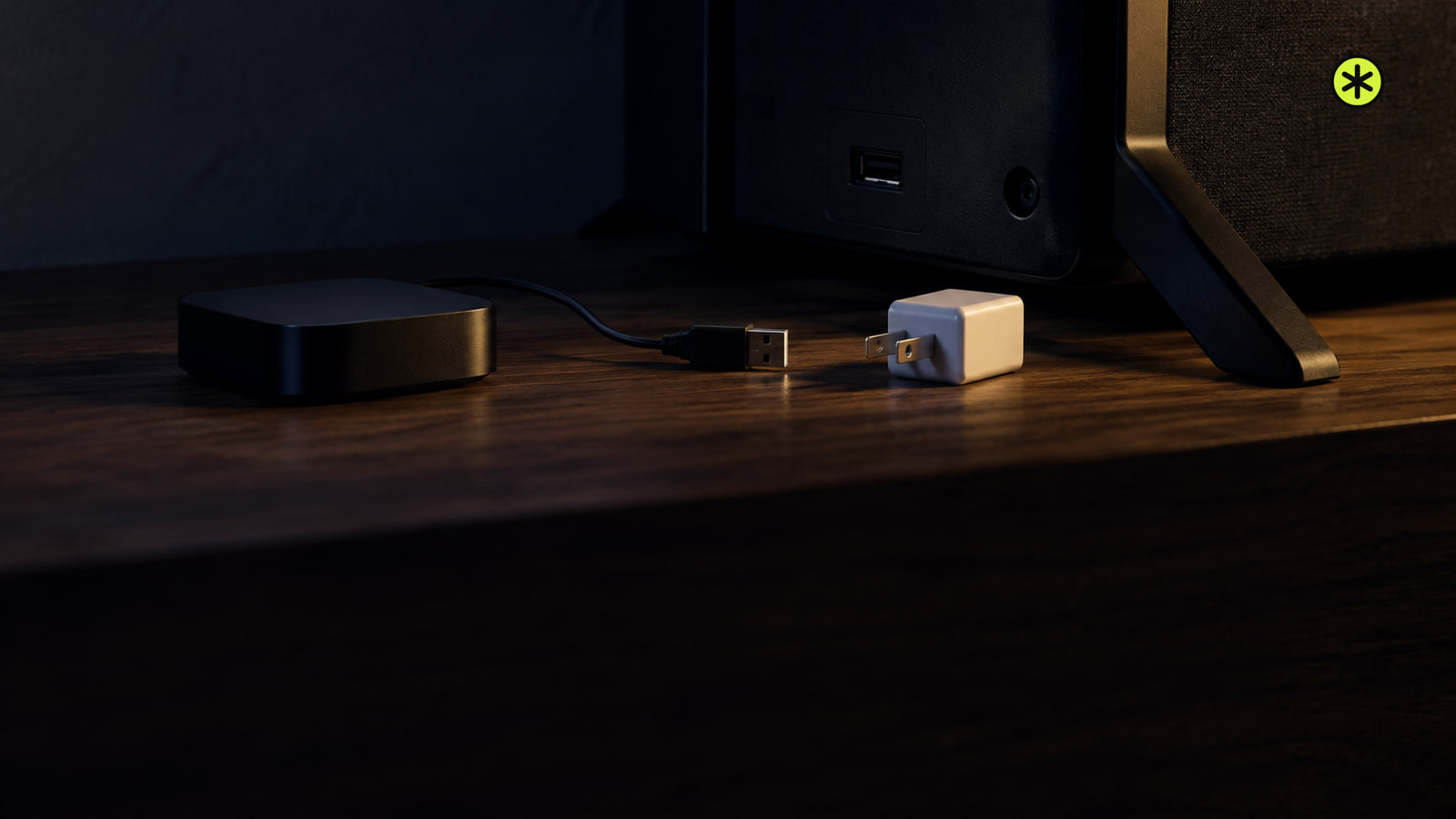
A separate player boots with the TV
Some Roku Express and Streaming Stick players can draw power from a TV’s USB port. The listed models include Roku Express, Express 4K, Express 4K+, Streaming Stick, Streaming Stick 4K+ and Streaming Stick+ Headphone Edition. A player connected this way loses power when the TV turns off, and many TVs also cut USB power in standby. Connect the player’s USB cable and power adapter to a wall outlet, then check whether it stays powered when the TV is off.
A flashing red light or an on-screen low-power warning points to insufficient power. Unplug the player for 10 seconds, reconnect it, and use the cable that came with it if you’ve changed cables. If you still power it from the TV and the TV has another USB port, try that port. Some ports supply more power than others, though the wall adapter is the more reliable choice.
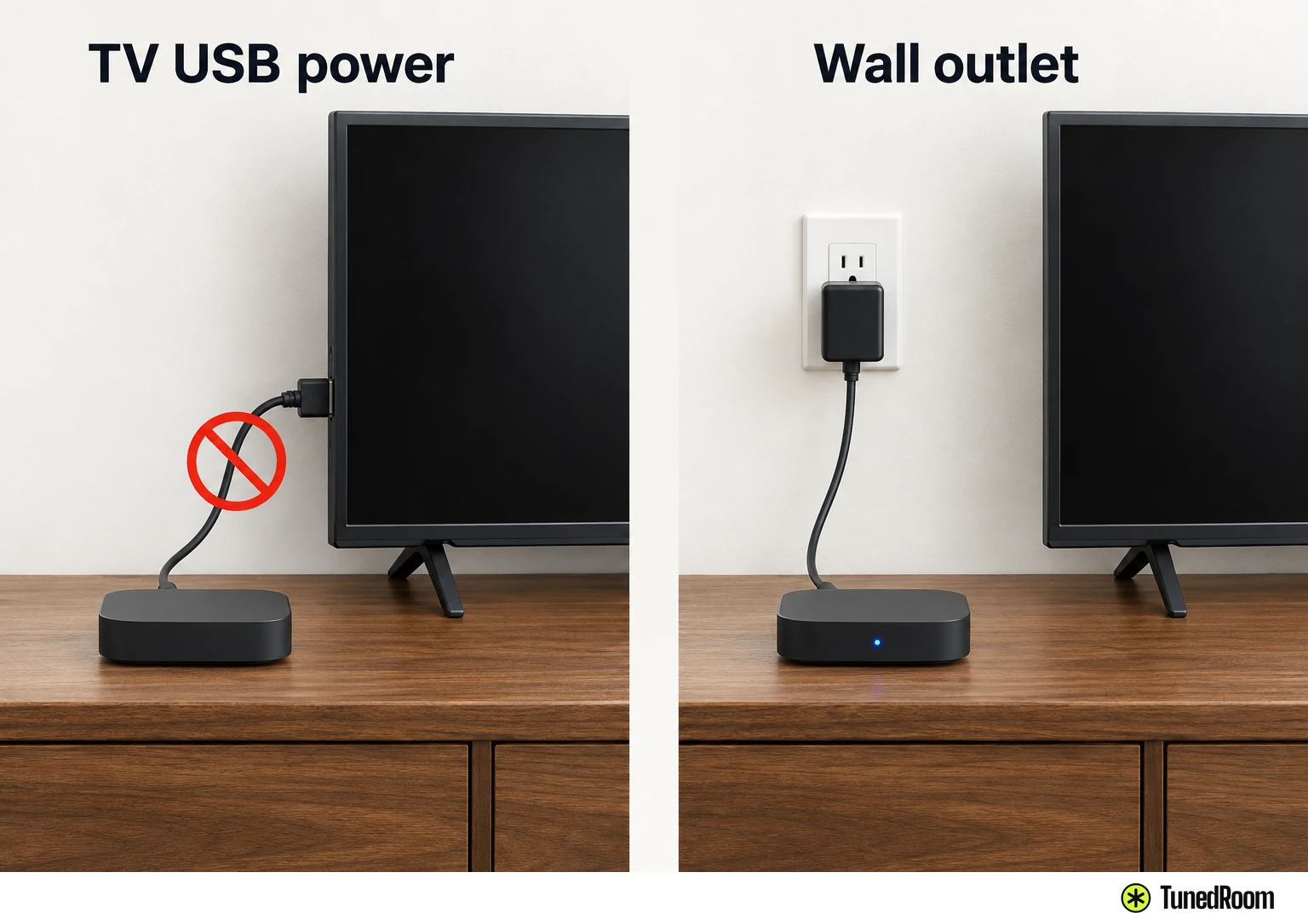
For the USB-powered Streaming Stick, Stick Plus, Stick 4K or Express players covered by this power guidance, use a replacement adapter rated 5V and 1A or equivalent if the original is missing. Avoid long, low-quality USB extension cables, which can drop the voltage. If the low-power problem keeps returning even with wall power, contact Roku Support about the player or its USB port.
The picture or remote cuts out
When the video or controls fail only some of the time, check that symptom before resetting anything. A picture cutout alone doesn’t establish a full restart; try another HDMI cable if the picture freezes sporadically or shows other irregularities. Use a quality cable, especially with a 4K Ultra HD or HDR setup.
If the remote stops controlling the device, put in new matching batteries, or recharge it if it’s a rechargeable Roku remote. If playback is jerky or pixelated, stream video on another device on the same network. Seeing the same behavior there points you toward the network connection.
The TV keeps returning to its logo
Unplug the looping TV from power for 60 seconds, then plug it back in and turn it on. Watch whether it gets past the logo or setup screen. If it does, you’ve avoided erasing your settings.
If it still loops, check whether the TV responds to its physical buttons before moving to a reset. They may be along the top, bottom or side edge. A TV that remains stuck after the power restart can move to a factory reset once you have the setup details below.
A factory reset needs some preparation
If you can reach the menus, press Home and choose Settings > System > Advanced system settings > Factory reset > Factory reset everything, then follow the prompts. If the TV restarts before you can reach that choice and it has a recessed Reset button on the back, hold that button for about 12 seconds and release it. Reset controls vary by TV model, and some TVs have no Reset button. The factory reset steps (opens in a new tab) give you the menu route to follow while the screen is available.
After a successful factory reset, the TV restarts ready for initial setup. On most Roku devices, an indicator light blinks rapidly as the reset completes. If the TV still loops instead of reaching setup, Recovery Mode is the next TV step.
Recovery Mode after the other resets
Try Recovery Mode only after the other reset methods fail. It clears all data and reinstalls the Roku software. On a TV with a Reset button on the back or bottom, use a paperclip if it’s a pinhole, then hold the button for at least 20 seconds. Release it when the TV restarts and shows Recovery Mode.
On that screen, use the remote to choose your language, select Wireless to connect to Wi-Fi, then choose Update now. Some Wi-Fi passwords containing special symbols may fail here. If yours does, change the password or try a mobile hotspot before selecting the update. The TV recovery steps (opens in a new tab) are useful to have open while you follow the screen.
When the update finishes, the TV should restart into setup. If Recovery Mode hasn’t appeared after 30 seconds, or the TV still loops after reinstalling, stop and contact Roku Support or the TV manufacturer about repair or replacement. Have the device ID from the back of the TV or its box ready.
When the TV reaches setup again
Complete Guided Setup and activation, then reinstall and sign in to the streaming apps you use. Set up your parental controls and PIN again if you use them. If an HDTV antenna is connected to the Roku TV, run a broadcast channel scan too. The useful final check is that setup finishes and the TV plays a stream without returning to its logo.
More in this category