Notice where the sound changes
- One side sounds dull: inspect that side’s fit and mesh, then test left-right balance.
- Only calls or games sound dull: close the app using the headset microphone and replay music.
- Everything sounds dull: compare recordings, apps, devices, and headphones one at a time.
- Hearing stays suddenly muffled after you remove the headphones: get urgent medical care.
Debris can block an earbud’s speaker opening, while a loose tip lets bass escape. A loose plug, Bluetooth call mode, sound processing, moisture, or failed hardware can also dull playback. We’d first note whether one or both sides sound wrong and whether it happens everywhere or during one activity.
| What you hear | What it points to | Try first |
|---|---|---|
| One side is dull or quiet | Fit, blocked mesh, or balance | Reseat its tip, inspect its mesh, then center balance for a test. |
| Both sides change during a call | Call audio; Windows 11 LE Audio stereo needs version 24H2 or newer. | Close the mic-using app and replay music. |
| Only one app sounds dull | That recording or app | Play another recording, then another app. |
| Sound changes after moving a cable | A plug, adapter, or cable connection | Reseat the plug and inspect the connection. |
| Sound changed after a splash | Moisture in the earbud | Stop playback and charging; dry it before testing. |
If hearing stays suddenly muffled after you remove the headphones, get urgent medical care. The National Institute on Deafness and Other Communication Disorders treats sudden hearing loss as an emergency (opens in a new tab).
Find out what the muffling follows
Use a familiar spoken passage at a comfortable, fixed volume. Changing one thing at a time shows whether the dullness follows the recording, app, device, or headphones.
- Play another recording in the same app. If only the first sounds dull, investigate that recording. If both do, keep going.
- Play the familiar passage in another app. If it clears, inspect the first app’s equalizer and sound effects. If not, compare devices.
- Replay it through the same headphones on another compatible device. Clear sound there points to the original device, adapter, or settings. Dull sound on both sends you to fit, cleaning, and connections.
- If you have another pair, play the passage through it on the original device. Both pairs sounding dull points to that device; only the first pair sounding dull points to those headphones.
No spare gear? Compare recordings and apps, then disconnect the headphones and listen through the device speaker. A clear speaker directs you to the headphones or connection; a second pair separates those causes more firmly. Repeat a clear comparison to confirm it.
Clean the opening and restore the fit
Thin sound after a tip change points to a poor seal. Open-fit earbuds have no sealing tip; over-ear pads should sit evenly. If one side is quieter and debris is visible, clean that opening.
- Turn off and disconnect the headphones. Remove detachable tips by their normal attachment method. Keep foam and filtered tips out of the rinse.
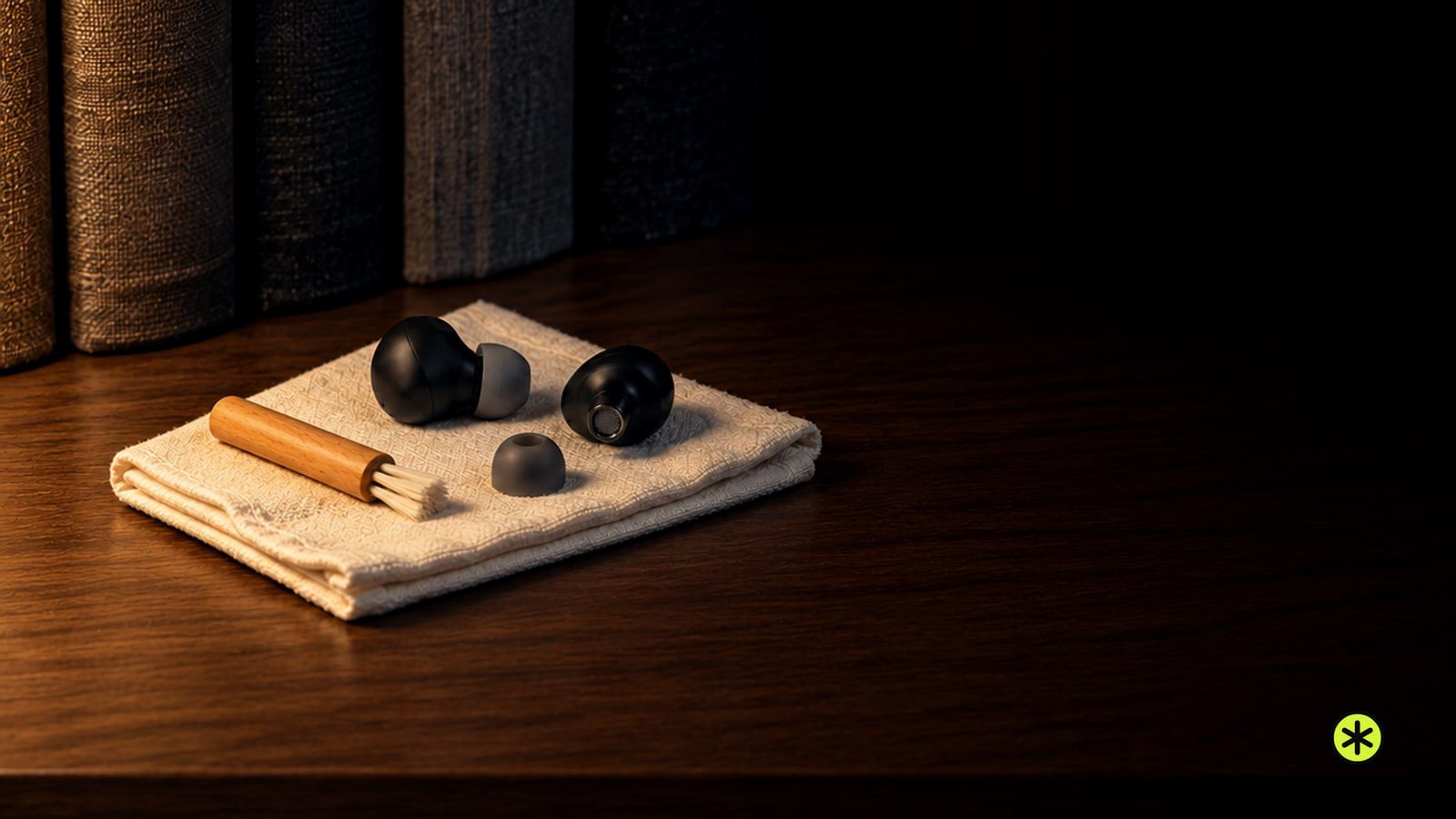
- Hold each earbud with its speaker opening down. Lift visible debris from dry mesh with a soft, dry brush. Wipe shells and pads with a soft, dry cloth without getting moisture into openings.
- If the maker permits rinsing a removable plain silicone tip, rinse the tip alone with water while keeping the earbud body dry. Wipe and dry the tip completely, then reattach it securely. For foam or filtered tips, follow their specific care instructions or replace them. Clearer, louder playback after brushing points to blockage.
- If a tip swap changed the sound, reseat it and try supplied sizes on each ear. Small, medium, and large are common; each ear may need a different size. Returning bass and clarity point to fit. If the app offers a seal test, change the flagged tip and rerun it until the seal and passage improve.
Don’t scrape the mesh with sharp or metal tools, push debris inside, or use compressed air. Keep liquid off the mesh during routine cleaning. Wet mesh cleaning is an exception for earbuds with instructions that identify the openings to treat and the drying period.
- Stop playback and unplug the charger. Remove detachable tips and wipe them and the earbud exterior with a soft, dry cloth.
- Leave the earbud and tips in a ventilated, dry place at room temperature. Keep them out of the case and off the charger until completely dry.
- Reattach dry tips and replay the passage only when fully dry. Clear, stable sound points to the splash. Persistent distortion, heat, swelling, or corrosion ends home testing.
| Situation | Action and result |
|---|---|
| AirPods after a splash | Wipe dry; wait at least two hours, longer if damp; replay when fully dry. |
| Pixel Buds Pro 2 after dry brushing fails | Clean the microphone mesh, rear vent mesh, and snout mesh (eartip removed) using Google’s illustrated procedure (opens in a new tab), including repeated brushing and blotting; complete the procedure and test only when fully dry. |
If your wired headphones sound dull
For wired sound, start with the plug or adapter you last moved. A phone case can keep a plug from seating fully.
- Pause playback, remove a case that blocks the plug, and seat each connection fully. Replay the passage. Sound that reliably clears points to the plug, socket, or adapter connection.
- Unplug and inspect the plug, inline control, adapter, cable, and port under a light. Look for debris, exposed wire, bent plugs, or bent pins. Leave a visibly damaged cable unused, and stop using a port with bent pins.
- If intact, bypass an extension, adapter, or inline control where possible. Compare another cable or adapter that fits, or another source. Clear playback after bypassing identifies the part to replace. Sound that changes as an undamaged detachable cable moves points to its cable or connector; replace a damaged lead or plug.
Bent port pins need service. If two sound sources produce the same dull sound through an intact cable, continue with the headphone fit and hardware decision below. If the symptom is crackling or popping, that is a different sound problem with its own connection tests.
If Bluetooth sound changes during a call or game
When an app uses a conventional Bluetooth headset’s microphone, the connection can switch from music playback to two-way call audio and sound dull. Close the call, chat, or game app, then replay the passage. Clear playback points to call mode.
On a computer, keep the headphones as Output and select its built-in or another microphone as Input. If playback clears while the app stays open, headset mic use caused the change. Compatible Bluetooth LE Audio hardware and software can preserve better two-way playback.
On Windows, stereo playback with the headset mic active requires built-in LE Audio support, compatible drivers, and an LE Audio headset (Microsoft’s LE Audio settings (opens in a new tab)). Under Settings > Bluetooth & devices > Devices, turn on Use LE Audio when available. Then open Settings > System > Sound > headset Output > Format and choose Stereo under Format when microphone is active. Clear playback with the mic active confirms it works. If either control is absent, update Windows and Bluetooth drivers, or use a separate microphone.
If Bluetooth stays dull with the mic idle, charge the headphones and case, reconnect, and listen near the source. If still dull, forget the pairing, restart the source, and pair again. Sound that stays clear points to the connection. Complete cutouts belong in the Bluetooth disconnection checks.
If one device still makes them sound muffled
Balance can make one side seem blocked; EQ, bass-heavy presets, sound personalization, spatial effects, or the wrong output can alter both. Preserve intentional hearing settings. Change one other control at a time, replay at the same volume, and undo changes that don’t help.
- iOS or iPadOS: Settings > Accessibility > Audio & Visual > Balance. Test with the slider centered. Also inspect the playing app’s EQ and the active headphone sound mode.
- Android: Open Settings and search for balance. On phones with Hearing enhancements, the path is Settings > Accessibility > Hearing enhancements > Left/right sound balance. Android menu names differ by maker; inspect the playing app’s EQ as well.
- Windows: Settings > System > Sound > your headphones under Output. Compare Left and Right levels, then turn Audio enhancements and spatial sound off one at a time for a test. Confirm the headphones are the selected output.
- Mac: System Settings > Sound > Output. Select the headphones and inspect Balance. For a call-only change, choose the computer microphone under Input.
- In a quiet setting, select Off in the earbuds’ listening controls and replay at the same volume; for AirPods Pro 2 or Pro 3, first enable Off Listening Mode using Apple’s steps (opens in a new tab), since Off removes hearing protection, then restore your preferred mode after the test. Clarity returning points to sound processing.
- If playback dips when you speak, turn off the earbud app’s conversation feature and replay while speaking. Playback that stays clear identifies the feature.
- Restore preferred modes after each test. If neither changes the sound, compare the device and headphones.
When settings make no difference and muffling follows the headphones to another device after fit, cleaning, and connection checks, home testing is over. Contact the maker or an authorized service provider. Give the exact model, purchase date, affected side, comparison results, and any liquid or visible damage; ask for the total diagnosis, parts, tax, and shipping price.
| Scope | Price | What it includes |
|---|---|---|
| One AirPod Pro 2 or 3 through maker service | $89 | One replacement earbud through out-of-warranty service. |
| Current premium wireless earbud pair | $230 to $330 | A new matched pair and charging case. |
| Current premium wireless over-ear headset | $360 to $550 | A new complete headset. |
Replace a faulty tip, pad, or detachable cable. For an internal fault, we’d replace the pair when the full service quote approaches a comparable new pair. Match any single replacement earbud by exact model and side before syncing.
For an individual replacement earbud that syncs through a reset, confirm its model and side, reset the existing set, then pair again. Both earbuds should connect and play together. If they don’t, recheck the replacement’s model and side.
Keep the sound clear
Brush dry openings regularly and replace tips or pads that no longer fit. Keep playback comfortable; the World Health Organization’s safe-listening reference (opens in a new tab) is 80 dB for 40 hours per week for adults.
Why is only one earbud muffled?
Compare another recording, center an unintentional balance adjustment, reseat the tip, inspect its mesh, then try another device. If the fault follows that earbud, it points to the earbud. The urgent hearing rule near the top applies if your bare-ear hearing changes suddenly.
Will putting a wet, muffled earbud in rice fix it?
No. Rice is an unreliable drying method and can leave particles behind. Follow the drying steps above after a splash; submersion or persistent distortion calls for service, and an earbud showing heat, swelling, or corrosion must stay out of use.
How much will it cost if I can't fix my muffled headphones?
Standard warranties address manufacturing faults; accidental or liquid damage generally falls outside that coverage unless a separate damage plan applies. A single replacement earbud is an option only when the maker sells one for your exact model and supports pairing it. Compare the full service price, including diagnosis and shipping, with a comparable new pair.
More in this category
Encore
Why Do My Bluetooth Headphones Keep Disconnecting?
Why Are My Headphones Crackling?
EPOS Adapt 660 Review, Music Between the Meetings
- Bose QuietComfort 2nd Gen Review, the Cable Finally Beats the Radio
- Baseus Bowie MC2 Review, Music With the Room Left In
- True Wireless Earbuds vs Wireless Earbuds
- How to Turn Noise Canceling On AirPods
- Why Are My AirPods Not Showing Up on Bluetooth?
- Optimal Subwoofer Placement
- How to Fix a TV With a Dark Screen or No Picture