Hold the stem, then check the screen once
- AirPods Pro, AirPods 4 (ANC) or AirPods 5: wear both, then press and hold either stem until you hear a chime.
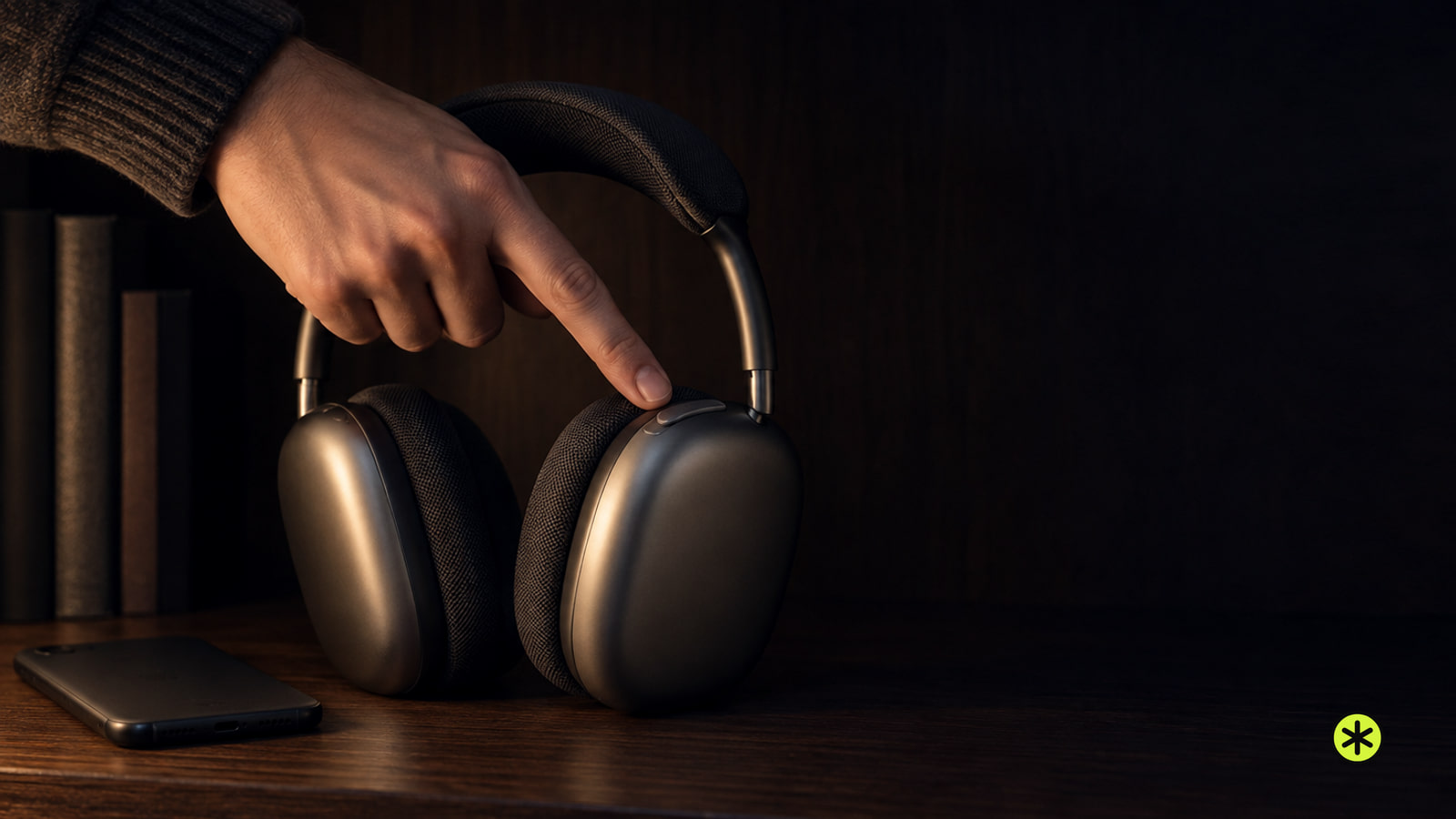
- AirPods Max: press the listening mode button on top of the right ear cup.
- On iPhone or iPad, hold the volume control in Control Center, tap Listening Mode and pick Noise Cancellation.
- Only one AirPod in? Turn on Noise Cancellation with One AirPod in Accessibility settings first.
The outside world is still leaking into your music, and the switch that fixes it is either on the AirPods themselves or a couple of taps away on your screen. We'd press the stem or the Max button first because it's already on your head, then glance at your phone once, because a chime plays on every mode change and can't tell you whether you landed on Noise Cancellation or Transparency.
On iPhone, iPad and Mac, Active Noise Cancellation shows up under the shorter name Noise Cancellation. That's the word to look for in any menu.
Which AirPods have noise cancellation and where the control is
Noise cancellation works on AirPods 4 with Active Noise Cancellation, AirPods 5 (both models), AirPods Pro 1, 2 and 3, and AirPods Max 1 and 2. With AirPods 4, it has to be the ANC version, since that's the one whose stem can switch listening modes.
| Your AirPods | Where the control is |
|---|---|
| AirPods 4 (ANC) | Press and hold the stem on either earbud until the chime |
| AirPods 5 (both models) | Press and hold the stem on either earbud until the chime |
| AirPods Pro 1, 2 and 3 | Press and hold the force sensor on either stem until the chime |
| AirPods Max 1 and 2 | Press the listening mode button on top of the right ear cup |
The on-screen steps below follow iOS 27, iPadOS 27 and macOS 27 or later, so keep that in mind if your phone or Mac is on something older.
Pressing the stem on AirPods 4 (ANC), AirPods 5 and AirPods Pro
The stem has a force sensor built in, and holding it steps you through your listening modes. The press only does anything when the AirPods are in your ears and connected, so start there.
- Put both AirPods in your ears and make sure they're connected to your iPhone, iPad or Mac.
- Press and hold the force sensor on the stem of either AirPod, and keep holding until a chime plays.
- Let go at the chime. Your listening mode has just changed.
- If you're not on Noise Cancellation yet, press and hold again and wait for the next chime.
The modes the stem cycles through can be customized, so yours might include Adaptive Audio or skip a mode you expected. If a few chimes in you've lost track, pick Noise Cancellation by name on your phone instead, using the iPhone steps below or Apple's listening mode steps (opens in a new tab).
The listening mode button on AirPods Max
AirPods Max don't have a stem to squeeze. Their listening mode button sits on top of the right ear cup, on the opposite side from the Digital Crown.
With the headphones on, press that button and a chime confirms the change. On AirPods Max 1 and AirPods Max 2 it switches between Active Noise Cancellation and Transparency, and AirPods Max 2 can add Adaptive Audio to the rotation.
The button's rotation can be customized from your iPhone, iPad or Mac, so if a press lands you in Transparency, press again and listen for the next chime.
Choosing Noise Cancellation on iPhone or iPad
This is the route we'd use whenever the chime leaves you guessing, because you tap Noise Cancellation by name instead of cycling toward it.
- Wear one or both AirPods and make sure they're connected to your iPhone or iPad.
- Swipe down from the top right corner of the screen to open Control Center.
- Touch and hold the volume control until the extra controls appear.
- Tap the Listening Mode button at the bottom left, the first button after the volume slider, then tap Noise Cancellation and listen for the chime.
Settings gets you there too. With your AirPods in your ears and connected, open Settings, tap the name of your AirPods, then tap Noise Cancellation among the listening modes.
Wearing just one AirPod? Turn on the one-ear setting further down first, then come back to these steps.
Turning it on from a Mac
Wear one or both AirPods and make sure they're connected to your Mac. Then use whichever of these two spots you find first.
- Menu bar: click the AirPods icon, click the name of your AirPods, then choose Noise Cancellation.
- System Settings: click the name of your AirPods in the sidebar (you may need to scroll down), then choose Noise Cancellation as the listening mode.
Both routes show the same Noise Cancellation label you'd see on an iPhone, so once it's selected there, you're set.
Noise cancellation with just one AirPod in
The stem press switches modes when you're wearing both AirPods. On AirPods 4 (ANC), AirPods 5 and AirPods Pro you can also allow noise cancellation in one ear, but it's a separate Accessibility switch you turn on first.
- Wear your AirPods and make sure they're connected to your iPhone or iPad.
- Open Settings and tap Accessibility.
- Under Accessories, tap AirPods, then tap the name of your AirPods.
- Turn on Noise Cancellation with One AirPod so the switch shows as on.
- Press and hold the force sensor on the AirPod you're wearing to switch listening modes, letting go at the chime.
On a Mac, the same switch is in System Settings: click Accessibility in the sidebar, then Audio (scroll if you need to), and turn on Noise Cancellation with One AirPod. The full set of options lives on the one-ear setting page (opens in a new tab).
How to tell noise cancellation is actually on
Open the Listening Mode button in Control Center, or your AirPods' page in Settings, and look for Noise Cancellation as the selected mode. That's the clearest confirmation you'll get.
With it on, your AirPods work to block out external noise so you can focus. When you'd rather hear what's going on around you, Transparency is the mode that lets outside sound in.
On AirPods Pro, fit matters. Noise cancellation works best when the earbuds fit well, so if it sounds weaker than you hoped, settle them snugly in your ears and listen again.
More in this category