Charge, Bluetooth, output, then pair again
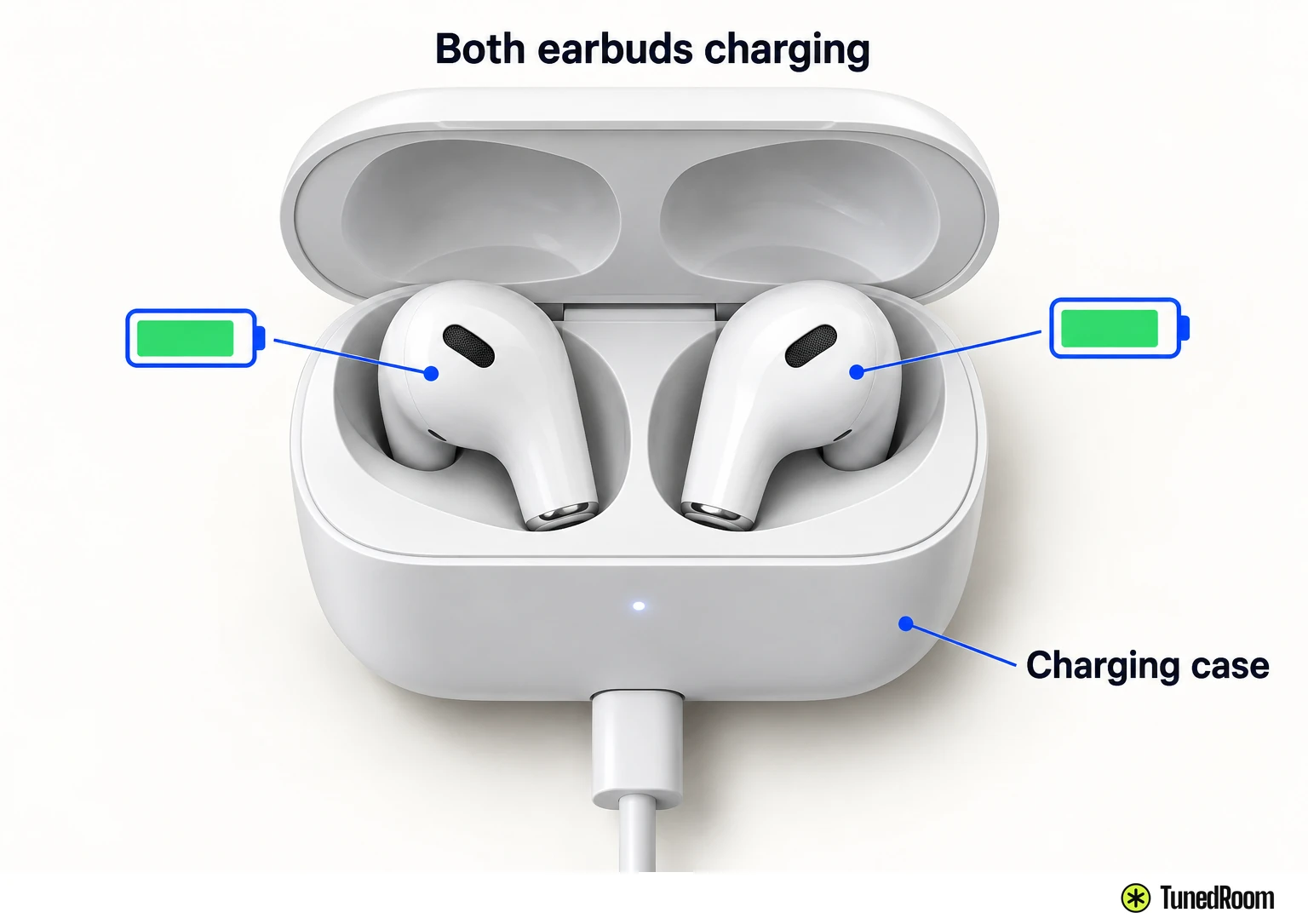
- Put both AirPods in the case, make sure both are charging and check that Bluetooth is on.
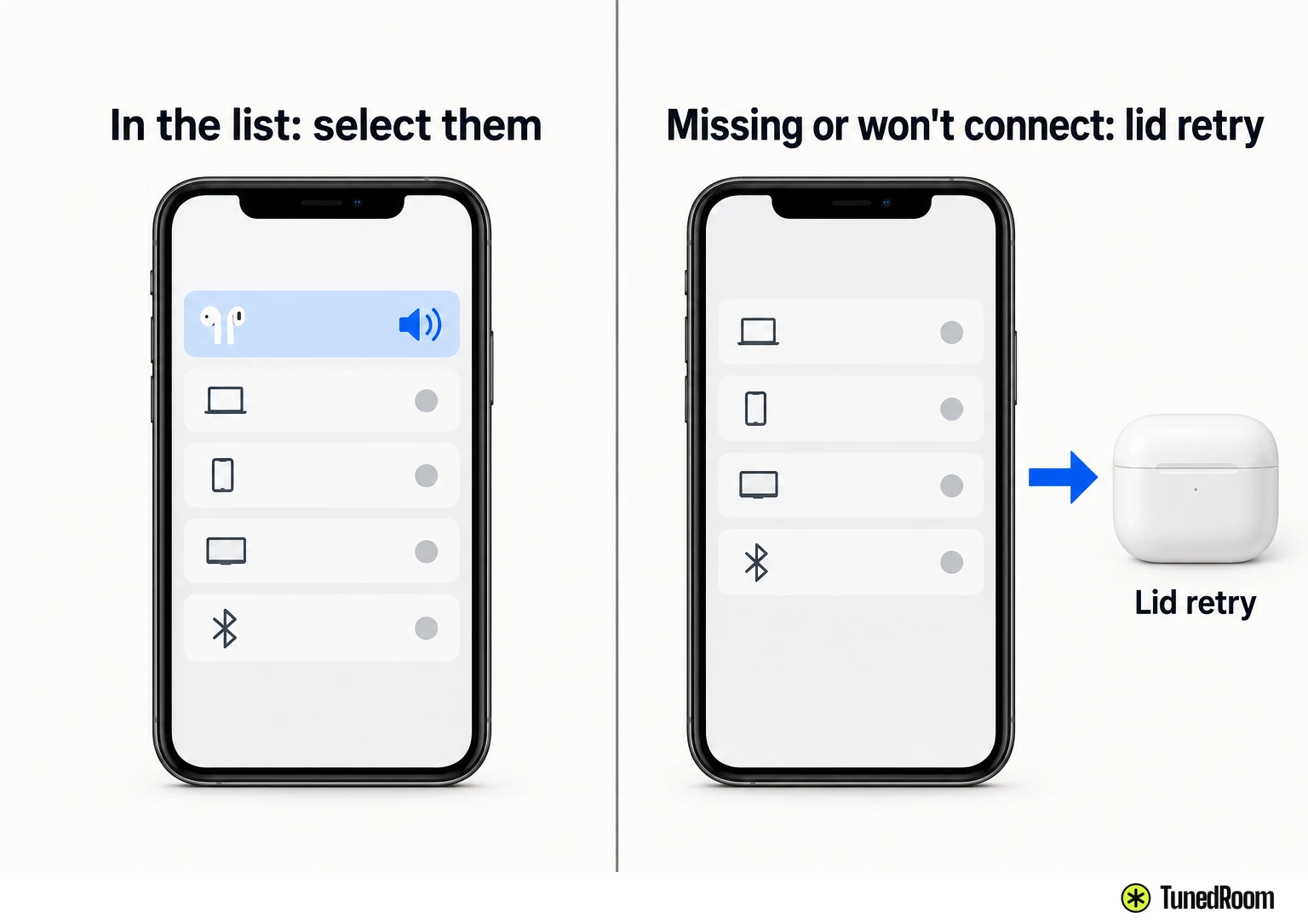
- If they show up in the audio list, select them and play something before blaming the pairing.
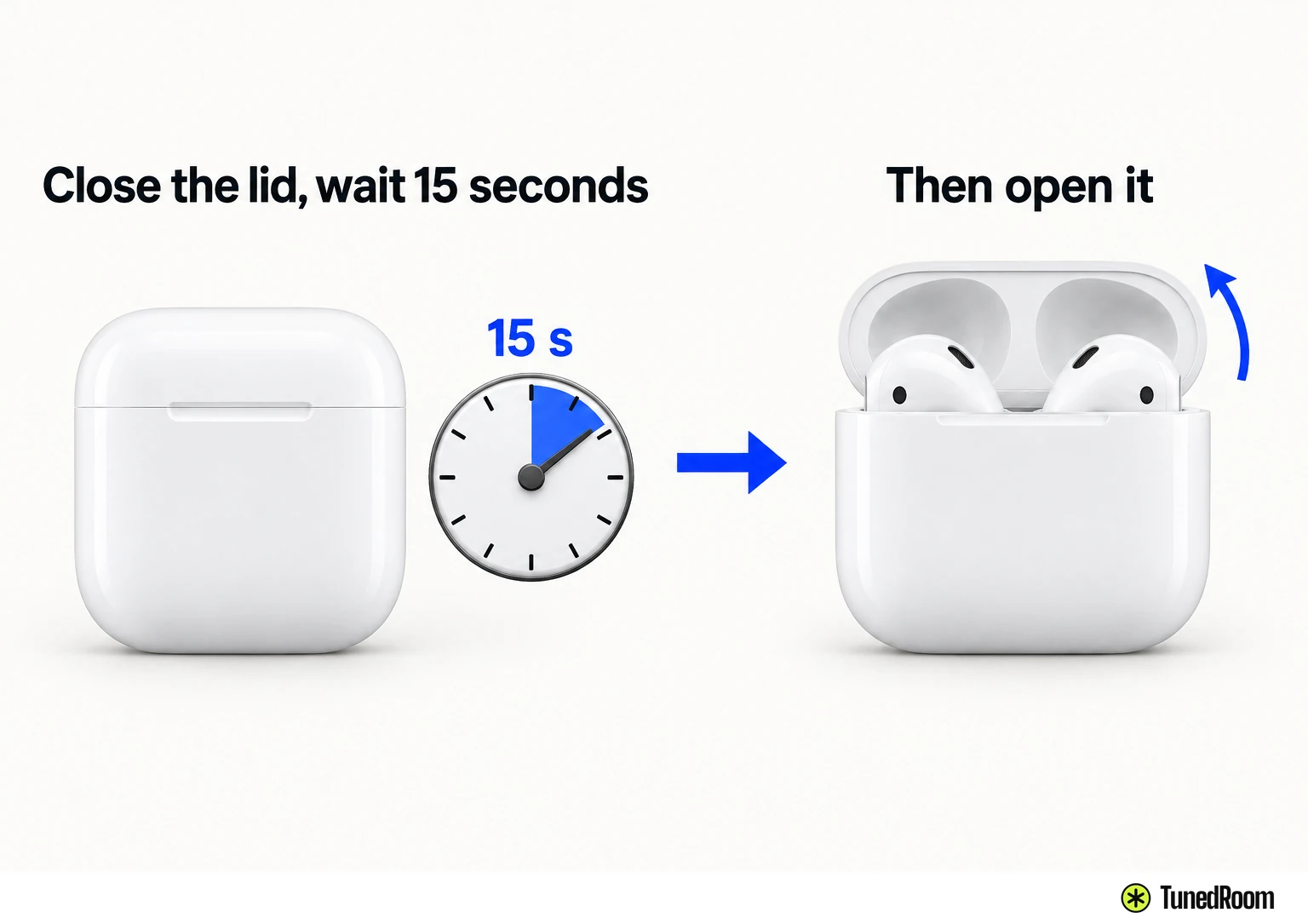
- Still won't connect? Close the lid for 15 seconds, reopen it and pair again with your model's case control.
- On an iPhone, iPad or Mac, a reset comes only after that fresh pairing fails.
Sometimes the AirPods never reach your phone at all, and sometimes they connect fine while the sound plays out of the speakers. We'd work along the signal path, charge and Bluetooth first, then the audio output, then a fresh pairing, because the output check is a single tap and the pairing retry is the last step before a reset.
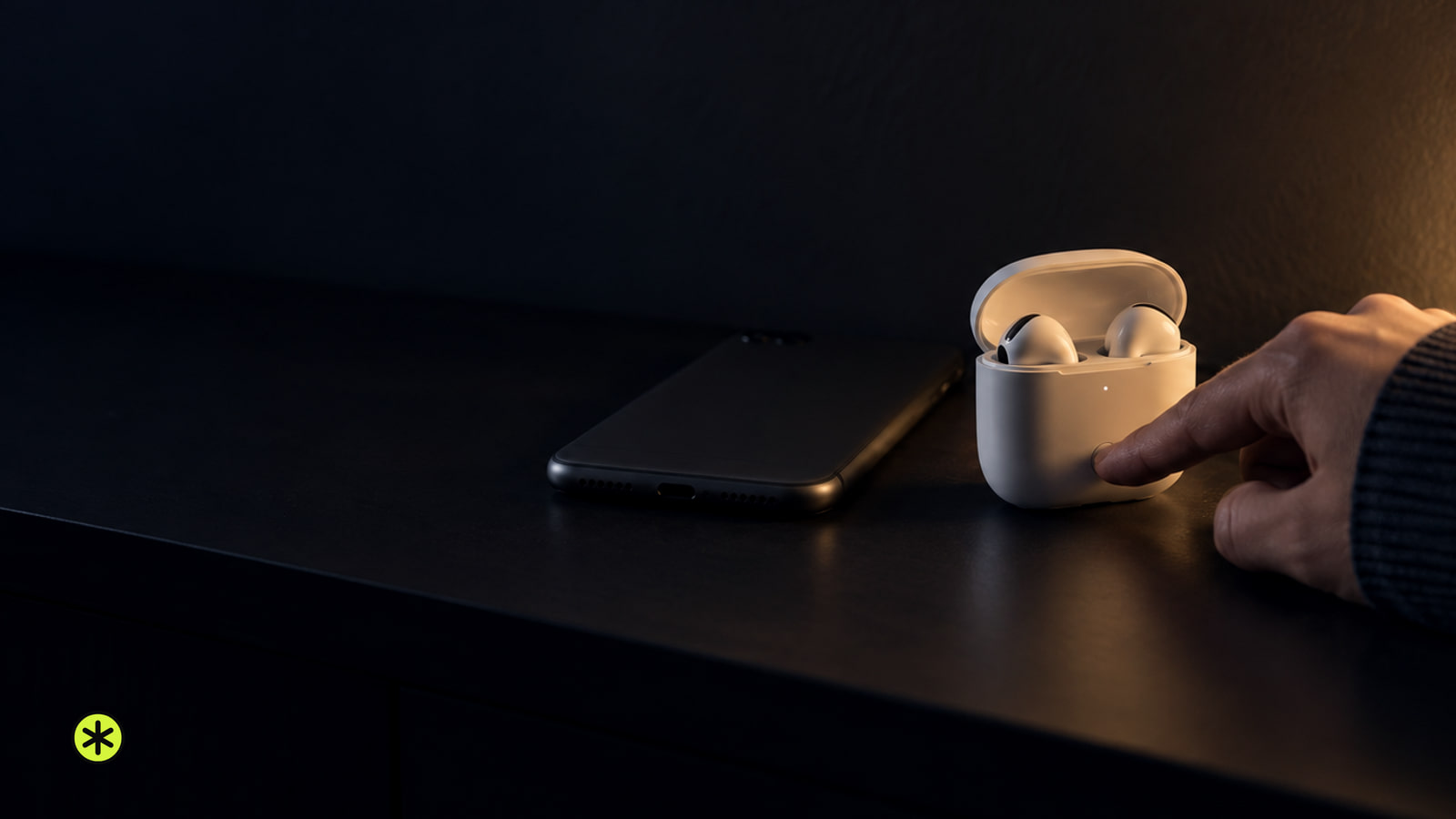
Start with charge, software and Bluetooth
Put both AirPods in the charging case and make sure both of them are charging. Check each one, since the connection steps that follow assume both earbuds have power.
Next, get your device onto its latest software. That means the newest iOS or iPadOS on an iPhone or iPad, or the newest macOS on a Mac.
Then confirm Bluetooth is on. On an iPhone or iPad, go to Settings and tap Bluetooth. On a Mac, open the Apple menu, click System Settings, then click Bluetooth.
They show up, but the sound goes elsewhere
Take the AirPods out of the case and put them in your ears. Open Control Center, tap or click the AirPlay button, and if your AirPods are in the list, select them and play something with the volume turned up.
If they're missing from that list, or they're listed but won't connect, skip ahead to the 15-second lid retry below.
On a Mac, if sound still plays from the Mac's own speakers, click Control Center in the menu bar, click Sound and make sure your AirPods are the output device (opens in a new tab).
On a Windows 11 PC, click the Sound icon in the taskbar and pick your AirPods as the audio output, or go to Start > Settings > System > Sound and confirm they're set under Output. On Windows 10, open the same Sound page and select them under Choose your output device.
Close the lid for 15 seconds and pair again
The pairing control depends on which AirPods you have, so find your model in the table before you start pressing things.
- Put both AirPods back in the charging case and close the lid. Wait 15 seconds, then open it.
- Use your model's pairing control from the table until the status light flashes white.
- Hold the open case, with the AirPods inside, next to your iPhone or iPad and follow the setup steps that appear on the screen.
| Model | Pairing control | Mac needs |
|---|---|---|
| AirPods 2 | Hold the setup button on the back | macOS Mojave 10.14.4 or later |
| AirPods 3 | Hold the setup button on the back | macOS Monterey or later |
| AirPods 4 (both models) | Double-tap the front of the case | macOS Sequoia or later |
| AirPods 5 (both models) | Double-tap the front of the case | macOS Golden Gate or later |
| AirPods Pro 1 | Hold the setup button on the back | macOS Catalina 10.15.1 or later |
| AirPods Pro 2 (Lightning) | Hold the setup button on the back | macOS Ventura or later |
| AirPods Pro 2 (USB-C) | Hold the setup button on the back | macOS Sonoma or later |
| AirPods Pro 3 | Double-tap the front of the case | macOS Tahoe or later |
Original AirPods (AirPods 1) use the setup button on the back of the case too.
On a Mac, pair manually after the lid retry. Open System Settings from the Apple menu, click Bluetooth and make sure it's on, put both AirPods in the case with the lid open, use your model's control until the light flashes white, then click Connect next to your AirPods in the Nearby Devices list.
Your Mac has to be running at least the macOS version in the table for your model, so check that before you repeat the pairing.
If they still can't connect after a fresh pairing on an iPhone, iPad or Mac, resetting your AirPods is the next step, and you can pick up Apple's connection checklist (opens in a new tab) from there.
Pairing with a Windows PC or Android phone
AirPods work as a regular Bluetooth headset with non-Apple devices. You can listen and talk, but Siri isn't available.
Make sure Bluetooth is on first. On an Android phone, go to Settings, tap Connections, then tap Bluetooth.
For pairing mode on AirPods 1, 2 or 3 and AirPods Pro 1 or 2, open the lid with the AirPods inside and hold the rear setup button for about 5 seconds, or until the status light flashes white. On AirPods 4, AirPods 5 or AirPods Pro 3, hold the open case next to your device and double-tap the front so the light flashes white.
On AirPods Max, press and hold the listening mode button for about 5 seconds, or until the status light flashes white. Whatever model you have, select the AirPods when they appear in the Bluetooth list.
If Windows already lists your AirPods but won't connect to them, remove them and add them again. Have them in pairing mode for the add step so they show up.
Windows 11 and Windows 10 keep these settings in different places, so follow the path that matches your PC rather than mixing the two.
- On Windows 11, go to Start > Settings > Bluetooth & devices and find your AirPods in the device list.
- Select More options (…) next to them and choose Remove device.
- Select Add device, then pick your AirPods from the list.
On Windows 10, go to Start > Settings > Devices > Bluetooth & other devices. Select the AirPods, click Remove device, then click Add Bluetooth or other device and choose them from the list.
If they connect but you still hear the PC's speakers, go back to the Sound output setting and pick your AirPods there. You'll find more Windows Bluetooth sound fixes (opens in a new tab) if the output still won't switch.
More in this category