Match the next step to your TV
- Check which platform your TCL uses. Fire TV and Android TV have different blinking-light guidance.
- On Fire TV, a blink may mean standby or a hardware issue. Begin with the power and connection checks below.
- On Android TV, restart if the light blinks continuously and the TV isn't responding normally.
- If your Android TV works and the light bothers you, supported models let you switch the status LED off.
A dark screen and a TV that still responds to you lead to different next steps. We'd check power and connections first on a Fire TV that won't turn on, because TCL identifies the outlet, cord and attached devices as things to check before handing the problem to support.
For Android TV, blinking can mean the set is processing a command, updating or reporting a condition. The restart trigger is the combination of continuous blinking and abnormal response, so use how the TV behaves alongside what the light is doing.
For Fire TV, TCL gives two possible meanings for a blinking indicator: standby or a hardware issue. Keep those possibilities separate from the Android TV explanation, and follow the section for your platform.
Fire TV power checks before a restart
Test the outlet with another device to confirm it works. This gives you a concrete answer about the power source before you try restarting the TV, and it's the first check in TCL's US Fire TV power guidance (opens in a new tab).
Check that the power cord is securely connected to the TV and undamaged. Look over both the TV and its cord for visible damage as part of this check, so you're checking the condition of the equipment as well as whether the connection is seated.
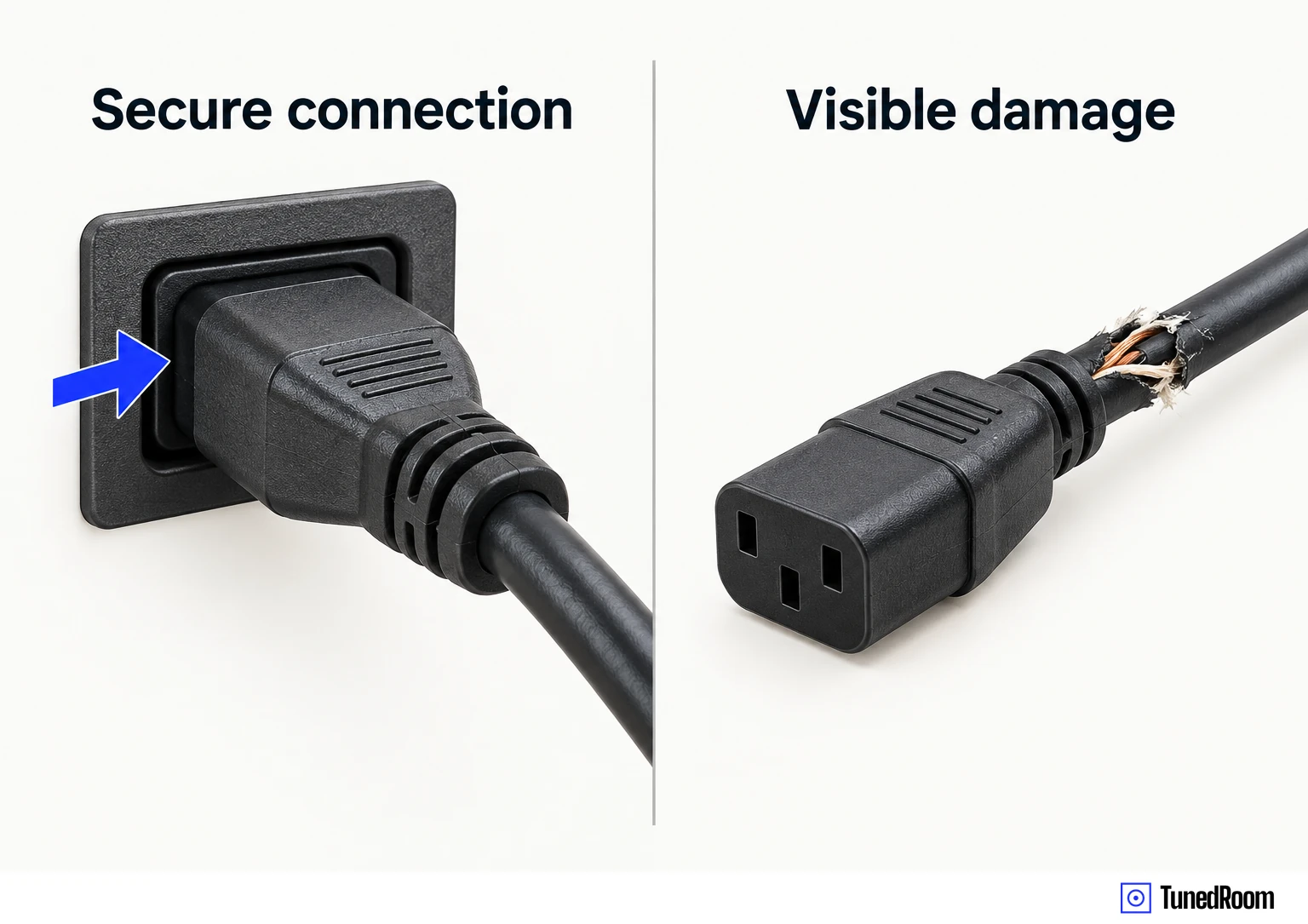
Pay attention if the indicator changes while you're troubleshooting. On Fire TV, no light suggests a power issue involving the outlet or cord, while a steady light suggests the set is receiving power but may not be turning on correctly.
Check the remote and attached devices
Make sure the remote has working batteries, replacing them if needed. If the remote isn't working, try the power button on the TV itself and see whether the set responds to that control.
That gives you a way to attempt power-on without relying on the remote. Use the TV's own button for this check, and keep track of whether the TV responds to it when it hasn't responded to the remote.
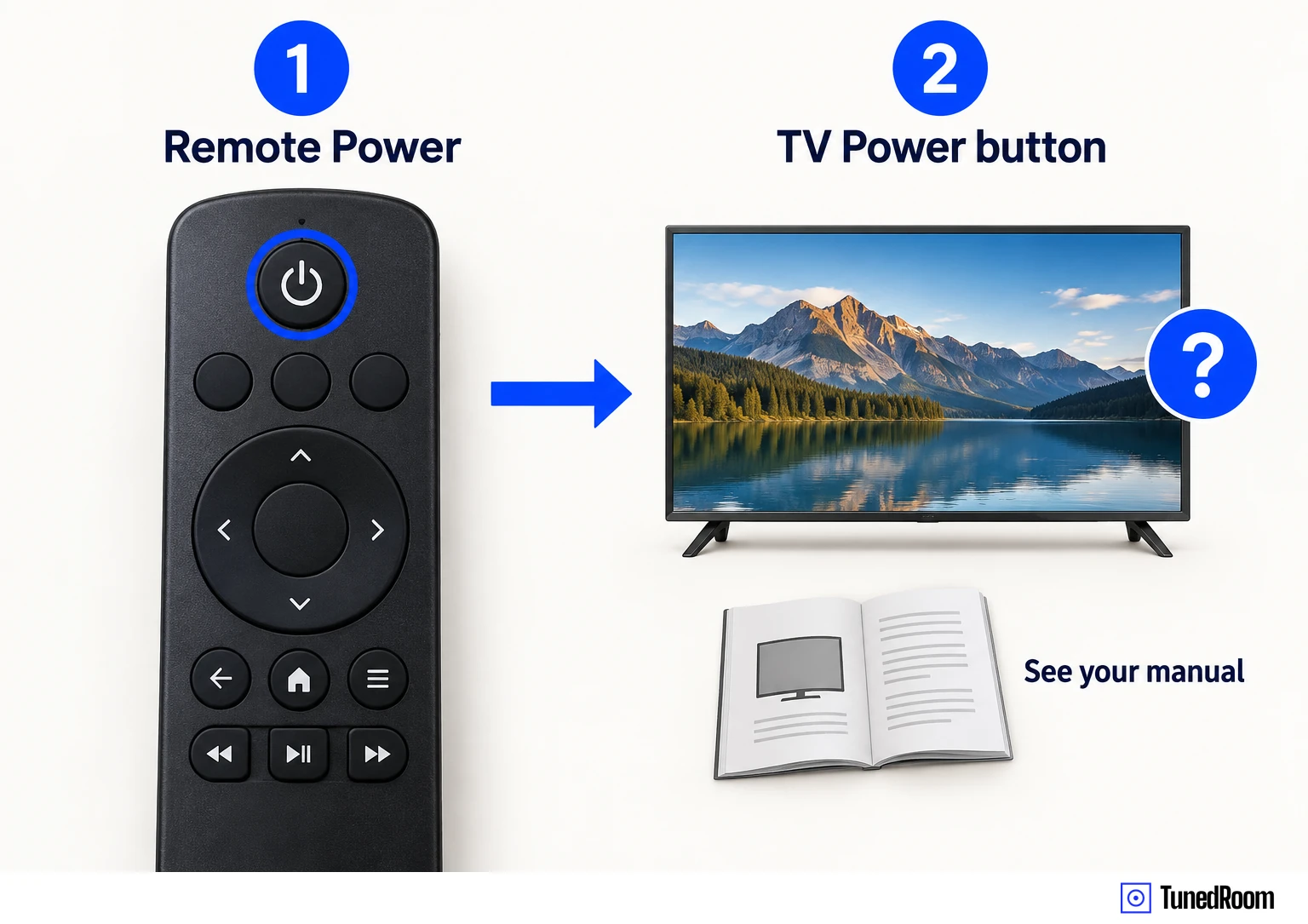
Disconnect HDMI devices and any other external devices attached to the TV. Faulty external devices can sometimes cause power issues, which is why TCL includes removing external connections (opens in a new tab) among its Fire TV checks.
With those devices disconnected, continue to the restart below. Whether the TV turns on in that state is a useful result to keep with the other checks if you need further help.
Restart Fire TV with a 1 to 2 minute unplug
For a Fire TV that still won't turn on, use TCL's unplug-and-reconnect method (opens in a new tab). This procedure has its own wait time, separate from both the button-hold power cycle below and the Android TV restart.
Disconnect the TV from its power source and leave it unplugged for about 1 to 2 minutes. Then reconnect it and try turning it on again.
The useful result is whether the TV now turns on. Check its response to the power-on attempt as well as the indicator, since a steady Fire TV light can mean that power is reaching the set even while it isn't starting correctly.
The Fire TV button-hold power cycle
TCL also provides a separate Fire TV power cycle using the TV's button (opens in a new tab). Keep the TV unplugged during the hold and the following wait, and use the button on the set itself, not the remote.
- Unplug the TV from power. Leave it disconnected for the button-hold step.
- Press and hold the TV's own power button for about 30 seconds, then release it. The TV should still be unplugged.
- Wait another minute, then plug the TV back in. Try turning it on and check its response.
Keep the two timed parts in that order: the button hold comes first, then the additional minute after you release it. Reconnection comes after both parts are complete.
Android TV keeps blinking and won't respond normally
If your Android TV keeps blinking and isn't responding normally, open Settings > Device Preferences > Restart. This is TCL's Android TV restart path (opens in a new tab) for that combination of symptoms.
The alternative is to unplug the Android TV for 30 seconds, then plug it back in. Use that route if you can't reach the restart option through the menu.
After the restart, check whether the TV responds normally again. That's the behavior you're trying to restore when continuous blinking comes with an unresponsive set.
Turn off a supported Android TV status light
If you're changing a light preference on Android TV, look for the status LED setting. The status LED is the small light on the front that may stay on or change behavior in standby, and supported Android TV models let you disable it (opens in a new tab).
- Press Home on the remote, then select Settings, shown with a gear icon.
- Open Device Preferences or System, depending on the menu your TV displays.
- Select LED indicator, Standby LED or Power LED. The name varies by model.
- Choose Off. Check whether the status light changes.
Some TCL Android TV models don't offer this option. If the setting isn't available, the LED behavior may be fixed by design.
If you selected Off but the light didn't change immediately, restart using either Android TV method in the previous section. This follow-up applies after changing the LED preference.
When Fire TV still won't turn on
If the Fire TV power checks haven't resolved the issue, contact TCL customer support for further assistance. TCL's US Fire TV support guidance (opens in a new tab) directs you to that next step when troubleshooting hasn't worked.
Tell support which checks you've already completed and what happened when you tried turning the TV on. Include the power-source and connection checks, the controls you tried, and which restart or power-cycle procedure you completed.
More in this category