Check power before swapping equipment
- Check the connected device’s power, then choose the TV input that matches its HDMI connection.
- On Samsung, follow with a different cable, HDMI Troubleshooting where available, and a different source device.
- Use the replacement-device result to decide between device support and TV service after the checks.
A cable plugged into the TV gives you somewhere to look, but you still need the connected device turned on and the matching input selected. We’d check those two things before changing equipment, because they establish that you’re asking the TV to show the device you actually want to watch.
Begin with the power button on the connected device and confirm that the device itself is powered on. Keep your attention on that external device for this check, rather than checking only whether the television is on. Then look for its picture as you select the connected input.
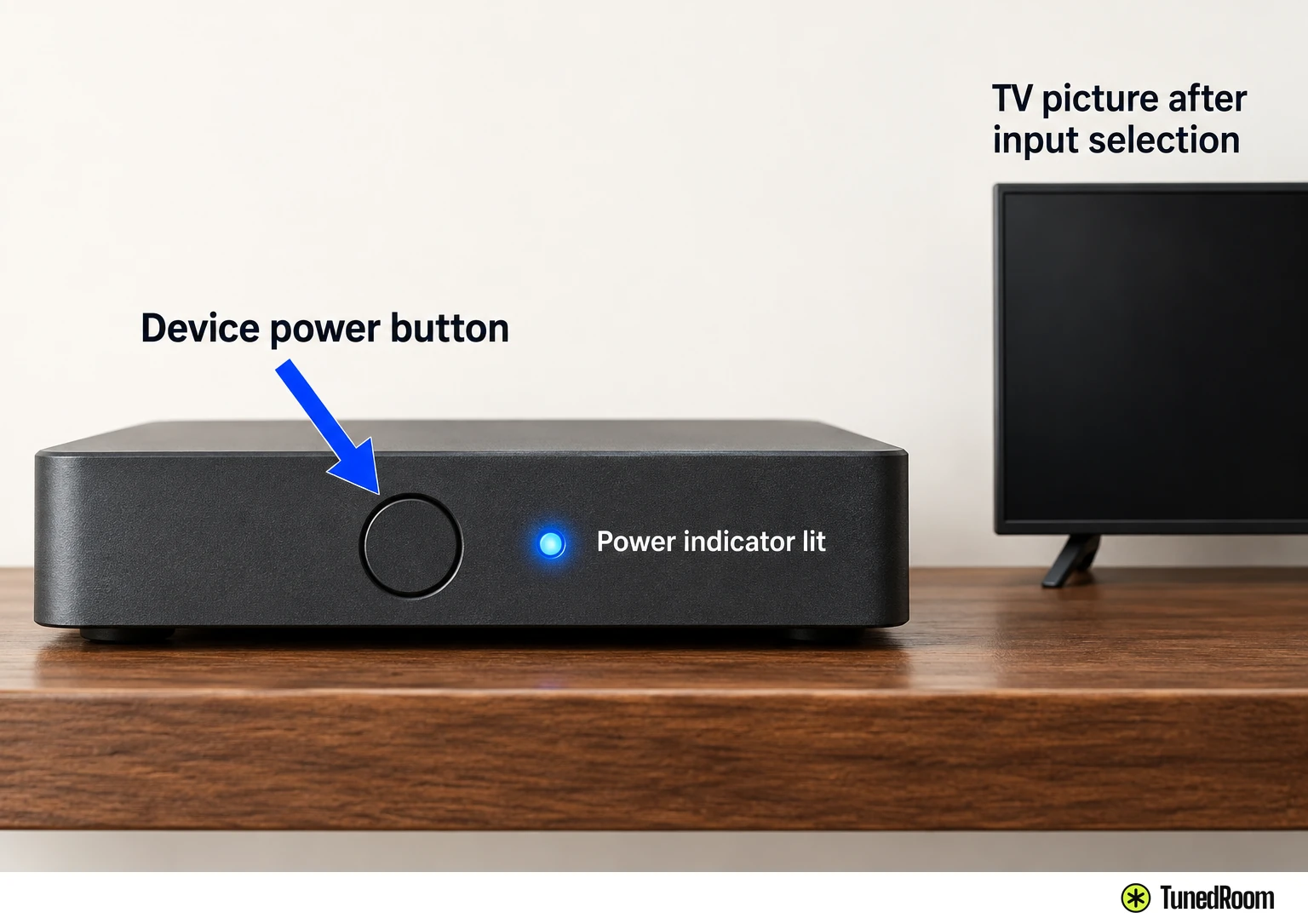
The Samsung sequence below follows Samsung’s Levant-region HDMI support guidance (opens in a new tab). It works through source power, input selection, cable substitution, the available cable test and source substitution. The separate Sony branch addresses a computer already connected to a Sony TV over HDMI.
Choose the connected source on Samsung
Match the selected source to the port your external device occupies. With several devices connected, this choice matters: you want the connection for the device you’re trying to watch, not another occupied port. Establish that match before using a blank screen to judge the cable or device.
For Samsung TVs with this menu layout, use the Home and Connected devices route (opens in a new tab). Work toward the source selection itself, because reaching the Home screen is only the first part of choosing the external device.
- Press Home on the Samsung remote to open the Home menu.
- Select Connected devices to reach the connected-device options.
- Select Sources and choose the source matching the connected port. Check whether the device’s picture appears.
A picture from the intended device is the useful outcome here. If it appears after this selection, you’ve reached the source you wanted. If the selected connection still shows no picture, carry on to the cable comparison with that device as your source.
For a Sony TV connected to a computer
For a computer already connected to a Sony TV by HDMI, press Input on the TV remote and choose the HDMI port the computer is connected to. This is the input check in Sony’s computer-to-TV no-picture guidance (opens in a new tab), so use it for that computer connection.
The Input button’s location and the names shown for inputs can vary with your Sony TV model. Identify your choice by the computer’s connected port, then check for the computer’s picture on the television. Follow your Sony remote’s Input control for this branch, keeping the Samsung menu route for Samsung TVs.
Try a different cable and check its limits
Use a different HDMI cable between your external device and Samsung TV. Keep the original external device in this comparison so the thing you’re replacing is the cable. That gives you a useful observation: whether the same device now produces a picture through the replacement connection.
Choose a certified cable with a thickness of 0.66 inches (17 mm) or less, following Samsung’s HDMI cable limits (opens in a new tab). Samsung warns that using a non-certified HDMI cable may produce a blank screen or a connection error, making cable selection relevant to this exact symptom.
For the Sony computer-to-TV case, Sony’s cable comparison (opens in a new tab) also calls for trying a different HDMI cable. If that solves the problem, Sony identifies the original cable as potentially faulty. A returning picture therefore gives you a practical result without needing to assign a particular internal fault to the television.
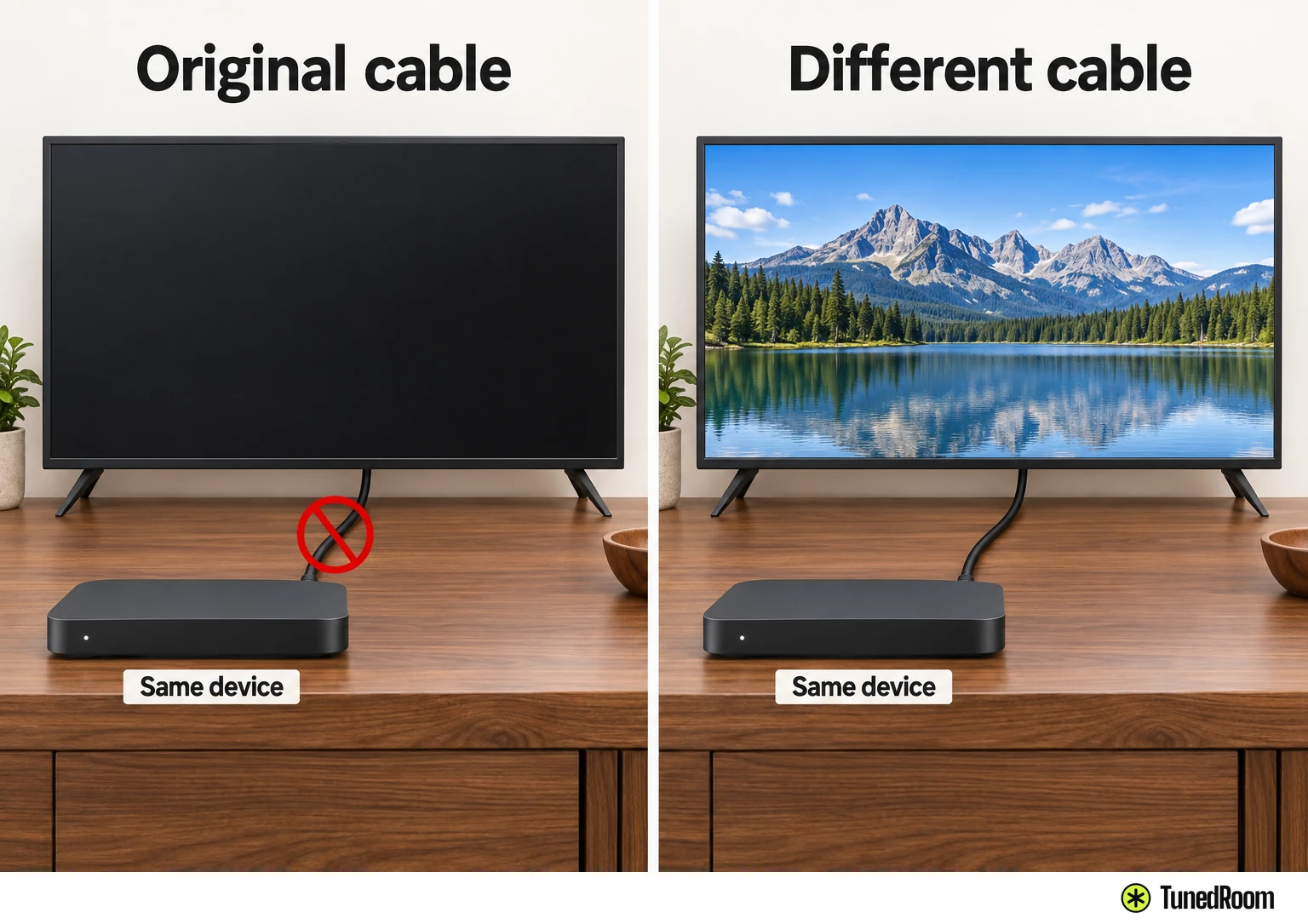
If your Samsung connection remains blank with the replacement cable, continue to its built-in HDMI check where available. Swapping the cable and running the test are separate checks: the first changes the connection you’re using, while the second checks the connected cable for abnormalities.
Use Samsung’s HDMI Troubleshooting option
On a Samsung TV that offers HDMI Troubleshooting, use the built-in HDMI Cable Test to check the connected HDMI cable for abnormalities. This is a check of the cable connection, not a guarantee that one result identifies every possible cause of a blank screen.
The Samsung diagnostic route (opens in a new tab) goes through Support and Device Care. Look for the HDMI Troubleshooting command inside Self Diagnosis, following this sequence if those options are available on your TV.
- Press Home on the remote, then navigate to Settings > Support so the Support options are displayed.
- Select Device Care to open its options.
- Select Self Diagnosis to display the diagnostic choices.
- Select HDMI Troubleshooting to open the HDMI check.
- Check the connected HDMI ports in sequential order, following the check through each connected port.
If you have multiple HDMI connections, include the connected ports in that sequence. The purpose is to check the connected cables for abnormalities, so keep track of which connection you’re checking as you move through them. If the picture is still absent afterward, move to the external-device comparison.
See whether another device produces a picture
Connect a different external device to your Samsung TV and see whether it works. This is the source comparison, following the earlier checks of power, selected input and the cable connection. You’re now checking whether the TV can show a picture from another device.
Keep the two results distinct: the original device stayed blank, and the replacement either displays a picture or also fails. Samsung’s replacement-device check (opens in a new tab) uses that difference to choose the next action. Record which device worked so you can explain the comparison when asking for help.
A cable replacement and a device replacement answer different questions. The earlier comparison kept your original source and changed its cable. This one changes the external source itself, which is why its result is useful when deciding whose support you need.
Contact device support or arrange TV service
If the replacement device works, Samsung identifies the issue as being with the original device. Contact the original device’s manufacturer for further assistance. Explain that the Samsung TV displays the replacement device but remains blank with the original, and describe the cable comparison you completed.
If neither external device works and you’ve completed the other Samsung checks, Samsung says the TV requires service. Arrange TV service at that point. The condition includes both the failed device comparison and completion of the preceding checks, so an unsuccessful second device on its own isn’t the whole service decision.
When arranging service, report the results in the same practical order: the source was powered on, the matching input was selected, a different cable was tried, and neither external device produced a picture. Include whether you ran the available HDMI Troubleshooting check and which connected ports you checked.
More in this category