The causes worth checking first
- HDMI silence can come from mute, a poor connection, an unsuitable audio format or the wrong audio output.
- Begin with volume and mute, then follow the branch for your TV source or Samsung PC below.
- After each change, listen for restored sound. Stop troubleshooting when it returns.
Your TV, source box and connected sound system can each have a volume or mute control. We'd check those first because a muted box or sound system can leave you without sound even when the TV itself isn't muted.
Next come the physical connection and the source's audio settings. A poor HDMI connection can lose sound, while the source needs to send a compatible audio signal. For a Samsung PC, an HDMI output that isn't selected or is disabled adds another place to check.
The TV checks below follow Sony's guidance for a source such as a Blu-ray player or set-top box connected to a TV. The PC instructions are Samsung's Windows 10 and Windows 11 branches. Menus vary by device, so use your product's manual for model-specific settings.
Volume isn't controlled in just one place
Raise the volume on the TV and, where connected, the cable or satellite box and sound system. Check each device's mute status too. On the TV remote, the MUTE button toggles mute on and off, so make sure you leave it unmuted.
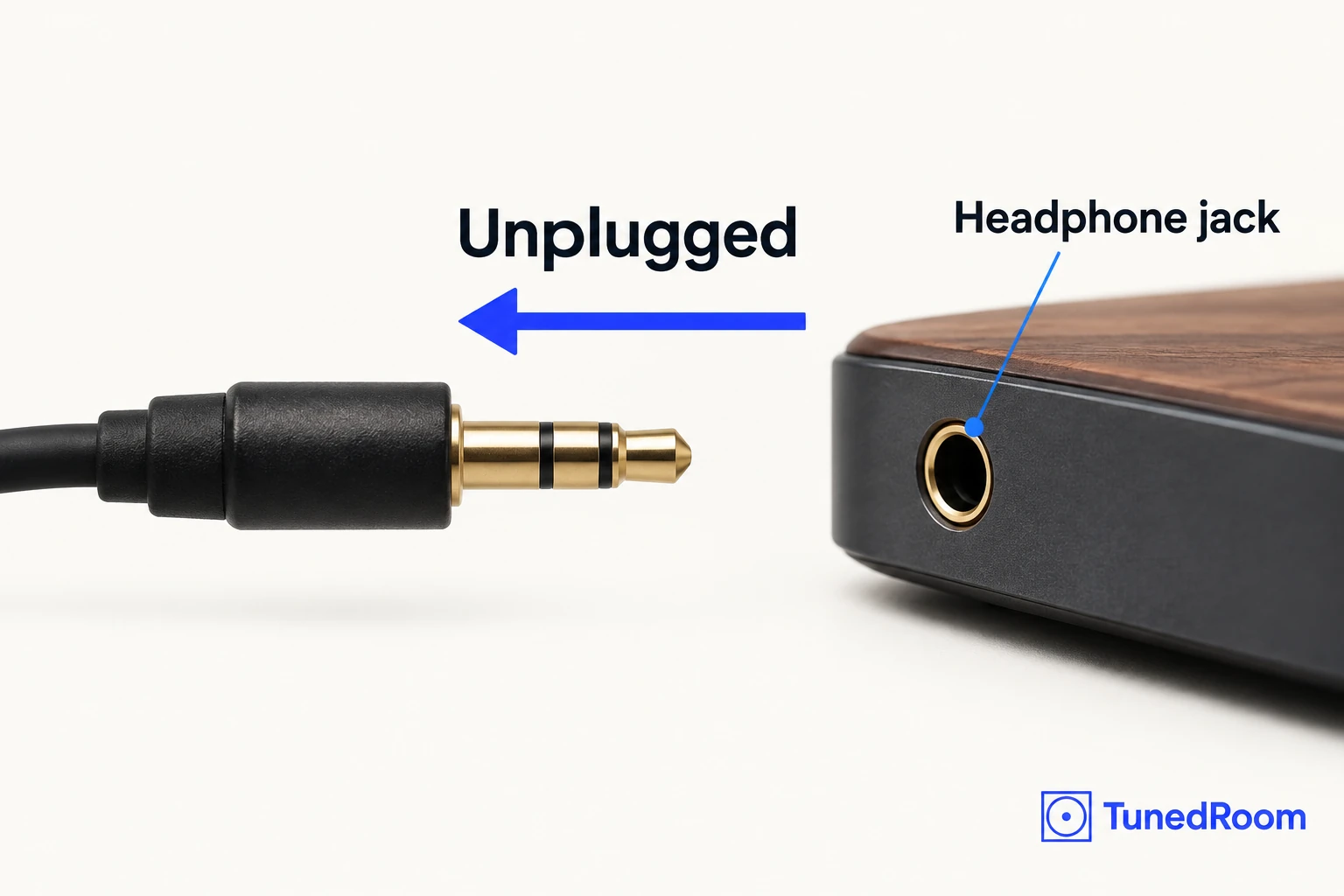
Check the headphone jack on your device and disconnect any headphones or other device plugged into it. This is part of Sony's local audio checks (opens in a new tab), alongside checking the separate volume controls.
If you're watching through a cable or satellite box, switch to another channel. A particular channel's broadcast can have an audio problem. Sound on the second channel points you toward the broadcast you were watching before you start changing connection settings.
The cable and selected input need to match
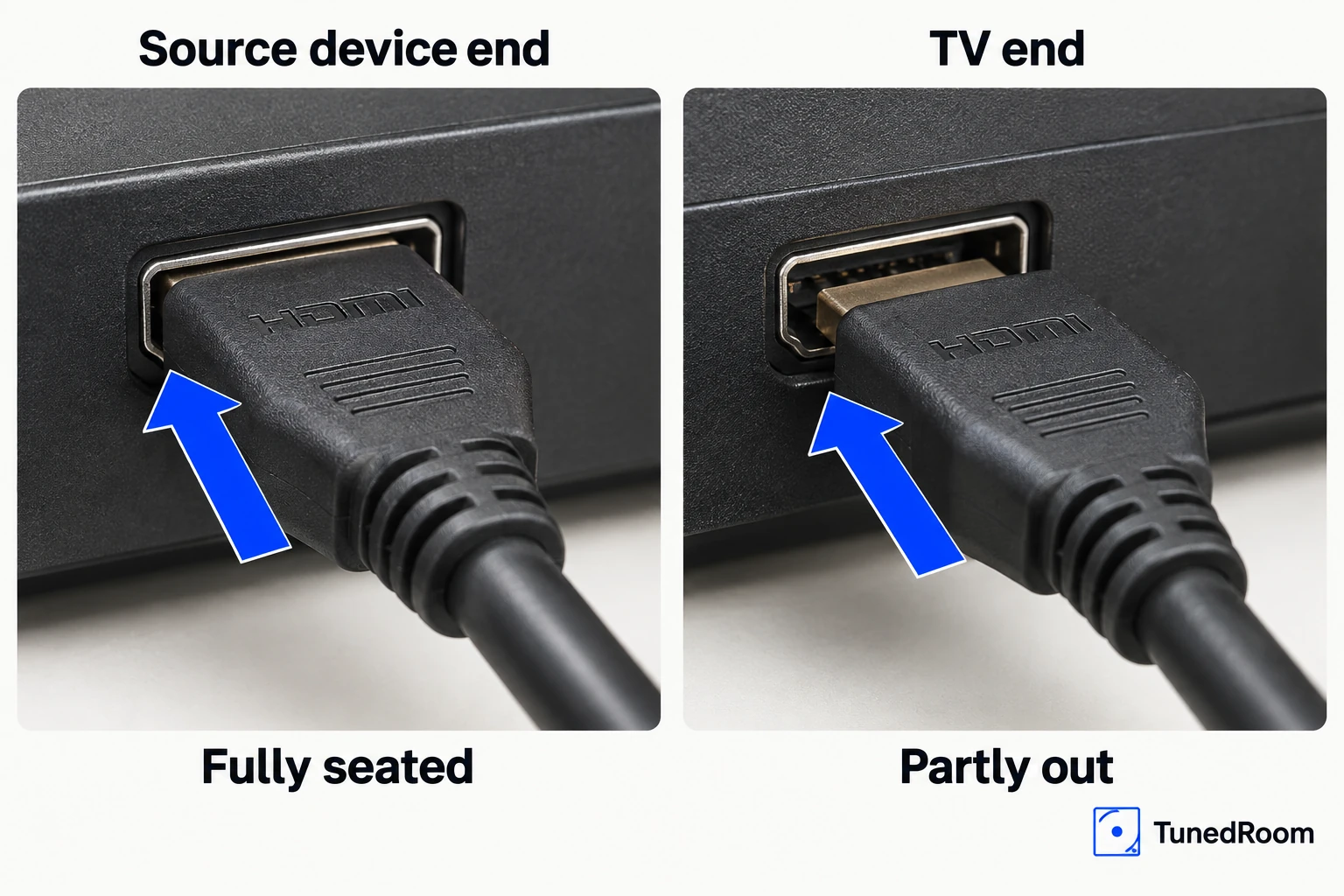
Disconnect and reconnect the HDMI cable at both the source device and the TV. A cable that isn't making a good connection can leave you without sound, which is why Sony recommends checking both ends (opens in a new tab).
Make sure the TV's selected input matches the connection from your source. If both picture and sound are missing, the wrong input is one documented possibility. Press INPUT or Source on the TV remote to move through the available inputs.
If the connection still doesn't work, try another HDMI port on the TV. Change the TV's input selection to match that new port as well, so you're checking the connection you've actually moved to.
Give the TV and connected devices a power reset
Sony says a power restart or reset often resolves an occasional issue with a TV or connected device. A remote or menu restart is available on some models; otherwise, use the power-reset procedure (opens in a new tab) below.
Depending on your Sony TV, holding POWER brings up either Power Off or a menu where you select Restart. Menu alternatives include Quick Settings → Settings → System → Restart → Restart, or HOME → Settings → About → Restart → Restart.
Another menu layout uses HOME → Settings → Device Preferences → About → Restart → Restart. Use the route that matches your model. With a remote or menu restart, the TV turns off and back on automatically after a short time.
- For a power reset, turn the TV off. If it's a projection TV with an internal lamp, wait five minutes before continuing so the lamp can cool. Leave the TV off during that wait.
- Unplug the TV's power cord from the electrical outlet. Leave it unplugged for at least 60 seconds.
- Plug the power cord back in and turn the TV on. Check whether sound has returned.
For a connected set-top box or sound system, use its separate power-reset sequence if needed. Turn it off, unplug its power cord from the outlet for at least 60 seconds, then reconnect power and turn it back on.
The source may be sending an unsuitable audio format
Open the audio output settings on the source device, such as your player or cable box. The signal it sends must be compatible with the TV. Sony suggests trying PCM or two-channel audio (opens in a new tab) instead of Dolby Digital or DTS.
These are general output choices, so get the exact menu steps and supported settings from your source device's manual or manufacturer. The adjustment belongs on the device sending the audio.
On a set-top or cable box, look for an HDMI selection within Audio Settings or Audio Coding, where available. You may need to select it to pass audio to the TV. This is a separate check from choosing the TV's picture input.
On a Samsung PC, check the destination before selecting it
Before changing settings on a Samsung PC, establish whether the connected display has speakers and supports HDMI audio. TVs usually have built-in speakers, but monitors and other displays may not. Samsung specifically notes that some monitors lack speakers or HDMI audio support.
The alternative routes in Samsung's PC audio guidance (opens in a new tab) are a speaker connected to the monitor's audio port with the speaker's supplied cable, or speakers connected directly to the PC by Bluetooth or their supplied audio cable. Choose the route your equipment supports.
For the HDMI output on your Samsung PC, select the Sound icon, then the device name at the top. Choose your HDMI device from the list and set the volume to the level you want. A setting of 0 means the device is muted.
There's a separate compatibility limit if your computer recognizes the HDMI connection as DVI. In that case, Sony specifies a separate audio connection (opens in a new tab). Use that audio route for this connection.
The PC output is selected but still silent
If you can unmute the HDMI device on your Samsung PC but still hear nothing, run the Audio Troubleshooter. Samsung gives different routes for Windows 10 and Windows 11 (opens in a new tab), so follow the one for your installation.
In Windows 10, right-click the Sound icon in the notification area and choose Open sound settings. Click Troubleshoot, then follow all the on-screen directions.
In Windows 11, right-click the Sound icon in the notification area and choose Troubleshoot sound problems. Follow all the on-screen directions. If the HDMI device isn't available to select in the first place, use the missing-device checks below.
The HDMI device is missing or disconnected
An HDMI device missing from your Samsung PC's output list may be disabled. Check its status through the Windows sound settings (opens in a new tab) before moving on to a restart.
In Windows 10, right-click the Sound icon in the notification area, choose Open Sound Settings, then Manage sound devices. If your HDMI device is disabled, select it and choose Enable, then return to output selection.
If it's still missing in Windows 10, return to Sound settings and open Sound Control Panel under Related Settings. Right-click within the playback-device list and turn on Show Disconnected devices.
In Windows 11, right-click the Sound icon in the notification area, choose Sound settings, then All sound devices. If the HDMI device is disabled, select it and choose Enable, then return to output selection.
If it's still missing in Windows 11, return to Sound settings and choose More sound settings under Advanced. Right-click within the playback-device list and turn on Show Disconnected devices.
For either Windows branch, if the device appears as disconnected, unplug it, reconnect it and make sure it has power. If it remains absent or marked disconnected, reboot the PC and check the list again.
Use another connection to decide who can help
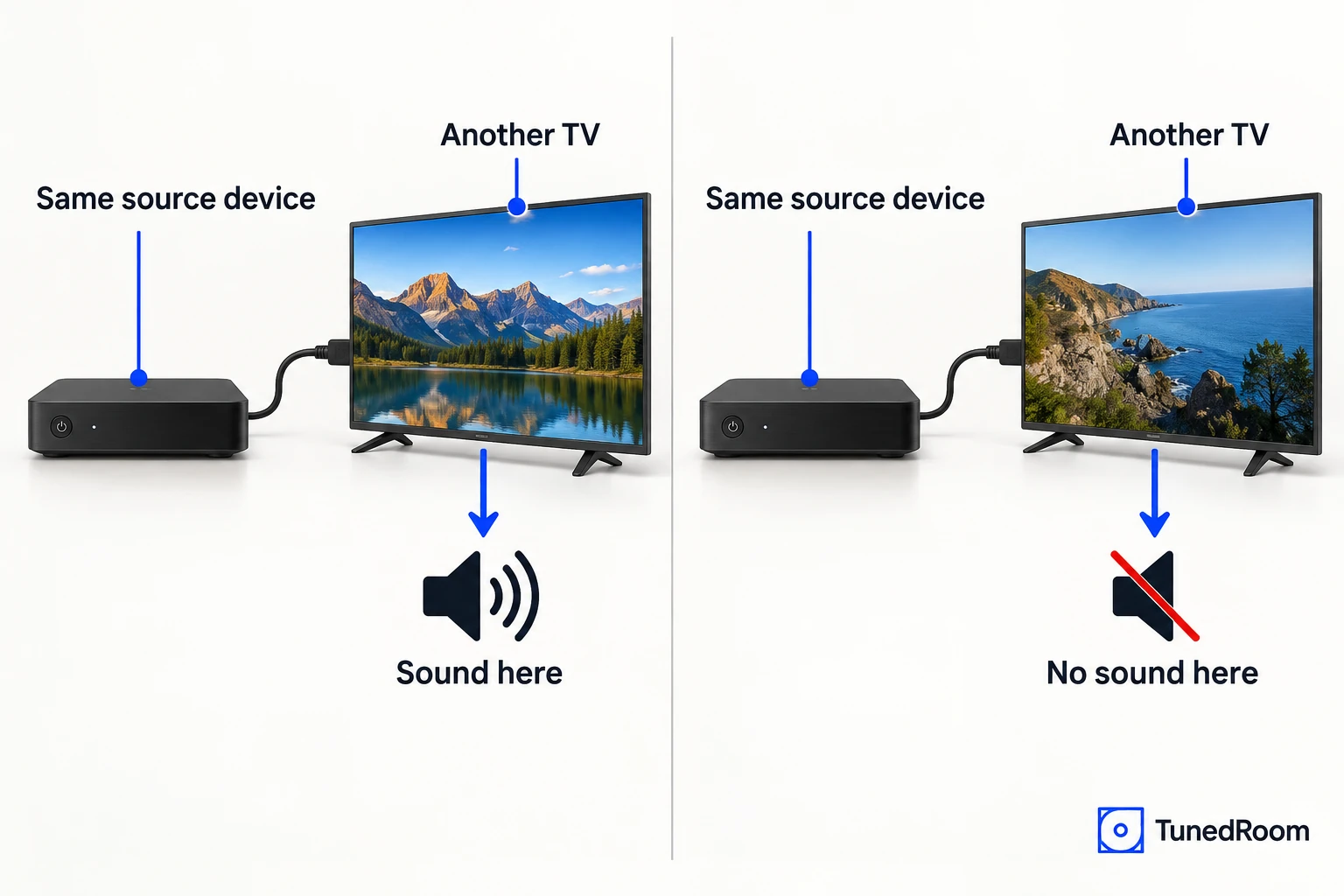
If possible, connect your source device to another TV. Sound on the second TV directs further troubleshooting toward the original TV. If neither TV produces sound, Sony identifies the cable or source device as possible causes.
Try another HDMI cable if you haven't already. The comparison helps direct your next move, but one silent test doesn't prove that a particular component has failed.
For the Samsung PC branch, test the external display or audio device with a source other than your PC. This checks whether the problem happens only with that PC or also with another source.
If the problem persists, contact the external device's manufacturer for further troubleshooting and explain which connections produced sound. For a Samsung external device, use Samsung's Support Center to find device-specific help, as directed in its US PC troubleshooting guidance (opens in a new tab).
For a Sony TV that remains affected, seek repair assistance. Sony says repair may be required if the issue continues; its US HDMI troubleshooting page (opens in a new tab) includes the Product Repair route.
More in this category
Keep following the signal
Elsewhere on the desk