Start with the picture you want to send
- There’s no single distance that works for every HDMI cable. Usable reach depends on the cable’s construction and the video signal you’re sending.
- Around 25 feet is a cautious figure for a standard passive copper run. A demanding high bandwidth connection may need a much shorter one.
- Choose a cable rated for your format at the length you need, then check the picture and sound before final installation.
If your console or player will sit across the room from the screen, we’d decide on the resolution and refresh rate first. Those choices change how much data the cable must carry, which makes a length that works for one picture a poor guide for another. Then compare that demand with the full distance from source to display.
A short passive cable may suit a nearby TV, while an active or optical cable gives you options for a longer trip to a projector. The figures below are useful for narrowing the choice, but the particular cable’s stated performance at your chosen length is what you need to check.
Why a long connection can break up
As an electrical signal travels through a long copper cable, it weakens. This is attenuation. When the connection struggles, you may see flickering or flashing, hear distorted audio, or lose the signal entirely.
Higher resolution and refresh rate increase the data the link has to carry. A run that holds a less demanding format may falter when you raise those settings. Longer cables are also more exposed to interference from nearby electronics and cables; shielding can help reduce that interference.
Watch for those changes while you assess a long run. If the screen reports No Signal, the HDMI no-signal checks cover the wider connection. If the picture holds but sound fails, follow the HDMI sound checks for that symptom.
What passive copper can cover
Passive copper carries the signal through its conductors without built-in amplification. Around 25 feet is a cautious planning figure for a standard passive run, and both cable construction and the picture format affect the result. That makes passive copper a sensible first category to compare when your source and screen are relatively close.
You’ll also encounter a broader figure of up to 50 feet for standard home connections. Passive cables that long are available, but their quality varies; roughly 25 feet describes generally reliable passive reach, while 50 feet describes a possible longer offering. Check the performance claimed for the actual cable at that length.
The older generations show why one distance rule falls short. Around 50 feet is given as a possible upper example for HDMI 1.4, yet cables from that generation at that length are unusual and around 30 feet is easier to find. HDMI 2.0 examples include cables around 15 feet and passive runs of 20 to 30 feet in some cases.
High bandwidth shortens the passive choice
For demanding passive HDMI 2.1 connections, the estimates shrink to about nine or ten feet. Standard passive cables are described at around nine feet; a separate estimate puts practical reach around ten. At the full 48 Gbps data rate, Cable Matters describes its best passive cables reaching ten feet before running into difficulty.
Those figures describe different cable and signal conditions. If you’re planning high resolution or a high refresh rate, compare products at the format you intend to use, especially near that nine-to-ten-foot range. The longer figures for older, less demanding connections won’t tell you how a full bandwidth run will perform.
For a console or computer close to its display, a suitable short passive cable remains an option for high resolution and high refresh rate use. When the needed length grows beyond the passive product’s stated performance, compare an active cable rated for the same signal.
When active copper gives you more reach
Active copper has built-in electronics that boost the signal. It’s the next category to compare when a passive product falls short of your distance and format. Start with the format in the product’s performance claim, then check the length attached to that claim.
For high bandwidth HDMI 2.1 use, active copper guidance includes about 25 feet. Broader active-cable guidance reaches around 100 feet or more, and older signals can travel over 100 feet with an active cable in some cases. Match each distance to the signal it describes before choosing one for your setup.
That difference matters if you’re moving a game console away from a TV or putting a source far from a projector. A length advertised for an older signal tells you less than a claim that names the high resolution and refresh rate you’ll actually send.
What optical changes for a long run
Active optical cable converts the signal to light for the long part of the connection. It gives you another choice when source and display are much farther apart. Optical construction is also less susceptible to interference than passive copper.
Some active optical cables are described as carrying high definition over about 300 feet or more. At the high end, Cable Matters describes optical cables exceeding 300 feet while retaining full HDMI 2.1 bandwidth. Other products serve shorter runs, including a 50-foot optical example for 4K at 120 Hz. Check the exact product’s distance and format together.
Optical cables generally cost more than passive copper. If your planned distance fits more than one cable type, compare the stated performance at that distance before paying for reach you won’t use. For a very long run, optical becomes a useful category to examine when copper choices no longer cover your intended signal.
Choose a length and format as a pair
Write down the length between your source and display and the resolution and refresh rate you intend to use. Compare passive products first for a shorter run, active copper when you need more reach, and active optical products for a much longer connection. At every stage, keep length and signal performance together.
Read the selected product’s performance claim for the length you’re buying. Construction tells you how the cable carries a signal, while that product claim tells you which signal it is intended to carry at its stated length. This is especially useful when two long cables offer similar reach but describe different picture formats.
For distances beyond the cable products you’re considering, repeaters and extenders are separate technologies for carrying a signal farther. Their supported picture formats and reach depend on the particular product, so compare those stated capabilities with an active or optical cable before choosing the connection.
Connect an active cable the right way round
Before connecting an active cable, find its source and display markings. Put the source end into the player, console or computer and the display end into the TV or projector. Its boosted signal travels one way, so reversing those ends leaves you without a signal, though it won’t damage the devices.
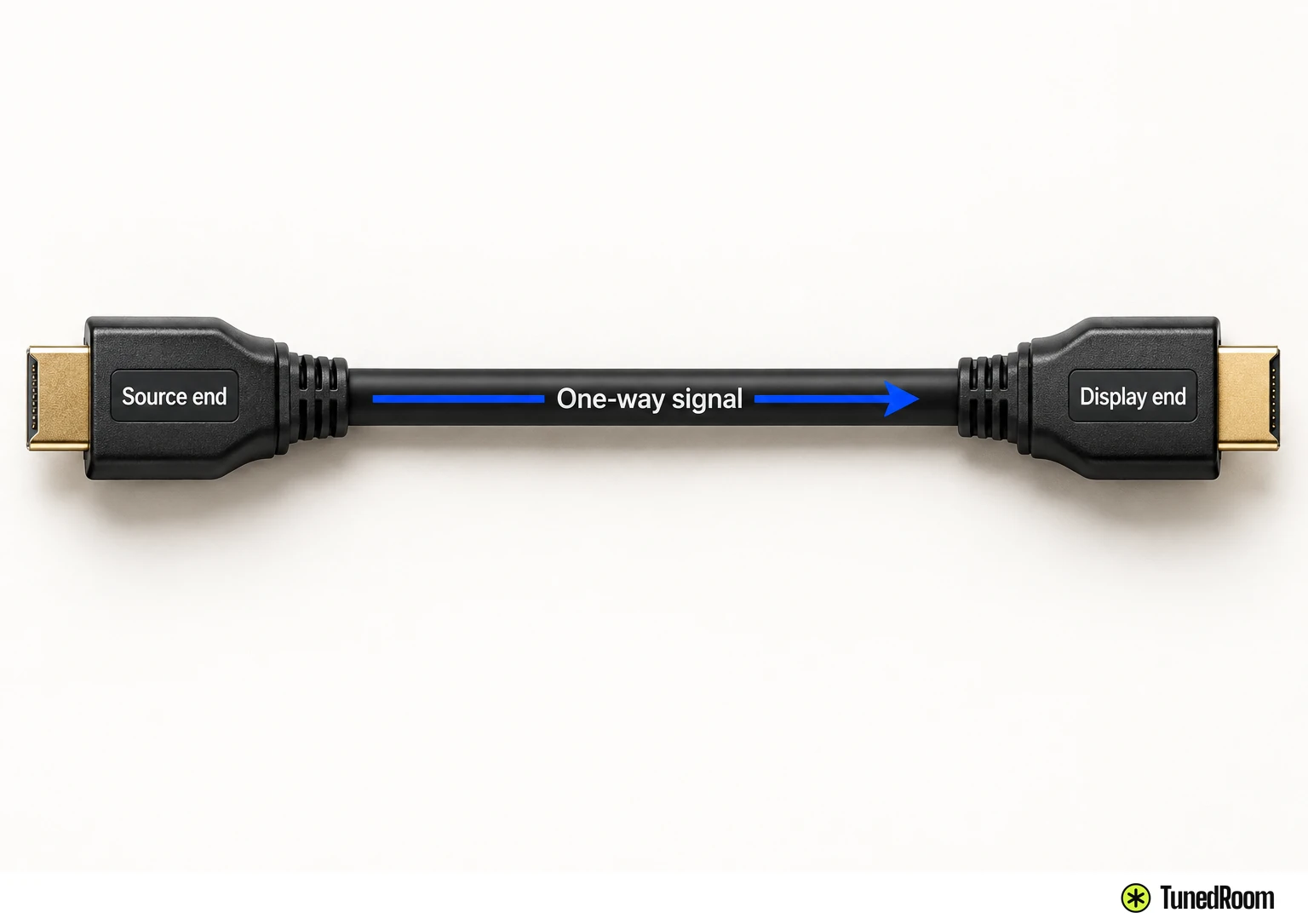
A passive cable can carry audio and video in either direction. With an active or active optical choice, use the marked ends for the source-to-display connection you planned. You’ll then be testing the cable in the direction in which it’s designed to work.
Check the picture and sound before final installation
Before final installation, connect the chosen cable between your source and display. Select the resolution and refresh rate you intend to watch or play, since a less demanding format would give you a different test of the connection.
Watch for a clear, stable picture and listen for steady sound. Flickering, audio dropouts or a lost signal mean the connection needs attention before you put the cable in its final position. Compare the cable’s stated performance with the format and length you’re using.
When the picture stays clear and the sound holds steady at your chosen format, you’ve checked the cable on the connection it’s meant to serve.
More in this category