Choose the check that fits your setup
- Check that your source is fully on and your TV is showing the HDMI input that matches its connection.
- If a receiver or soundbar sits between them, test the source directly on the TV.
- Use cable, port and source swaps to narrow the problem before choosing your next step.
A connected cable can still leave you looking at a blank screen when the source is asleep or the TV is listening to another input. We'd check those two things first because neither requires changing your wiring, and both can explain why no picture arrives.
After that, follow the part of the setup that fits your situation. A loose connection, a damaged cable and an unsupported video format are different possibilities, so the useful result is finding which change brings the picture back.
Match the input and secure both cable ends
Make sure your cable box, console, player or computer is fully powered on. A source that's off or asleep isn't sending the signal you need, even though its HDMI cable is still plugged in.
Look at which HDMI input on the TV holds the cable, then press INPUT or SOURCE on your remote. Use the arrow keys or repeated presses to select that matching input, as described in Anker's input-selection guidance (opens in a new tab). For example, a cable connected at HDMI 2 needs HDMI 2 selected on screen.
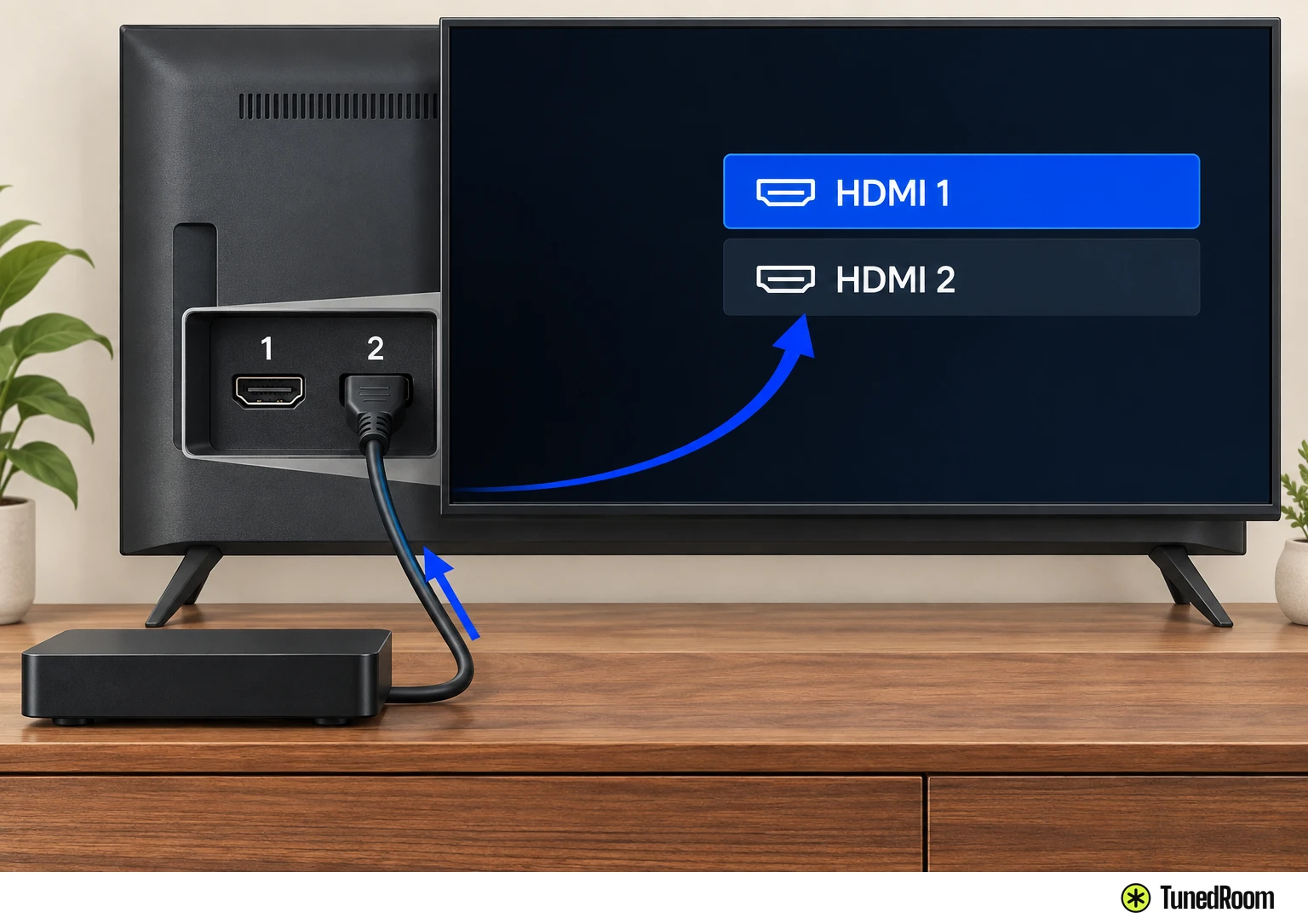
Input names and the location of the remote's Input button vary by TV model. Match the selection to your actual connection rather than following a menu name from another television.
For a computer, check its video-output setting before reconnecting. Turn both the computer and TV off before any cable reconnection, including the bypass, cable and port tests below, and use an undamaged cable that supports your required resolution and refresh rate.
Unplug both ends of the existing HDMI cable, one from the TV and one from the source, then plug both back in firmly. TCL's connection checks (opens in a new tab) call for reseating both ends, so check the source end as well as the one behind the screen. Use the applicable startup order below when turning the equipment back on.
A receiver or soundbar is in the middle
Connect your source directly to the TV for testing, leaving adapters, splitters and HDMI switches out of the path. If you normally send video through a receiver or soundbar, bypass that too, following TCL's direct-connection test (opens in a new tab).
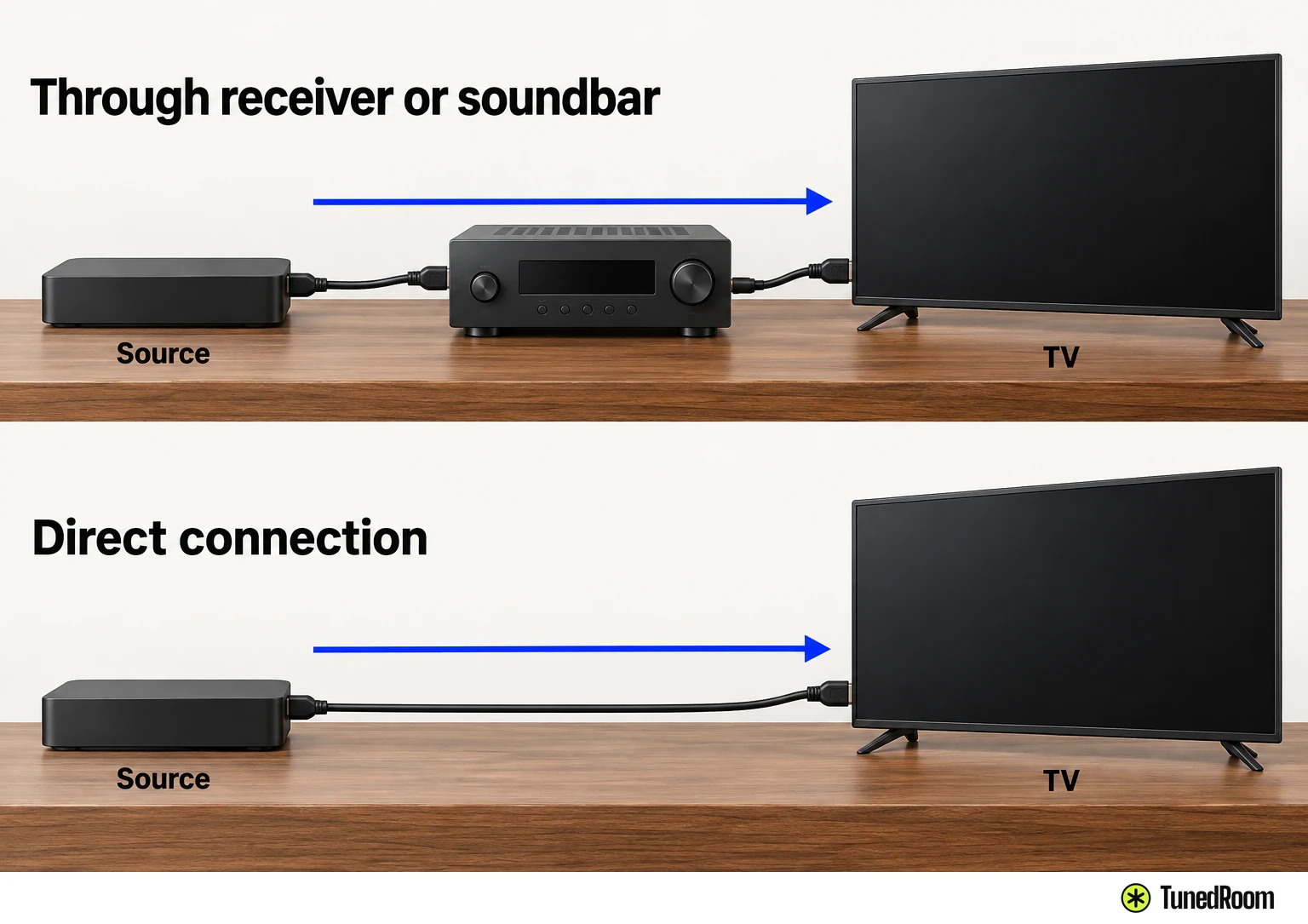
A picture with this arrangement gives you a working direct path to compare with the original setup. Keep track of which cable and TV input produced that picture, so the following substitutions stay tied to a specific connection.
For an HDMI amplifier setup, also check the two connections separately. Your source should use the intended HDMI input on the amplifier, and the amplifier's output connection should match the HDMI input selected on the TV.
Power-cycle with the right startup order
If the picture still fails to appear consistently, try a power cycle. TCL describes this as a way to refresh the HDMI handshake between the TV and source, and its procedure includes disconnecting power from both devices.
- Turn off the TV and connected source, then unplug both power cords from their outlets. Both devices should now be disconnected from outlet power.
- Wait 30–60 seconds, then plug both power cords back in. Both devices should be connected to power again.
- For TCL's sequence, turn on the source first, then the TV. Check whether the picture now appears on the matching HDMI input.
That source-first order belongs to TCL's power-cycle procedure (opens in a new tab). Anker separately specifies a 30-second unplugged wait in its power-cycle advice.
For a computer connection, Sony's October 2025 computer-HDMI guidance (opens in a new tab) gives a different order, including after restarting equipment. Turn on the TV first, then the computer, because starting the computer while the TV is off or in standby may prevent the image from displaying correctly. Keep this computer-specific order separate from TCL's source-first sequence.
Compare another port, cable and source
Try another TV HDMI input, such as moving from HDMI 1 to HDMI 2, and select the new input on screen. Then test a different High Speed HDMI cable if you have one available. Changing one part at a time makes the resulting picture, or continued blank screen, useful for comparison.
Look for visible cable damage, including fraying or kinks. A faulty or older cable can cause dropouts, and Anker recommends a High-Speed replacement with the HDMI logo for substitution testing. If a different cable restores the picture, the original cable may be faulty.
Samsung's Levant guidance, updated March 28, 2023 (opens in a new tab), warns that a non-certified HDMI cable may cause a blank screen or connection error. It also states, “Use an HDMI cable with a thickness of 0.66 inches (17 mm) or less.” The measured part is unspecified, so confirm that requirement with Samsung before using it to choose a cable.
Next, try another HDMI source, such as a game console or Blu-ray player. This adds a different comparison from changing the cable or TV port: you can now see whether the missing picture follows one source or occurs with more than one.
Your TV has to support the source's output
Check what video format the source is sending and what the TV accepts. A computer or console can send a resolution or format the TV doesn't support, leaving you without a picture even after the physical connection checks.
For a computer, use your TV's instructions to find its supported resolutions and display modes. Before changing the computer's resolution, write down the current setting so you can restore it later. Sony's computer-output guidance (opens in a new tab) makes compatibility with your particular TV the deciding factor.
Use the computer's help or instructions to change its resolution, choosing one the TV supports. Sony also suggests trying a lower resolution when the picture remains absent. An unsupported setting can produce a distorted image as well as no image, so check the displayed result after making the change.
If you're unfamiliar with changing computer display settings, use the instructions supplied with your computer or contact its manufacturer for help. Sony's setting examples are examples, while your computer's instructions determine how you make the adjustment.
A computer picture fails during playback
Some computers or graphics cards can't output HDMI or HD signals in every video mode. Check the computer's supported output modes alongside the TV's supported display modes, because both sides need to work with the setting you choose.
If the issue appears when playing video, some playback software, including DVD or Blu-ray players, may not support showing video on the computer and TV simultaneously. In that situation, Sony recommends displaying on one device only (opens in a new tab). Use your computer's instructions to select that output.
Use the results to choose your next step
If only one source has the problem, focus on that device's cable, settings or HDMI port. If several sources have the same problem, TCL says the results may point toward the TV input or cable path. Keep the distinction between one failing source and several when deciding what needs attention.
To check a particular TV port, compare multiple working devices on that port and on other ports. If they all fail on the tested port but work elsewhere, Anker's port-check guidance (opens in a new tab) identifies a likely defective port. That result narrows the trouble to the input you're testing.
When a replacement source works and the original doesn't, Samsung's Levant guidance directs you to contact the original device's manufacturer for further assistance. At that point, stop changing TV settings and ask that manufacturer to help with the original device, explaining which replacement source worked.
More in this category