Samsung TV worked example
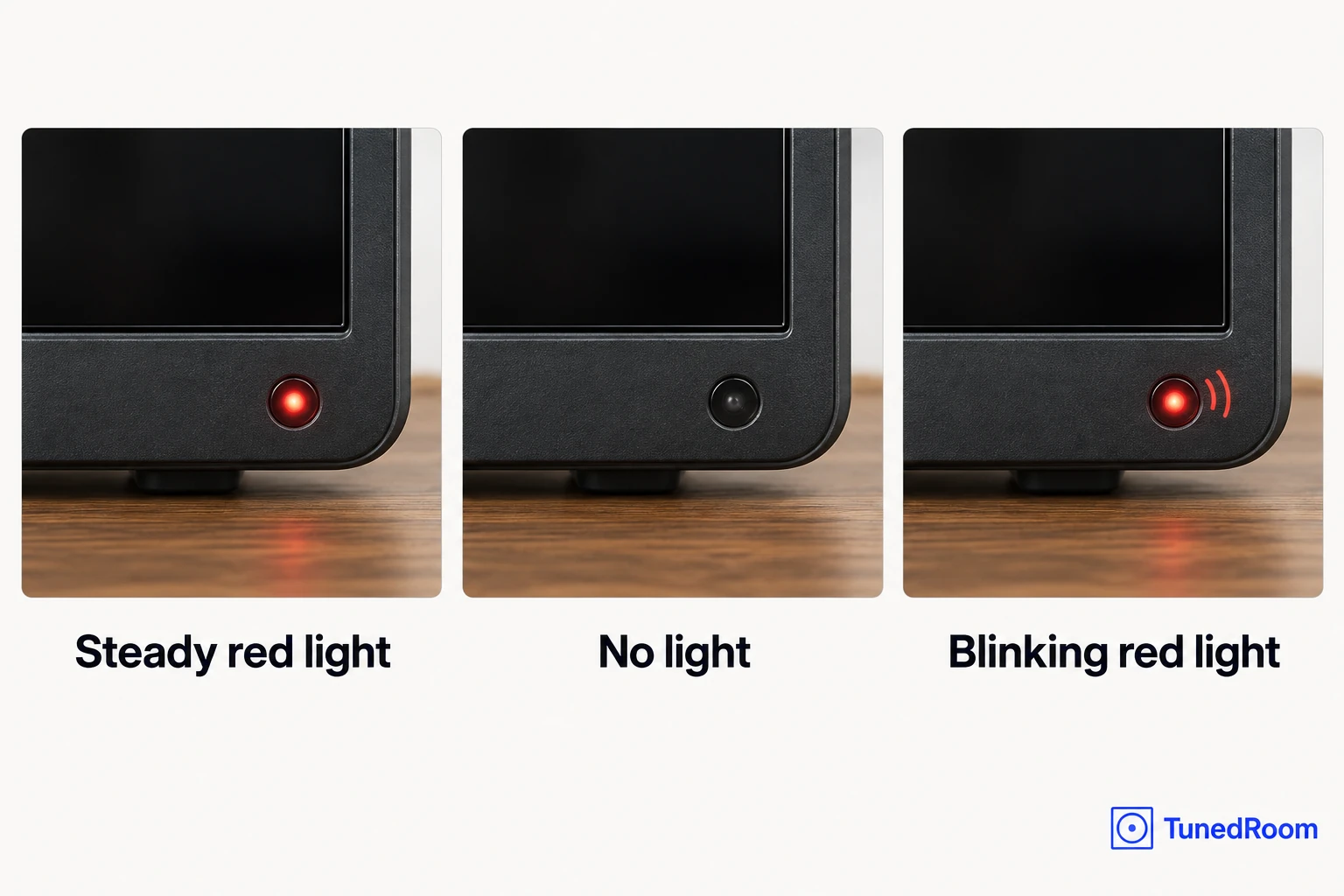
- On a Samsung TV, check the red standby light first. Steady, off and blinking lead to different checks.
- A steady light calls for comparing the remote and TV Power buttons. With no light, first check whether the TV is already on.
- Use the applicable outlet check below for an unlit or blinking indicator. If that branch ends in a service request, contact Samsung.
Your remote can seem to do nothing even when the set has power, and a black screen can belong to a TV that's already running. We'd use the standby light to choose the check because it separates the control problem from the possibility of a powered-on black screen.
This worked example follows Samsung's US TV power-on guidance (opens in a new tab). It covers Samsung televisions through their standby-light behavior, with your model's manual supplying the control locations. For another brand, follow your own maker's power-on instructions.
Look for the small red light at the edge of your Samsung TV, where you aim the remote. In normal use, that light is on while the TV is off and waiting in standby. It goes out when the TV is in use, so a dark indicator needs a different check from a steadily lit one.
An ongoing power interruption comes first
If a brownout, blackout or temporary power loss is still happening, wait until it has resolved before troubleshooting. Sony's power guidance (opens in a new tab) explicitly puts this prerequisite ahead of TV checks, because power fluctuations can prevent a TV from turning on.
That gives you a useful first distinction if the screen went dark during an interruption: deal with the ongoing power condition before treating the TV's lack of response as a separate problem. Once the interruption has resolved, continue with the Samsung branch that matches the indicator.
The red light is steady
A lit red standby indicator is normal when your Samsung is plugged in, receiving power and turned off. If the screen stays dark when you try to turn it on, the remote is the next thing to rule out. The useful comparison is whether the TV responds differently to its own control.
Press Power on the remote and watch for the TV to turn on. If it doesn't, and the standby light remains lit, press the Power button on the TV itself. Use your model's user manual to find that button, because its location varies between Samsung TVs.
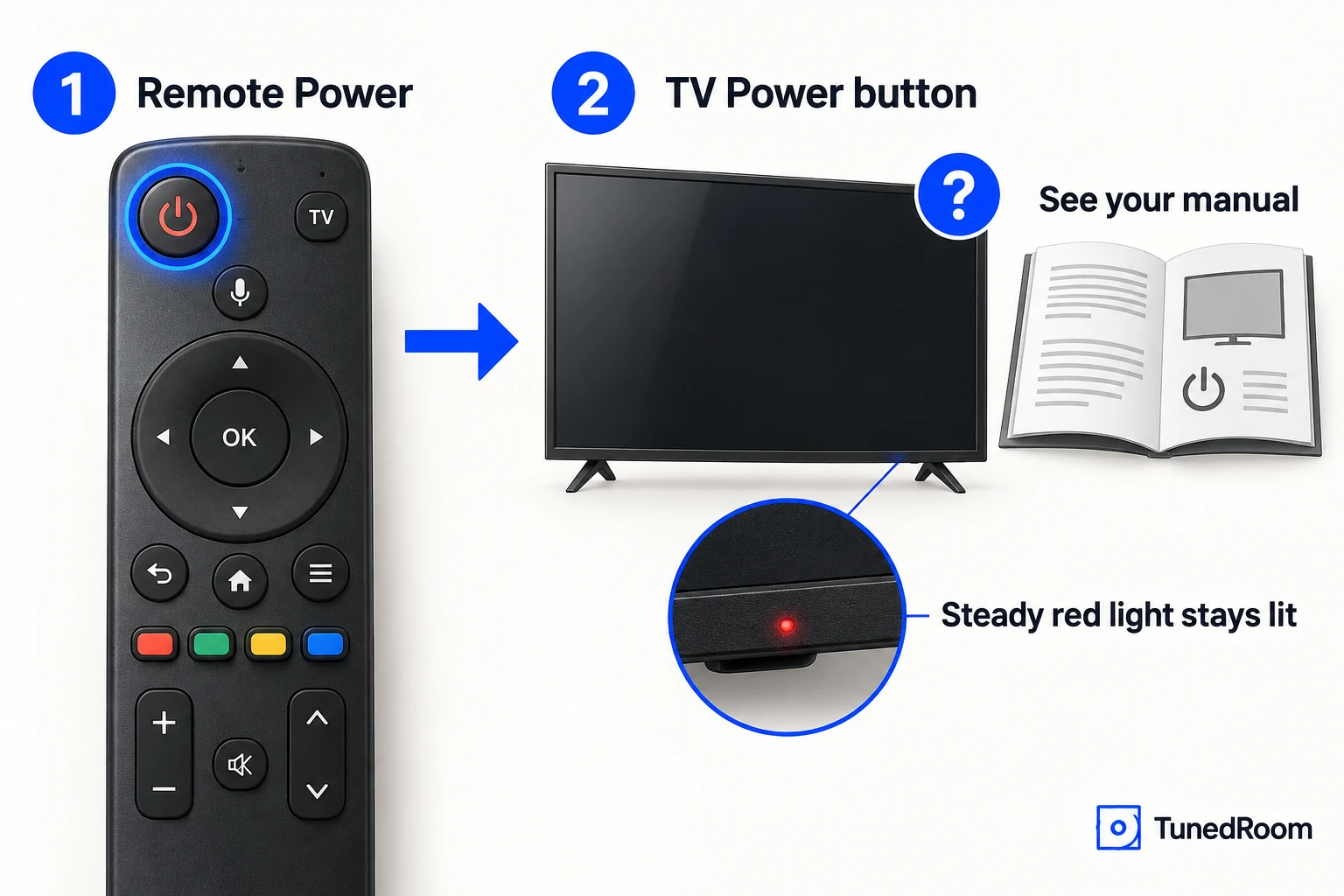
If the TV's physical button turns it on after the remote failed, that identifies a remote problem. Follow the remote-troubleshooting link on Samsung's US power-on support page (opens in a new tab). You've established that the set can turn on, so remote help is the relevant next task.
The indicator is off
A Samsung TV with no red indicator may have no power, or it may already be on with a black screen. Check for an on-screen response before moving to the power retry. That response decides whether you need picture help or should continue checking the power supply to the set.
Without using the remote, press a button on the TV other than Power and watch the screen. This check is looking for a response from a TV that may already be running, which is why the instruction excludes the Power button.
Some Samsung models have a single-button control. Check your model's user manual for its control location and keep that layout limitation in mind: the check described here requires a button other than Power. Use the controls your model provides for the applicable test.
If anything appears after that non-Power button press, you've confirmed that the TV is on. Follow the no-picture or black-screen help linked from Samsung's US troubleshooting page (opens in a new tab). If the TV's controls produce an on-screen response but the remote doesn't, follow its remote-help route as well.
Retry power from a working outlet
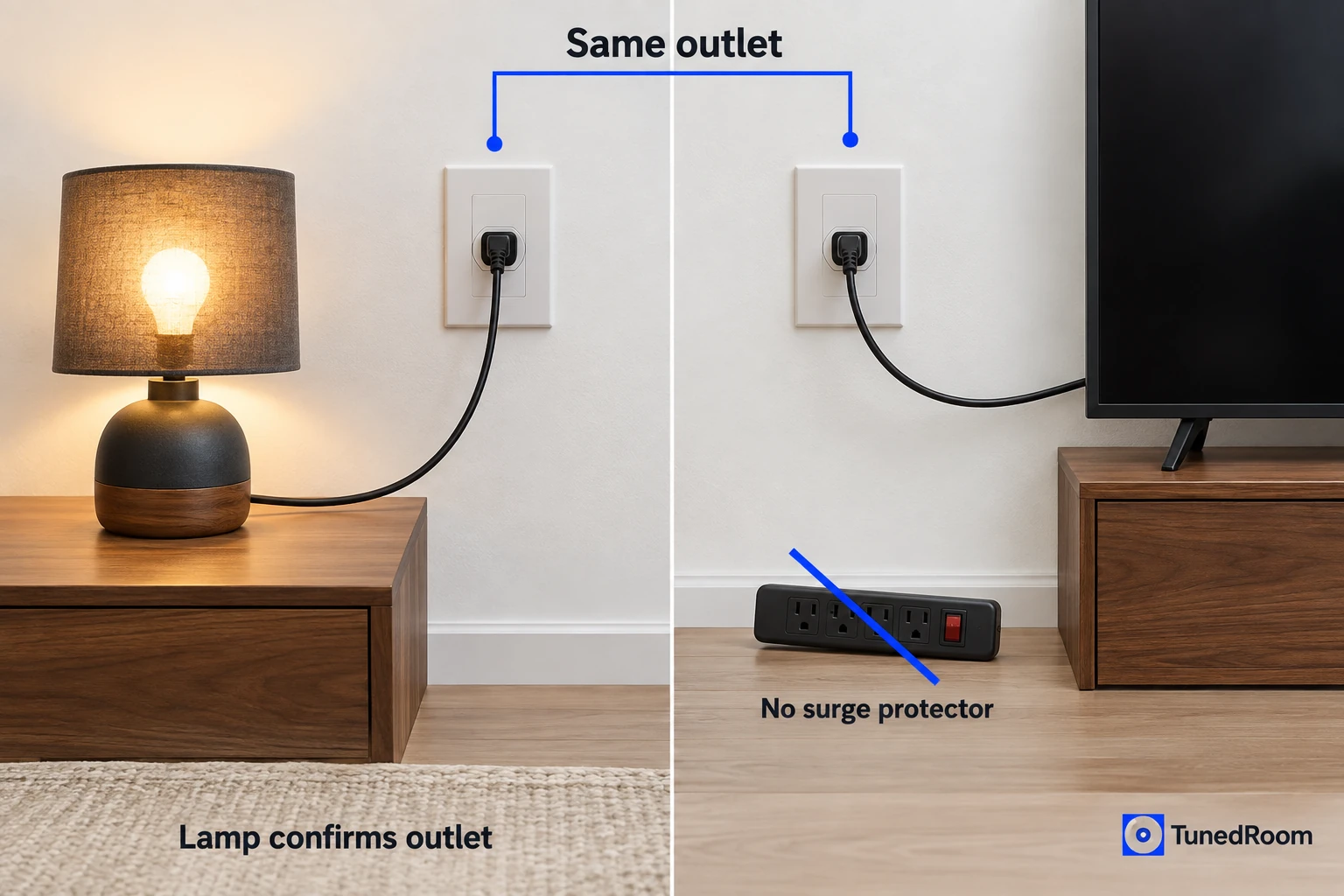
If the unlit-indicator check hasn't produced an on-screen response, the next task is to rule out a power issue. A blinking red indicator also leads to this outlet retry. Have a lamp or another device available so you can establish that the outlet you're about to use actually works.
The Samsung US outlet check (opens in a new tab) pairs an unplug interval with a known-working outlet. Both parts matter to following this branch: the wait comes before reconnection, and the outlet test gives you a confirmed power source for the retry.
- Unplug the TV and leave it disconnected for 30 seconds. Keep it unplugged until that interval has elapsed.
- Test the outlet you plan to use with another device, such as a lamp. Confirm that the lamp works there before connecting the TV.
- Plug the TV into the confirmed-working outlet. For a blinking indicator, don't use a surge protector: Samsung explains that these can wear out and stop supplying the voltage the TV needs. Watch whether the indicator stays off, becomes steady or continues blinking, and whether the TV turns on.
The light returns but the screen may still be dark
A red light that comes back and stays steady means your Samsung is receiving power. Samsung says this outcome points to an issue with the original outlet, or the surge protector if you were using one. This applies after the outlet retry from either the unlit or blinking branch.
Samsung says the TV will probably turn on now. Check the screen's response as well as the light: restored standby power and a successful power-on are separate observations. If the set turns on, you've reached the successful outcome of the power check.
If the indicator is now steady but the TV still won't turn on, return to the remote-versus-TV Power comparison above. That's the next step in Samsung's US follow-up guidance (opens in a new tab), because the restored light puts you in the receiving-power branch.
When to contact Samsung
Match your final result to the service conditions below. The combination matters: whether the indicator is steady, absent or blinking, and what happened with the relevant controls or working-outlet test. These are Samsung's stopping points for the external power-on checks.
- The red light is steady, but neither the remote's Power button nor the TV's physical Power button turns it on. Request service.
- After trying a working outlet, the standby light never comes on and the TV still won't turn on. Request service.
- After the outlet retry, the red light still blinks and the TV still won't turn on. Request service.
When you contact support, describe the matching result, including which control responded or what changed after the outlet retry. Saying that the indicator became steady but both Power controls failed gives a more specific account of your checks than saying only that the screen stayed black.
Use the service-request route on Samsung's US power-on support page (opens in a new tab). You can contact online chat from a computer, phone or tablet. Support is also available on your mobile device through the Samsung Members app.
More in this category