Samsung worked example without a One Connect Box
- On a Samsung TV without a One Connect Box, press Home (Menu) on the remote first.
- If the menu appears, check the selected source, connected device and cables.
- Use the menu result below to decide whether to continue with external checks or follow Samsung's power troubleshooting.
You might still hear your program while the screen shows nothing, and the connected device could be responsible. We'd check the menu before disturbing the cables because a visible menu confirms that the Samsung TV is powered on and points you toward the source selection or missing signal.
This worked example follows Samsung's procedure for a TV without a One Connect Box that has a black screen or no picture. For another brand, use your TV maker's troubleshooting instructions and controls.
The external possibilities to work through are a wrong source selection, a device that's turned off, a cable problem and a problem with the connected device. That order starts with what you can check through the TV's controls, then moves along the connection to the equipment supplying your picture.
What the menu result means
Look for the TV's own controls after pressing the remote button. If they appear while your program remains absent, the TV is powered on, but it's either on the wrong source or isn't receiving a signal. Continue to the source check below.
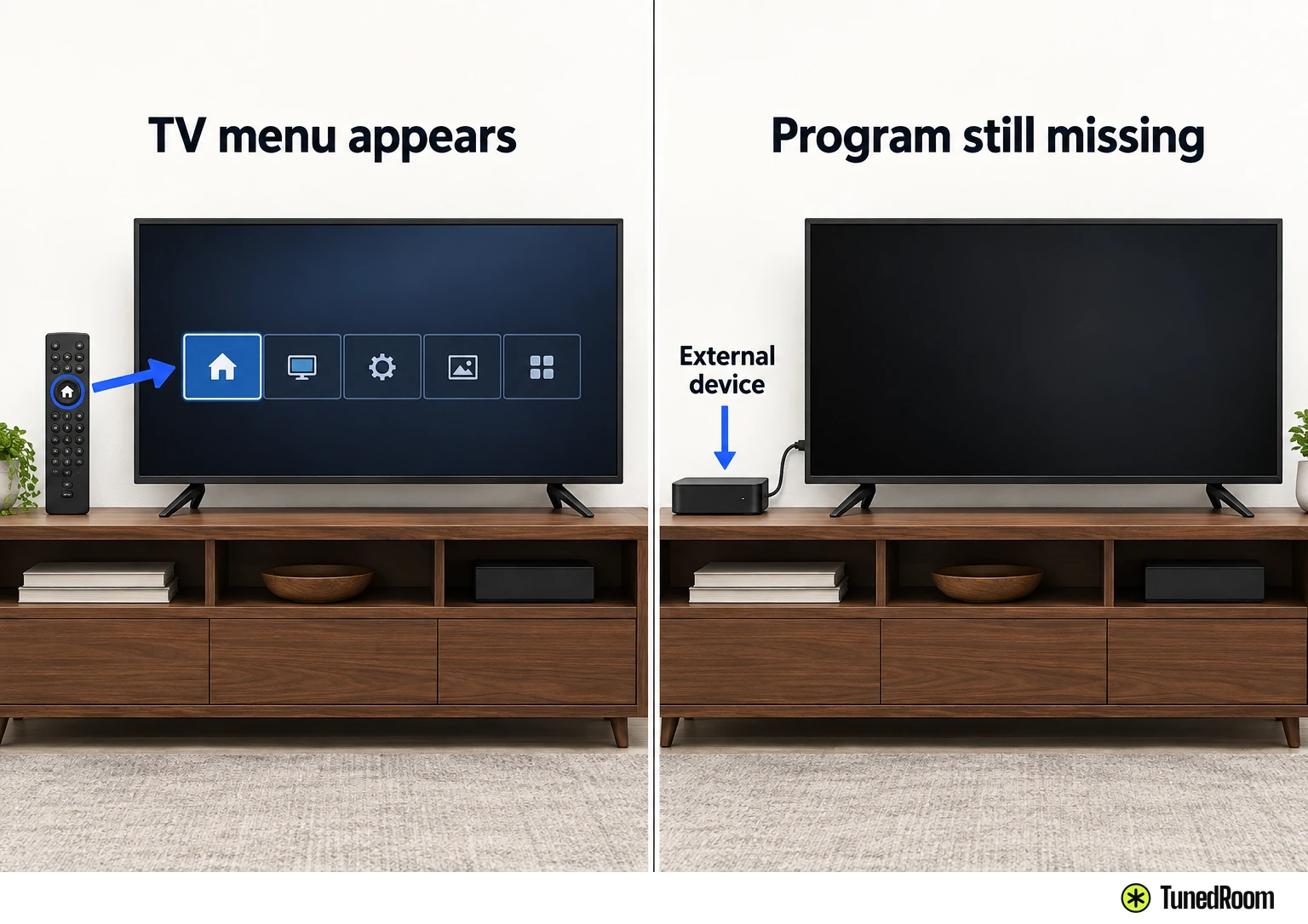
If the menu doesn't appear, stop this connection-check path. Samsung identifies possible power issues and directs you to its separate power-on troubleshooting, accessible through its US black-screen support page (opens in a new tab).
The distinction you're making is between a picture generated by the TV's menu and the program coming from your external equipment. For the next checks, a visible menu is your way into the source settings, even though the picture you actually want to watch is still missing.
Match the source and turn on the device
Match the selected TV source to the input where your external device is connected. Samsung's example is a cable box connected to HDMI 1: the TV source needs to be HDMI 1 as well. The input carrying that cable and the source selected on screen need to agree.
Use the connection you're trying to watch as your reference. If you've been looking at another source, select the matching one and look for the program picture. This checks the TV's choice of input before you move or replace any cable.
Make sure the external device itself is turned on, too. A Samsung TV can show a black screen with a source connected when the device at the other end is off, so having the cable plugged in is only part of this check.
With the matching source selected and the device on, look for its picture. If that restores your program, you can stop here. If the correct source still has no image, move on to the physical connections.
Check the complete cable connection
With the source already checked, reconnect the external cables (opens in a new tab) one at a time, working at both ends of each cable. Include the connection at your external device as well as the one at the TV, so the whole connection gets checked.
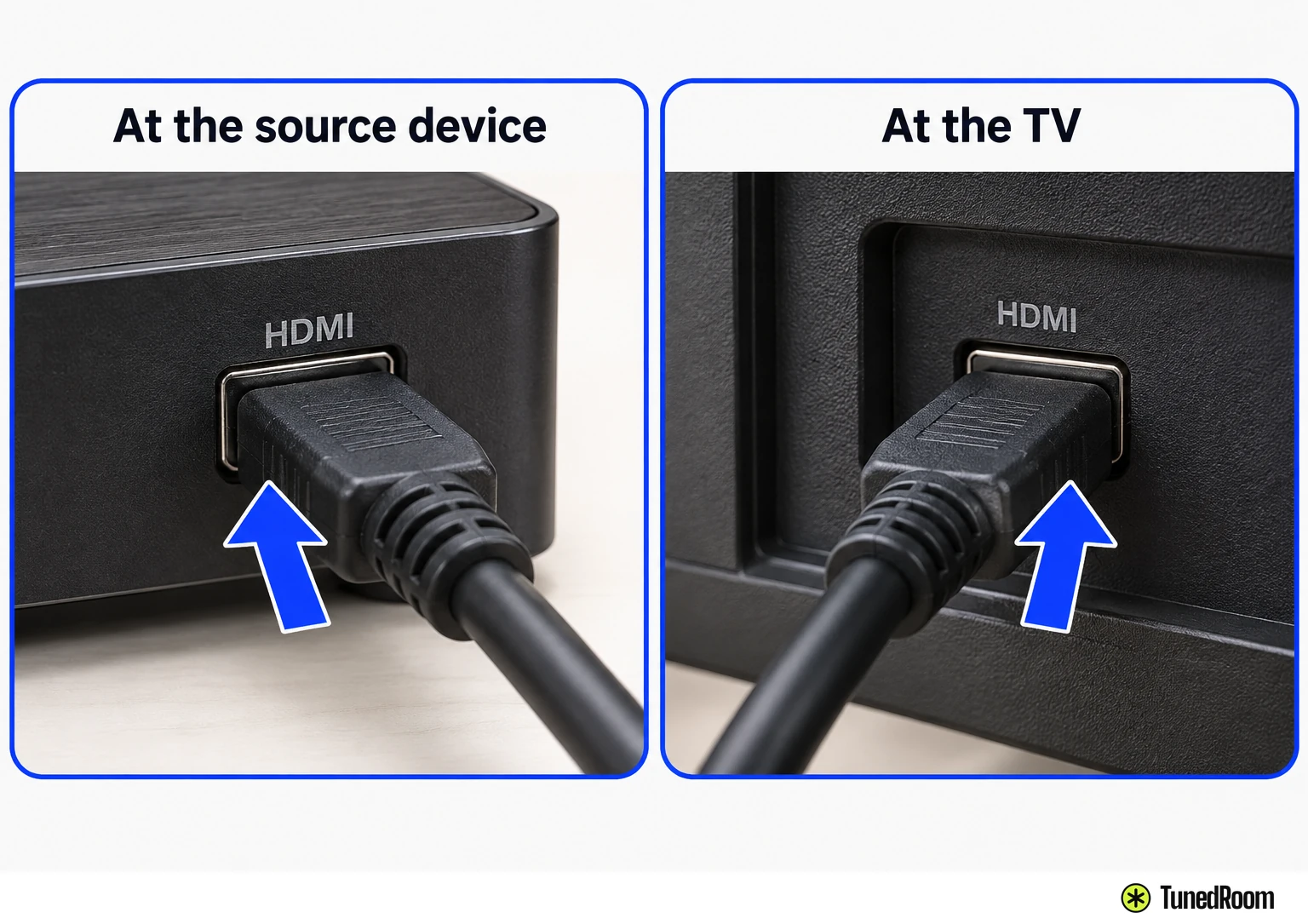
Finish unplugging and reconnecting one cable before moving to the next. This keeps the work tied to a particular connection instead of leaving several disconnected cables to sort out at once.
Check each cable for damage while you're handling it. Replace a damaged cable; reconnecting it isn't the action Samsung prescribes for damage. For a cable with no visible damage, complete the reconnection at both ends before continuing.
After reconnecting the external device, turn that device off and back on. Watch the selected TV source for the picture to return. This restart belongs to the connected equipment, and its result tells you whether to stop or continue to the cable test.
Check whether you can test the HDMI cable
Certain Samsung TVs have a built-in HDMI cable test. Older models don't have it, and some models only have it after a software update. Use the test when it's available and the device you're checking connects by HDMI.
If your TV doesn't offer the test, or your device isn't connected by HDMI, go straight to the alternative-device checks in the next section. You can continue isolating the connection without a built-in cable-test result.
For this procedure without a One Connect Box, the test is designed for HDMI cables less than 6 feet long. Longer cables may give inaccurate results. Check that length condition before relying on the test to decide what to do with your cable.
Keep the TV's source on the HDMI input for the cable you want to test. If you've got more than one HDMI connection, this makes the selected input the one you're investigating, rather than another device's connection.
Open Settings > Support > Device Care > Self Diagnosis > Signal Information > HDMI Cable Test. Start the test and follow the on-screen instructions. Samsung's US HDMI cable test instructions (opens in a new tab) give this path for the no-One-Connect procedure.
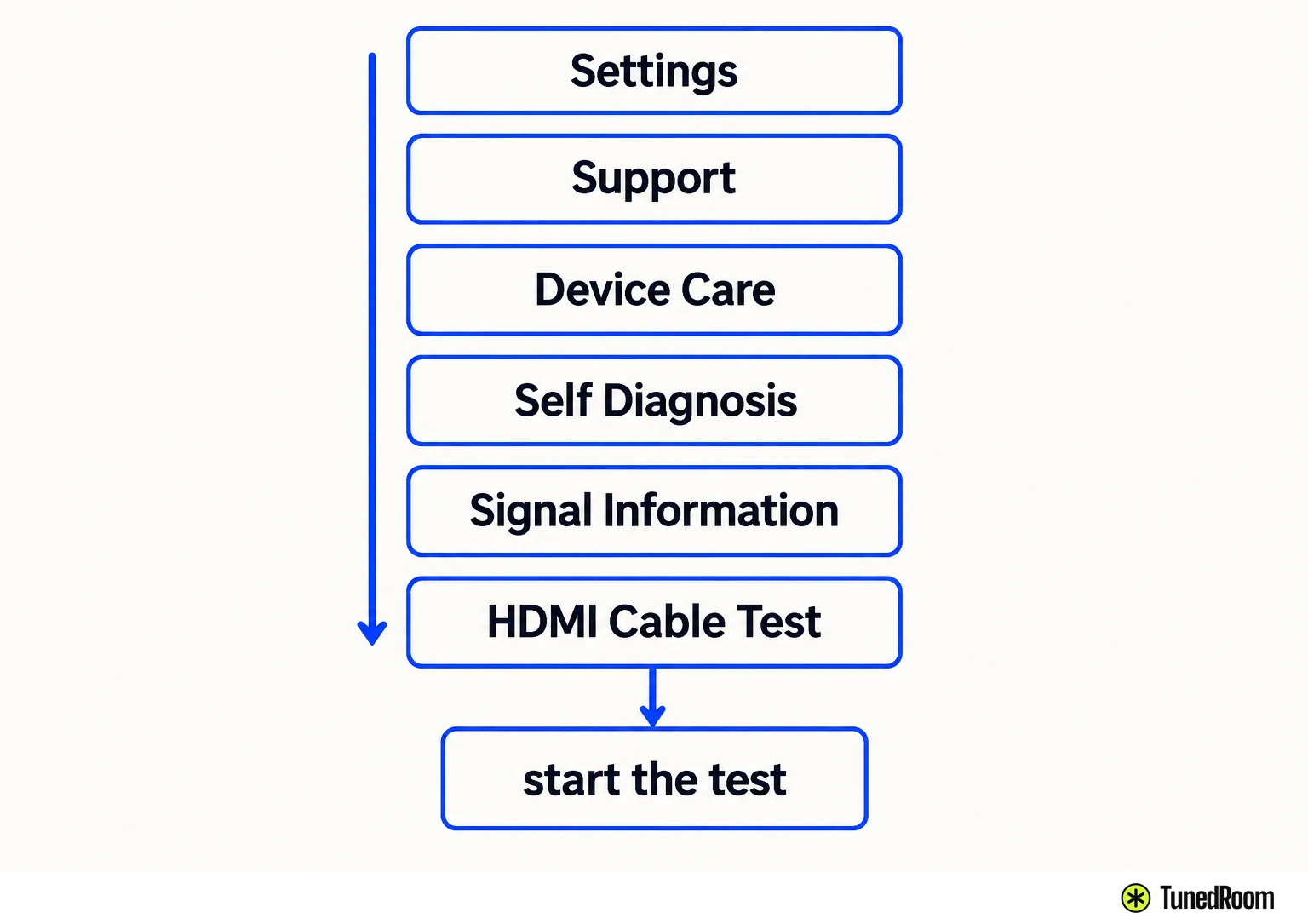
If the test reports that the cable is bad, replace it. Samsung says service isn't required for that result: the action is to replace the cable identified by the test. Then check whether your connected device's picture is visible.
Try another device, port or cable
Try connecting a different external device or using a different source port. If you couldn't run the cable test, try swapping the cable as well. The aim is to find whether another arrangement can put a picture on the screen.
When changing ports, carry the source-selection check with you: the selected TV input needs to match the port now in use. For example, moving away from HDMI 1 also means selecting the input you've moved to before judging the picture.
Samsung says a picture in any other setup rules out the TV as the cause of this issue. That result changes where you put your effort: the device or cable involved in the failing arrangement now needs attention.
Continue trying different setups until you identify the device or cable that isn't working, then troubleshoot or replace that item. A working alternative gives you a useful comparison, while finding the failing item tells you what needs attention in the connection you wanted to use.
When to request service
If there's still no picture after the applicable external checks, request service for your Samsung TV. That is the next action when changing the external setup hasn't restored an image.
Open Samsung's US black-screen support page (opens in a new tab) and follow its Support Center route to request service.
More in this category