Let what you can see guide the checks
- Check whether menus still appear or the screen stays black everywhere. That decides which checks come next.
- If menus work, compare streaming titles and apps. For a TCL Roku TV using an external device, check its input and HDMI connection.
- If the picture stays missing after the applicable checks, contact the TV's manufacturer.
When you can hear dialogue but can't see the show, we'd first separate a playback problem from a screen that never displays anything, because that keeps the next check focused. Roku documents this sound-without-picture symptom, and TCL's Home-screen check helps separate the TV's display from the source you're watching.
TCL names an incorrect input, a loose HDMI connection, connected equipment and a temporary system issue as possible causes. Those give you useful things to check before seeking service, without changing unrelated settings.
Can your TCL show the Home screen?
On a TCL Roku TV, press Home two or three times, waiting several seconds between presses. Then try a navigation button, such as the directional pad, to check whether the display was turned off while audio continued. These are TCL's black-screen checks (opens in a new tab).
Home bypasses the selected external input. If it appears after an external device's picture went missing, the display is working and the device, HDMI connection or selected input becomes the more likely place to look. If Home looks normal but one app goes black, follow the streaming comparisons below.
Watch the status light on the front or bottom while you press the remote buttons. A response suggests the TV is receiving the command, but the light may turn on, turn off or blink depending on the model. Button locations and available features also vary across TCL Roku TVs.
Sound from the TV means it's turning on and processing audio, making a no-power problem less likely. TCL says missing video may point to the backlight, display or video system. Use the checks below to narrow the pattern before asking for service.
Menus work, but a show won't display
Try another movie or episode in the same streaming app. If that plays, you've found a difference between titles within the service. If several titles fail, visit the service's website to check for an interruption or outage, as directed in Roku's playback guidance (opens in a new tab).
Next, try a video in another app, such as The Roku Channel. Compare actual playback, not only whether the app's opening screen appears. This gives you a useful distinction between one service failing and trouble that also affects other apps.
For a subscription app, make sure you're signed in or have linked it to the required account before using it for comparison. Some apps need your cable or satellite account credentials. Follow the on-screen instructions, or contact that app's support if signing in is the obstacle.
On a TCL Roku TV, you can also exit and reopen the affected app and compare other inputs. A failure limited to one source is more likely related to that app, device, cable or input than to the screen itself. If playback or app opening still fails, move to the restart procedure that applies to your TV.
Check wall power and choose the right restart
For a Roku TV with sound but no picture, Roku's outlet check (opens in a new tab) starts by turning the TV off with the remote's Power button or the TV's Power button. Then unplug it from its power source, including any power strip or extension cord, and connect it directly to a different wall outlet.
For TCL troubleshooting, use an outlet you've confirmed works with a lamp or phone charger, and make sure the power cord is firmly connected. Throughout the following TCL power checks, don't use a power strip, surge protector, extension cord or smart plug. Direct wall power removes a failed power accessory from the test.
For streaming or app-opening trouble, Roku's unplugging restart (opens in a new tab) says to power off, unplug, wait 10 seconds, then plug directly into a power outlet. Turn the TV on and try the content again. The useful result is video playing again in the content you were trying to watch.
TCL's black-screen procedure uses a different waiting interval and an additional physical-button step when available. For a TCL Roku TV on that branch, use the full procedure below after the external-device checks.
Your TCL loses picture on an external input
If your TCL goes black only with a cable box, game console, Blu-ray player or computer, match the selected input to the port that device uses. Each HDMI or AV port appears as a separate input, so selecting the wrong one can leave the screen black even when both devices work.
A loose, damaged or improperly connected HDMI cable can carry sound while failing to display a picture. Follow TCL's external-device checks (opens in a new tab) on the connection between that device and the TV.
- Confirm that the external device is on, then turn it off and back on. Check whether its picture returns.
- Disconnect the HDMI cable at both the TV and the external device, then reconnect both ends firmly. Check the selected input for a picture.
- Try a different HDMI port on the TV and select that port's input. See whether video appears there.
- If you have another HDMI cable available, test it with the device. Compare the picture with the previous cable.
These comparisons help narrow the problem to the TV, cable, selected port or connected device. Keep track of which connection produces a picture so the next check follows the result you've actually seen.
Let your TCL start with no external devices
A connected device, damaged cable or HDMI control command can interfere with startup or video. Testing the TCL without external equipment (opens in a new tab) lets it start independently and helps establish whether that equipment is involved.
- Turn off the TV, then unplug it from the wall. Disconnect every external device, leaving only the TV's power cord connected to the set.
- Plug the TV directly into the wall outlet, turn it on and press Home. Look for the Roku Home screen with external equipment disconnected.
- If Home appears, reconnect external devices one at a time and test the TV after each connection. Note which device, cable or port brings the problem back.
Testing after each reconnection is what makes this comparison useful. Reconnecting everything together would lose the distinction between the individual devices and connections you're trying to check.
Give a TCL black screen the full power cycle
A temporary system lockup can leave a TCL looking powered on while its picture won't load. A full power cycle can clear a temporary software or electrical issue. For this black-screen condition, we'd follow TCL's longer procedure (opens in a new tab), because TCL specifically says a brief unplug and reconnect may leave too little time for a complete reset.
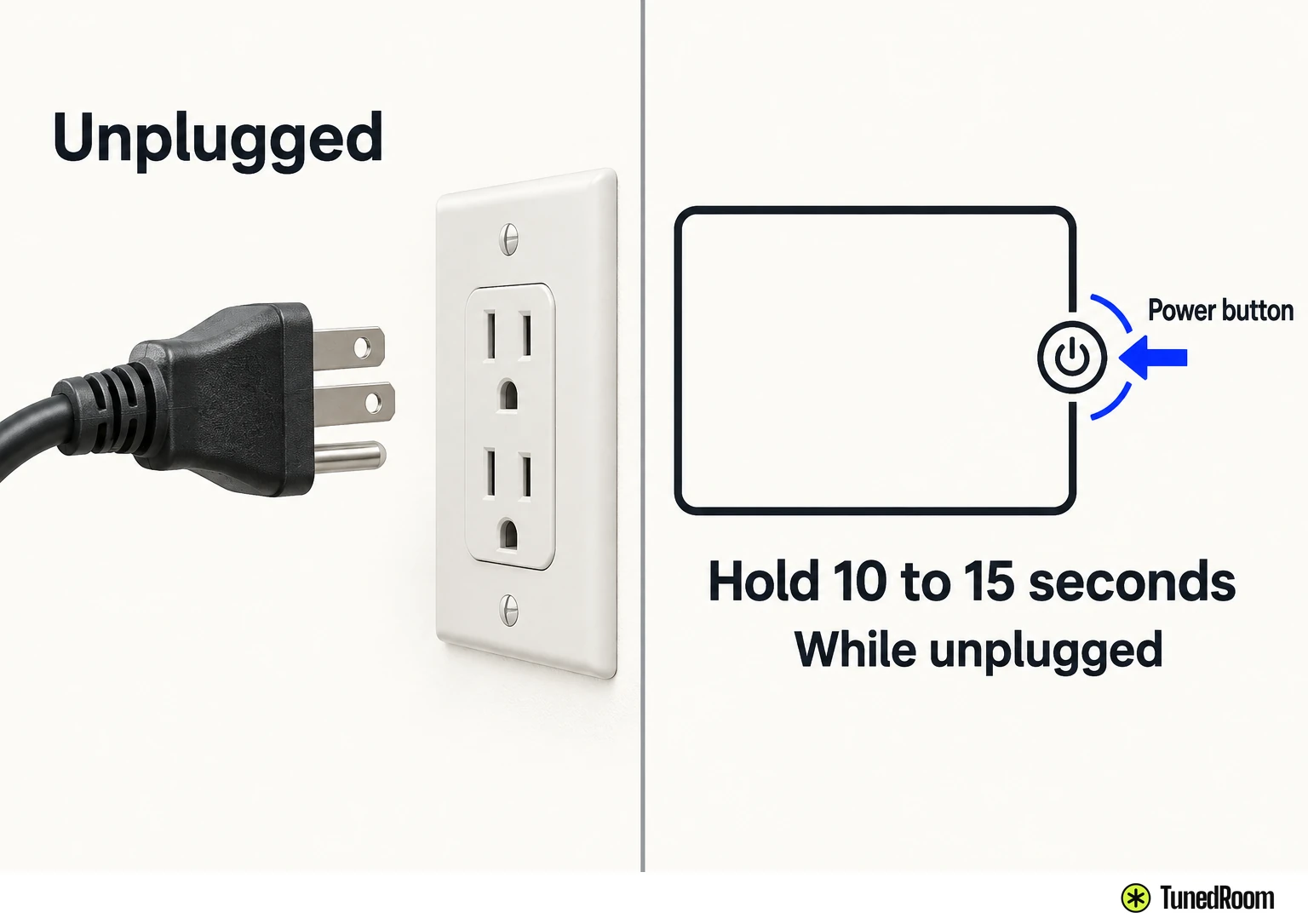
- Turn off the TV and unplug it from the wall. Leave it unplugged for at least 60 seconds, completing the full wait.
- While it's still unplugged, hold the TV's physical Power button for about 10 to 15 seconds, if that button is available. Release it with the TV still disconnected.
- Plug the TV directly into the wall outlet and turn it on while watching the screen. Press Home and check whether the Home screen appears.
Unplugging lets the internal electronics shut down fully. Holding the physical Power button while unplugged helps discharge remaining power and clear the temporary system state. Keep that button hold separate from any action performed with the TV plugged in.
During startup, note whether a TCL or Roku logo appears briefly, the screen flashes or partly lights up, or a picture appears and then goes black. Record exactly what you see and how long it remains visible. That behavior helps support understand whether startup begins before the display stops working.
When the picture still won't return
If your TCL still can't show Home after power cycling and disconnecting all external devices, contact TCL Support through the help route in TCL's US black-screen guidance (opens in a new tab). That's the point to move from these checks to manufacturer assistance.
Tell support whether the TV never displays a picture, repeatedly restarts before Home, shows a logo that disappears, or has a responding status light with a blank screen. Also report whether every app and input is affected and what changed during the cable and device comparisons.
For other persistent no-picture-with-sound cases, contact the company that made the TV. Roku directs owners of Roku-made TVs to Roku support and owners of partner-made TVs to that manufacturer. Use the support options in Roku's US TV troubleshooting guidance (opens in a new tab) to choose the appropriate route.
More in this category