Get the Chromecast picture on the projector
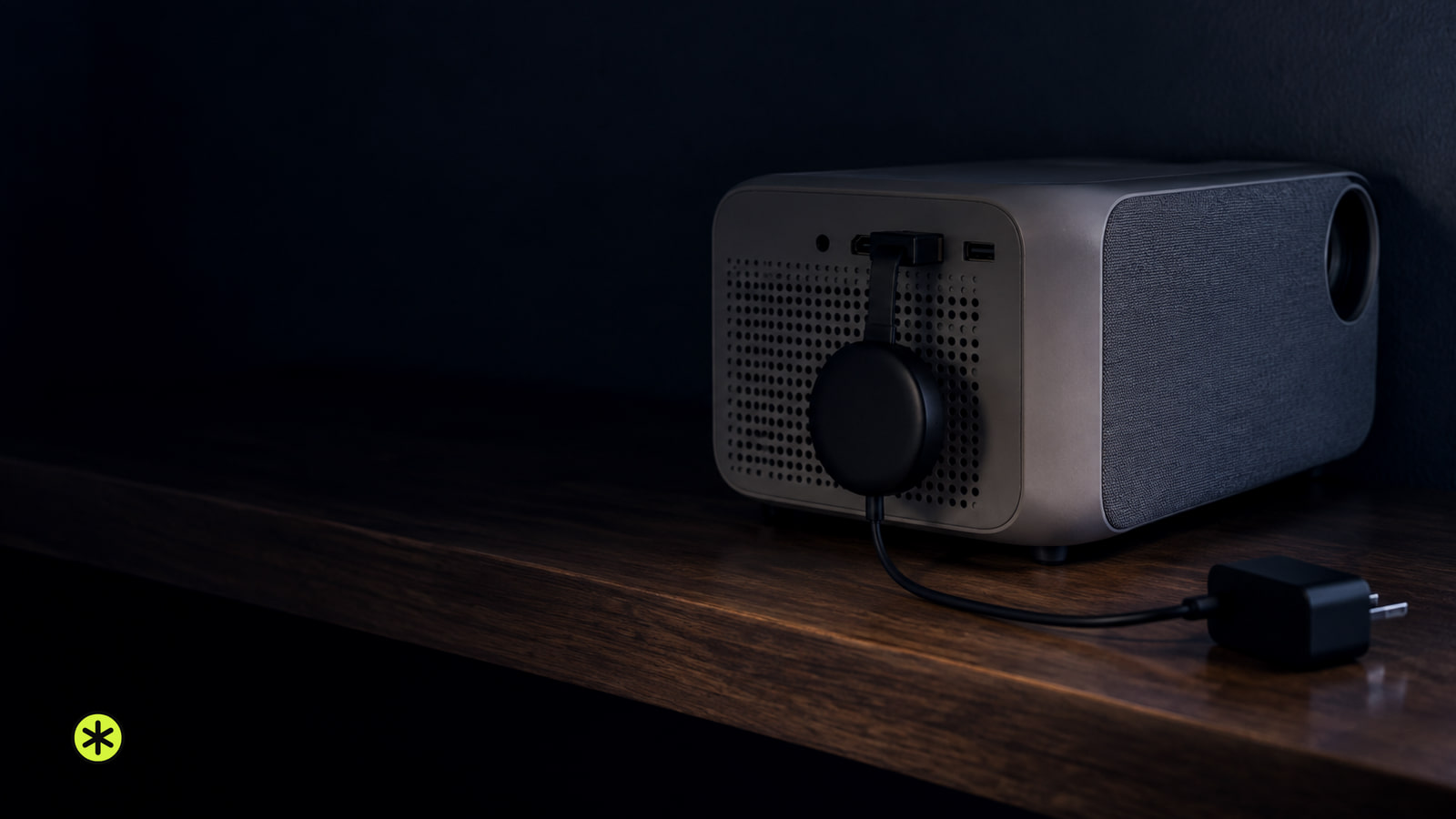
- Plug the Chromecast into the projector’s HDMI input and select that same input.
- Power the Chromecast through its power lead, then look for its setup or home screen.
- Finish setup and play a video to test both picture and sound.
- If the screen stays blank, test the input and power before changing Wi-Fi settings.
The HDMI plug sends picture and sound to the projector. The separate lead powers the Chromecast. This connection is for a separate Chromecast plugged into a projector input. We’d sort out the input before setup, because a blank screen at this point calls for a video or power check.
- Find an HDMI input on the projector and note its number. With the projector off, seat the Chromecast fully without forcing the plug. If its housing blocks the port, use an HDMI extension. For a Chromecast with Google TV 4K, that extension must support 4K and HDMI 2.0.
- Route the Chromecast and its cable clear of the projector’s intake and exhaust vents. If the plug would sit against a vent, use the extension to move it clear. Hot exhaust can burn skin and heat the device.
- Before connecting power, check that the cable and adapter are undamaged and the Chromecast is dry. Connect the Chromecast’s power cable and wall adapter. Chromecast Ultra must use the power supply included with it. For Chromecast with Google TV, the recommended replacement wall adapter is 5 V, 1.5 A; compare the projector USB port’s output label with that figure before relying on USB power.
- Turn on the projector without looking into its lens, then use Source or Input to select the numbered HDMI port you occupied. Its bright light can injure eyes. A Chromecast setup screen or home screen confirms that the projector is receiving video.
Finish setup with the remote
The remote normally pairs during startup. If the screen says “Start pairing,” hold Back and Home on the remote until its light pulses.
- Use the remote to choose a language. When offered phone setup, open Google Home on your phone and follow its prompts, or select “Set up on TV instead” to continue with the remote.
- Join your Wi-Fi network, sign in to a Google account, and complete the prompts on the phone or projector. The Google TV home screen confirms that setup finished.
- Open an app with the remote and start a video. If its picture and sound play through your projector setup, the connection works. You can also cast from a phone app with a Cast button.
The remote launches apps on the Chromecast itself; tapping Cast in a phone app starts and controls playback on the Chromecast, which retrieves the stream over its own network connection.
Set up a Chromecast without a remote
- Connect your phone to the Wi-Fi network you want the Chromecast to use. Open Google Home, tap Add, then Device, and follow the prompts to find the Chromecast.
- Scan the setup QR code when prompted. If scanning fails, tap “Use setup code,” enter the code shown for the device, and continue through the Wi-Fi prompts. A completed connection in Google Home means you can test playback.
- With the phone and Chromecast on the same local Wi-Fi network, open a video app with a Cast button, tap Cast, select the Chromecast, and play a video. Confirm that the picture appears on the projector and sound comes from your chosen speaker path.
An iPhone can cast from an app with a Cast button; a laptop can cast from Chrome or a site with Cast. If one app has no Cast button, try another Cast-enabled video app. Apps place the button differently, and support differs. If you are trying Netflix, its phone-casting behavior has its own checks.
The projector says “No Signal” or goes black
| What you see | What it suggests | First move |
|---|---|---|
| “No Signal” before setup | Input, power, or HDMI seating | Match the input and use wall power. |
| “Low power” or repeated restarts | Unstable power | Use the supplied cable and wall adapter. |
| Home screen, then black video | App or protected video path | Remove intermediate HDMI equipment. |
- Match the projector’s selected HDMI number to the occupied port. Reconnect the Chromecast’s supplied power cable to its wall adapter. If you saw “Low power” or repeated restarts, keep it off projector USB power; the warning should disappear and the home screen should stay visible.
- Unplug the Chromecast’s power lead for one minute, reconnect it, and let it boot. Pulling its HDMI plug alone does not restart it. If the screen returns, test a video before moving anything else.
- Reseat the HDMI plug. For this test, remove a switch, receiver, extension, or adapter and connect directly to the projector. Try another projector HDMI port if one is available, selecting its matching input. A stable home screen identifies a working connection.
- If it remains blank, connect the Chromecast with its wall power to another HDMI display. Then connect a different working HDMI source to the projector input that failed. A Chromecast that works on the other display points back to the projector path; an input that fails with multiple sources points to the projector.
If the home screen works but protected streaming turns black, test a direct digital HDMI path and the app again. Google’s Chromecast HDCP requirements (opens in a new tab) call for HDCP 1.3 or higher through the display path and HDCP 2.2 for 4K. A switch, converter, or projector input can interrupt that path. HDMI that still says “No Signal” has further source and cable checks.
When the Chromecast fails on a second HDMI display using its supplied wall adapter, contact Google support. When the projector input fails with multiple working sources, contact its maker or a qualified projector repair service for a quote and compare that quote with an HDMI-equipped replacement. Tell them the device models, power supply, ports and cross-tests you used, plus any Low power or HDCP message. If another HDMI source works on the projector, keep it and investigate Chromecast power or its HDMI connection. Standard HDMI projector examples you connect yourself cost $400 to $1,000. A standard HDMI projector with projector and screen installation runs $500 to $1,650; that installed price assumes a customer-supplied screen, mount, cables, and an available outlet. Premium 4K home projector examples you connect yourself cost $1,500 to $4,500.
The picture works, but your phone cannot find the Chromecast
If the projector shows the Chromecast picture but your phone cannot find it, open a Cast-enabled video app. A missing Cast button points to that app; a button with no Chromecast in its list points to network discovery. The projector picture confirms the HDMI connection.
- Finish any Chromecast setup still showing on the projector. Turn on Wi-Fi on the phone and connect it to the same local network as the Chromecast. Open a video app with a Cast button, tap Cast, and look for the device.
- On iPhone or iPad, open Settings, Privacy & Security, Local Network and allow access for the Cast app and Google Home. Apple’s Local Network control (opens in a new tab) governs whether those apps can discover devices nearby. Test the Cast list again.
- If both devices use a guest network, move them to a private network that lets connected devices communicate. Guest isolation can hide the Chromecast. Restart the app, then the phone, then the Chromecast by unplugging its power lead. Restart the router last, since that briefly interrupts other devices’ Wi-Fi. Test casting after each restart.
If setup or discovery still fails, factory reset only when you can set it up again; a reset clears saved settings. On Chromecast with Google TV, choose All Settings, System, About, Factory Reset, or hold the device button until the blinking yellow light turns solid white. On a second- or third-generation Chromecast or Ultra, hold the button until the blinking orange light turns solid white. Release the button, reconnect to Wi-Fi, and repeat setup; the first-run screen and a successful test cast confirm recovery.
The picture works, but you hear nothing
First clear mute, raise the Chromecast and projector volume, and select the speaker or audio output you want. Replay the video; sound now confirms that path works.
- If the projector has a 3.5 mm or optical audio output, connect it to the matching input on powered speakers, a soundbar, or a receiver. If it has a separate HDMI ARC port, connect the Chromecast to an HDMI input that the projector’s manual says can feed ARC, connect the sound system to the ARC port, select ARC as the sound output where required, and use a supported audio output or an extractor if that input cannot feed ARC. If its only HDMI port is labeled ARC, connect the Chromecast to a soundbar’s HDMI input and its video-pass-through HDMI output to the projector; if the soundbar lacks an HDMI input, use an audio extractor with an output matching its audio input. Select the relevant sound input or output, then replay the video.
- For Chromecast with Google TV, you can pair one Bluetooth speaker or headphone device through All Settings, Remote & Accessories, Pair remote or accessory. Put the speaker in pairing mode, select it on screen, and replay the video. For an older phone-controlled Chromecast, use the projector’s audio output or an extractor.
- If neither route is available, put an HDMI audio extractor between the Chromecast and projector. Connect Chromecast to the extractor’s HDMI input, its HDMI output to the projector, and its separate audio output to powered speakers. For ordinary HD playback, choose an extractor rated for HDCP 1.3 or higher. For Chromecast with Google TV 4K at full output, choose 4K at 60 Hz, HDMI 2.0 pass-through, and HDCP 2.2; the projector’s HDMI input must support that 4K signal too. Test picture and sound together.
If only certain apps are silent, switch the audio output to stereo or PCM and turn off surround formats the speaker system cannot play. Replay the same title. If sound still fails, test that speaker input with another source; HDMI picture without sound has further audio-path checks.
Questions about power, older ports, and Wi-Fi
Will the projector’s USB port power my Chromecast?
Only if it supplies the voltage and current your Chromecast needs. For Chromecast with Google TV, the recommended replacement adapter is 5 V, 1.5 A; compare that with the label on your unit. A “Low power” warning or repeated reboot means use its wall adapter and cable, while Chromecast Ultra requires its included power supply.
Can I use a Chromecast if my projector has no HDMI port?
Use an active converter in the Chromecast-to-projector direction: HDMI-to-VGA with separate audio output for VGA, or HDMI-to-composite with yellow video and red and white audio outputs for matching inputs. A connector-only cable cannot convert HDMI video. If menus appear but protected streaming stays black, stop using the converter and use a digital HDMI path with HDCP 1.3 or higher, or HDCP 2.2 for 4K.
Can I use it with a projector that has no Wi-Fi, or with no home Wi-Fi?
An HDMI projector needs no Wi-Fi feature of its own; the Chromecast needs a usable network for setup and normal streaming. Without home Wi-Fi, put one phone’s hotspot online, join the Chromecast to it, and use a second phone or tablet on that hotspot for setup and casting; a test video should play with picture and sound. If the Chromecast stays missing, use another private network that lets devices communicate, since hotel sign-in pages and isolated guest networks can block discovery.
More in this category