Check the remote before pressing anything
- Check for a voice button near the purple directional pad first. The pairing steps below are for a Roku voice remote.
- With a working remote, open Settings > Remotes & devices > Add devices > Remote > Continue. Without one, restart the Roku and wait for Home.
- Hold the pairing button for 5 seconds, or hold Back and Home together for 5 seconds if there’s no pairing button. Wait for the status light to flash and a pairing message to appear on screen.
You may be holding a remote that needs pairing, or a simple remote that works differently. We’d check the voice button before restarting anything, because that one detail decides whether the pairing instructions apply. Then you can choose the route that fits the controls you have available.
If the remote feels hot, stop using it right away. Don’t touch or remove hot batteries. Put the remote on a hard, non-flammable surface, let it cool before handling it again, and contact Roku support if it doesn’t cool down.
A voice button tells you which steps to use
Look near the purple directional pad for a voice button marked with a microphone or magnifying glass. That identifies a Roku voice remote, which connects to a Roku streaming player or Roku TV through pairing. A simple remote has no voice button, so the voice-pairing button combinations here aren’t its setup procedure.
A missing pairing button alone doesn’t make yours a simple remote. Some voice remotes use Back and Home together to enter pairing mode. Check for the voice button first, then look for a pairing button on the back or under the battery cover to choose the right method.
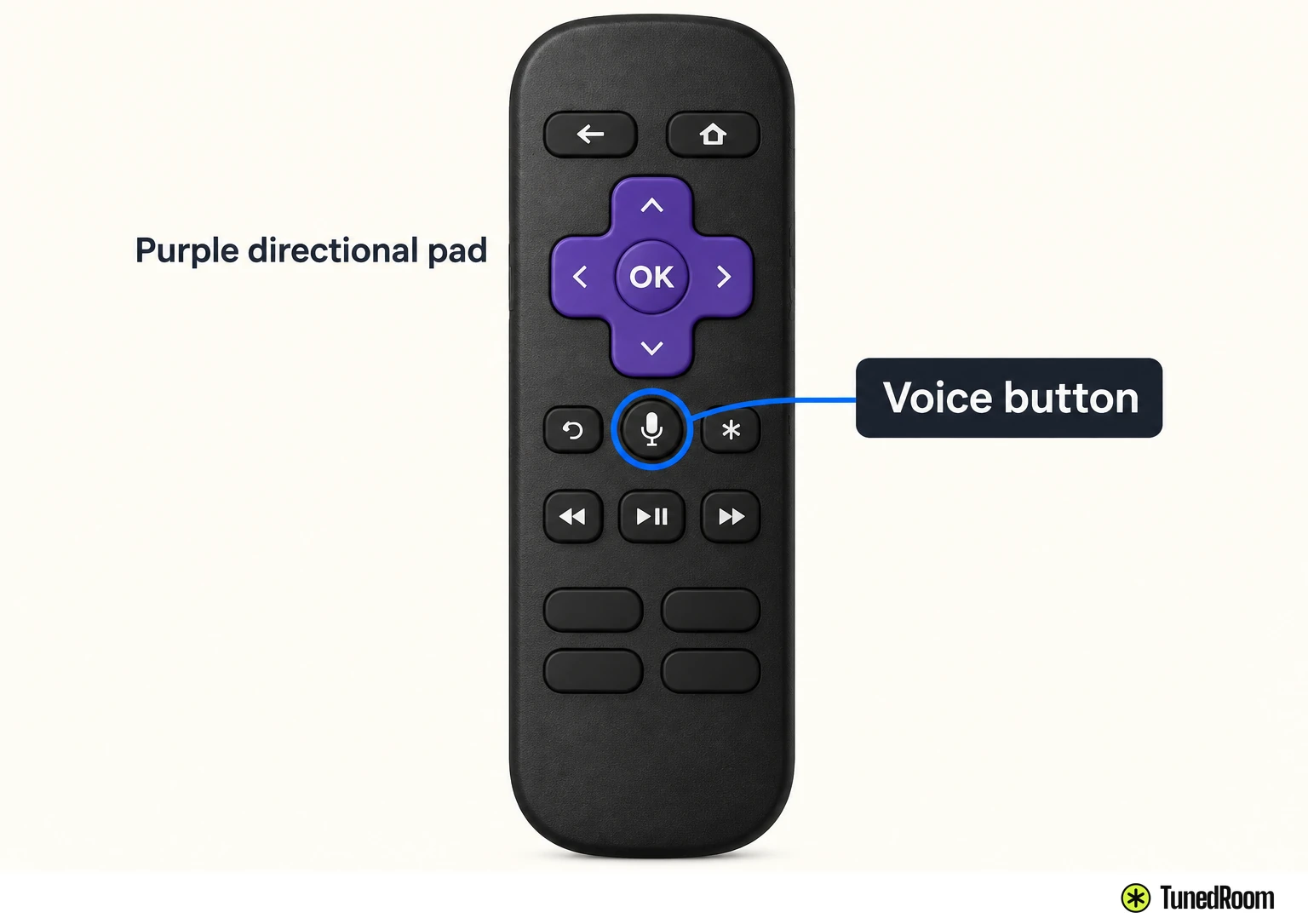
If your Roku came with a voice remote and you’re setting it up for the first time, follow the instructions on the TV. When you’re prompted to put the remote in pairing mode, use the button method that matches the remote in your hand.
When another remote already works
If another Roku remote already works, press Home on that remote. Go to Settings > Remotes & devices > Add devices > Remote > Continue. That opens the pairing route for the voice remote you want to add, without interrupting the Roku’s power.
Keep the working remote nearby until you’ve selected Continue. The new remote still needs its own pairing action, so use the matching button instructions below when the Roku is ready.
When you have no working second remote
If you have no working second remote, restart the Roku player or Roku TV to begin pairing. You can use this route without opening Settings.
- Disconnect the Roku player or TV from power. Its screen will go off.
- Wait at least 5 seconds with the power disconnected.
- Reconnect power and wait until the Home screen appears on the TV. At that point, put the voice remote in pairing mode using the matching method below.
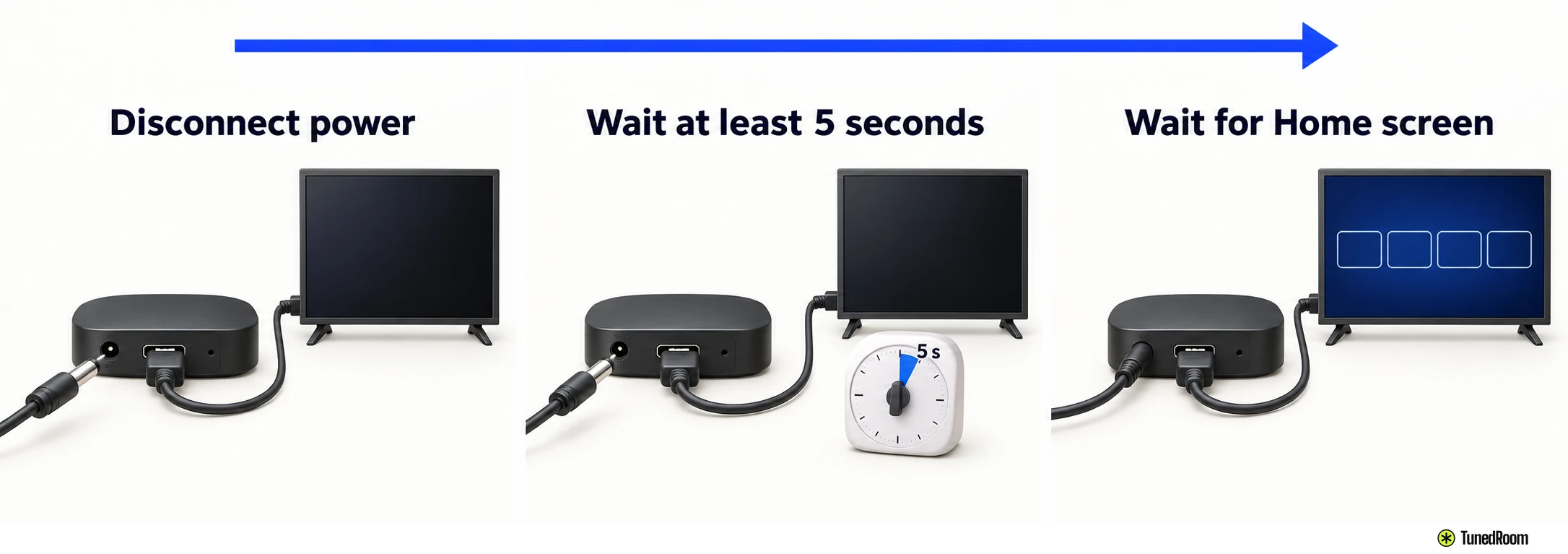
The Home screen is your cue to press the remote’s pairing controls. If you try again after a failed attempt, restart the Roku and repeat this sequence so the device and remote enter pairing mode at the same time.
If yours is a Voice Remote Pro
If you have a Roku Voice Remote Pro, check its device and software requirements before repeating a pairing attempt. Roku says the Pro can be set up with a Roku player, Streambar or soundbar, or Roku TV model shipped since 2017, plus a few older devices. The Roku streaming device must run Roku OS 9.4 or higher.
If you can reach the Roku menus with a working remote, open Settings > System > About to check the software version. This version requirement is specific to the Voice Remote Pro; it isn’t a prerequisite stated here for every Roku voice remote.
The 2021 Voice Remote Pro instructions also require device software version 9.4 or higher. For that remote, you can compare the setup with its quick-start guide (opens in a new tab).
If pairing still fails
If the light flashes but no pairing message appears, make sure the Roku device and remote are in pairing mode at the same time. Restart the player or TV, wait for Home, and repeat the matching 5-second remote action. This checks the timing before you change anything else.
If pairing still fails, bring the remote closer and clear obstacles between it and the Roku. Check for interference from other electronics nearby, then try pairing again. Roku lists distance, obstacles and interference as checks, without giving an exact pairing distance.
If the remote’s buttons remain unresponsive, replace its batteries or fully recharge it, depending on the remote you have. Then repeat the pairing attempt. Keep the hot-remote stop rule above in mind before handling batteries.
If these checks don’t help, contact Roku support (opens in a new tab). Tell them whether your remote has a pairing button, whether its status light flashed, whether the TV displayed a pairing message, and which route you used. If the TV itself is showing no picture, the next job is the Roku no-signal check; if it has sound but the picture is wrong, use the Roku TV video checks.
More in this category