The possibilities worth checking first
- Begin with the power connection, working outlet and power switch, if your projector has one.
- Locked panel buttons, remote trouble or standby after inactivity can also explain a projector that won't respond.
- Use the checks below that match what happened, including the disconnect-and-contact-Epson endpoint if another power cord doesn't help.
An ignored button press gives you two useful places to look: the power connection and the control you're using. We'd check the external power path first because Epson identifies both connection trouble and a defective cord as possibilities, and those checks come before the documented support handoff.
The other possibilities depend on your situation. A security lock can stop the projector's own buttons from responding, while a remote has its own battery and receiver checks. On a laser projector, a shutdown after inactivity can mean standby; a possible power interruption has a separate recovery procedure.
Before any connection or power attempt below, keep everyone from looking into the lens when the lamp is on. It can damage eyes and is especially dangerous for children. If Direct Power On is enabled, plugging the projector in turns it on immediately, so this precaution applies before reconnecting a cord, too.
That automatic startup behavior is conditional on Direct Power On being enabled. Keep it in mind throughout the checks, particularly when restoring power or trying another cord: the projector can start without a separate button press. Epson's power-on guidance (opens in a new tab) explains this behavior and the lens warning.
Check both ends of the cord and the switch
Check both ends of the power cord. The connection at the projector needs to be secure, and the plug needs to be securely connected to a working electrical outlet. A plug being in an outlet is only part of this check; the outlet must also be working.
Keep the projector end in view as well as the wall end. Epson's power troubleshooting guidance (opens in a new tab) specifically calls for a secure connection at both places, so checking just the outlet leaves half of that instruction unfinished.
If your projector has a power switch, make sure it's turned on. Treat that as its own check alongside the cord connections: the troubleshooting guidance includes the switch separately from the power button that you use to request startup.
These checks address the supply connection before you move to a control problem. Once the cord connections, outlet and applicable switch are accounted for, follow the branch that matches the button you're using or the way the projector stopped.
The lights change when you touch the cord
If the lights turn on and off when you touch the power cord, focus on the cord's contact with the electrical outlet. Epson identifies poor contact there as a possible explanation for this particular symptom.
Unplug the power cord and plug it back in to check the connection, keeping the automatic-start and lens precautions above in effect. Then observe whether the on-and-off light behavior has cleared. This is the cord-contact check Epson gives for that symptom (opens in a new tab).
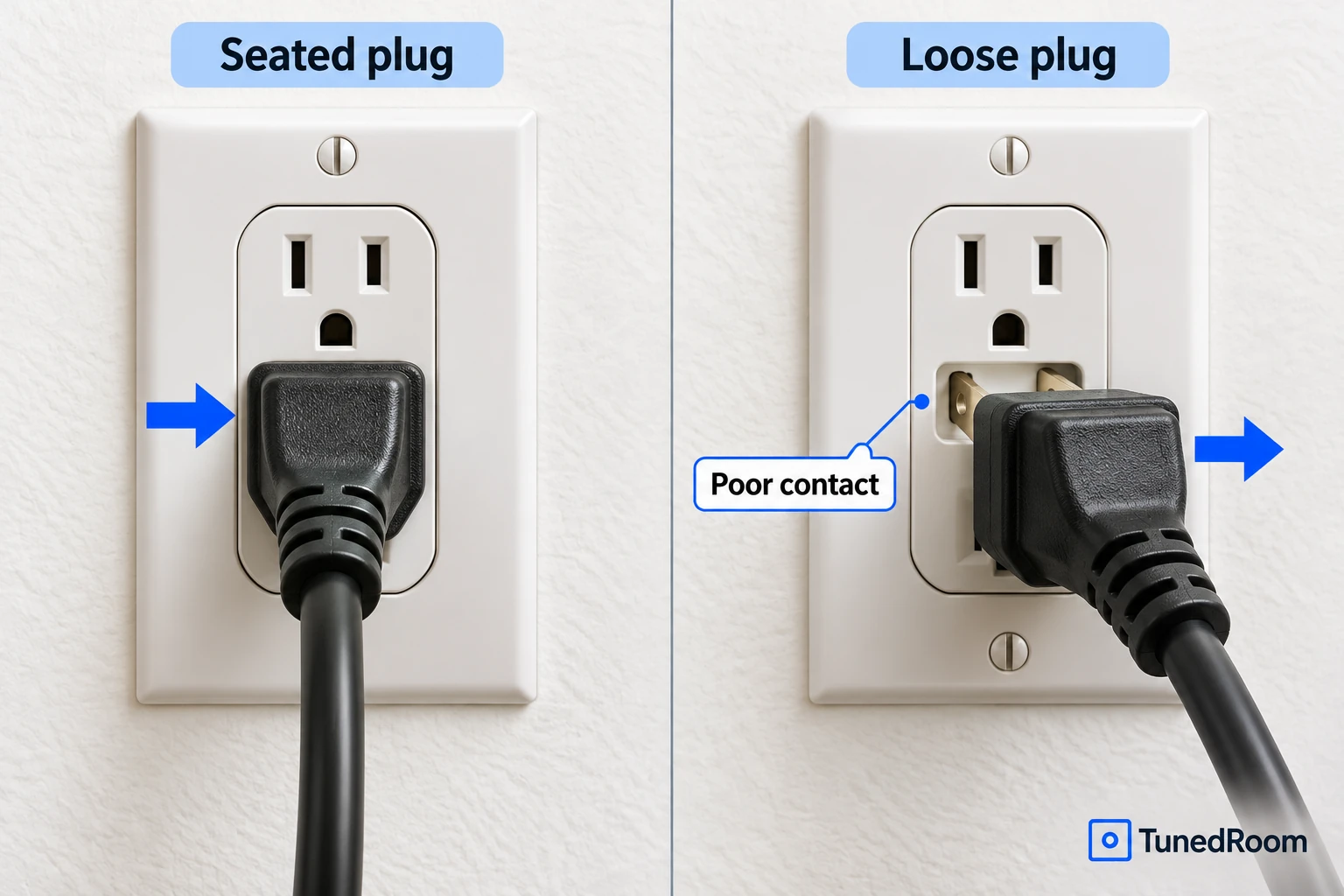
The useful detail here is the relationship between touching the cord and the lights changing. That points you toward the connection check; it isn't a color code to interpret. If the connection check doesn't help, the alternate-cord check at the end gives you the next documented power-cord action.
The panel or remote won't respond
Try the remote control to turn the projector on if its own buttons aren't responding. Those buttons may be locked for security, and the remote is the documented alternative. You can try that alternative without first changing the panel lock.
Watch for whether the projector responds to the remote's power command. If it does, you've found a way to turn it on despite the unresponsive panel. The reason to make this comparison is practical: Epson lists locked panel buttons as a power-on possibility (opens in a new tab), with remote control as an alternative.
If the remote's power button doesn't turn it on either, check the remote's batteries. This is a separate check from the projector's power cord: you're now checking the control that sends the startup command.
A Remote Receiver setting can also explain a lack of remote response on projectors where that setting is available. It needs to be on for the documented remote-control check. Keep that availability condition attached to the setting; the battery check applies to the failed remote response without depending on that menu feature.
Your laser projector stopped after inactivity
If you have a laser projector and its laser shut off unexpectedly after a period of inactivity, standby is a documented possibility. This branch fits that sequence of events, with inactivity before the laser shuts off.
Press the power button to wake the projector, observing the lens precaution for power attempts. Epson's standby guidance (opens in a new tab) gives that wake action for this laser-shutoff condition. The outcome you're checking for is the projector waking in response.
Keep this explanation specific to the laser-projector condition. It gives you a reason to try waking a unit that stopped after inactivity, without treating every unexpected shutdown across Epson's range as the same standby behavior.
A power interruption may have happened
If no error messages or other information appear after you turn the projector on, a sudden voltage drop, blackout or power cut may have occurred. Epson gives a power-interruption recovery procedure for this situation, with a minimum wait before restoring power.
Use the documented interruption-recovery sequence (opens in a new tab) when that condition matches. The Direct Power On behavior and lens precaution apply when power returns, just as they do when you first connect the projector.
- Turn off the power switch or unplug the power cord, leaving the switch off or the cord disconnected.
- Wait at least 10 seconds before restoring power, keeping the switch off or cord disconnected during the wait.
- Turn the power switch back on or plug the cord back in, then check whether the projector responds and displays information.
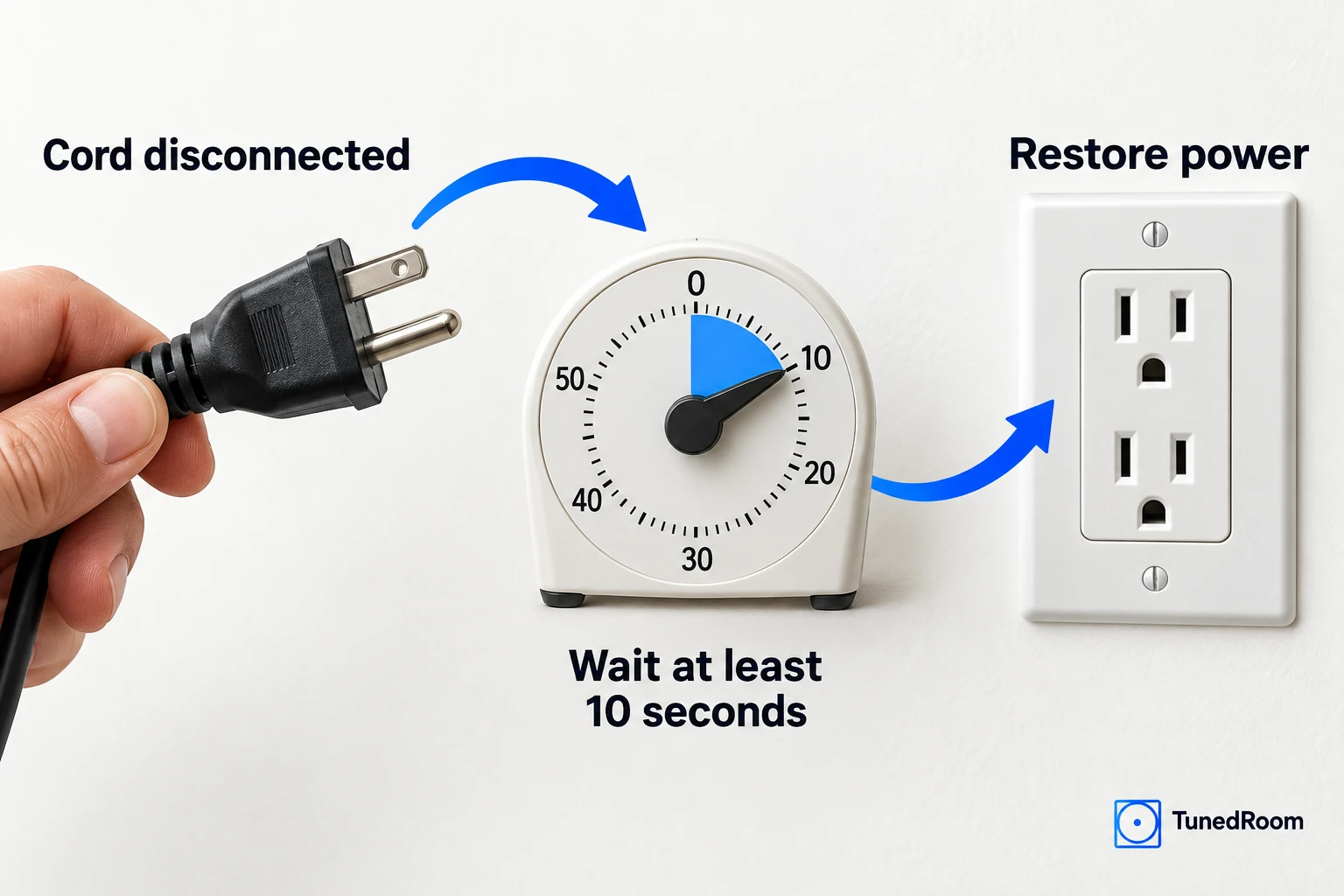
The reason for choosing this branch is the possible interruption together with the lack of displayed information after turning on. The ten-second minimum belongs to this procedure; it gives you a specific wait to follow for this condition.
Another cord doesn't restore operation
A defective power cord is another documented possibility. If the relevant external checks haven't restored operation, Epson's next cord check is to try another power cord (opens in a new tab). Apply the same connection and startup precautions when making that check.
The useful outcome is whether the projector works with the other cord. If that doesn't work, disconnect the cord and contact Epson. That's the documented endpoint for this check, with the projector disconnected while you move to support.
Use Epson's US projector support page (opens in a new tab) to find support for your projector.
More in this category