First, tell an echo from a timing problem
- Watch a line of speech. Is the voice ahead of the lips, behind them, or doubled?
- If the TV and soundbar play together, select one speaker output to clear the echo.
- If sound is late, check TV or source processing. If it’s early, try a soundbar control that delays audio.
A voice that seems to arrive twice calls for a different check from dialogue that misses moving lips. We’d check the TV’s speaker output before changing sync, because the TV speakers and soundbar playing together can create an echo. Then use the same line of speech to judge each timing adjustment.
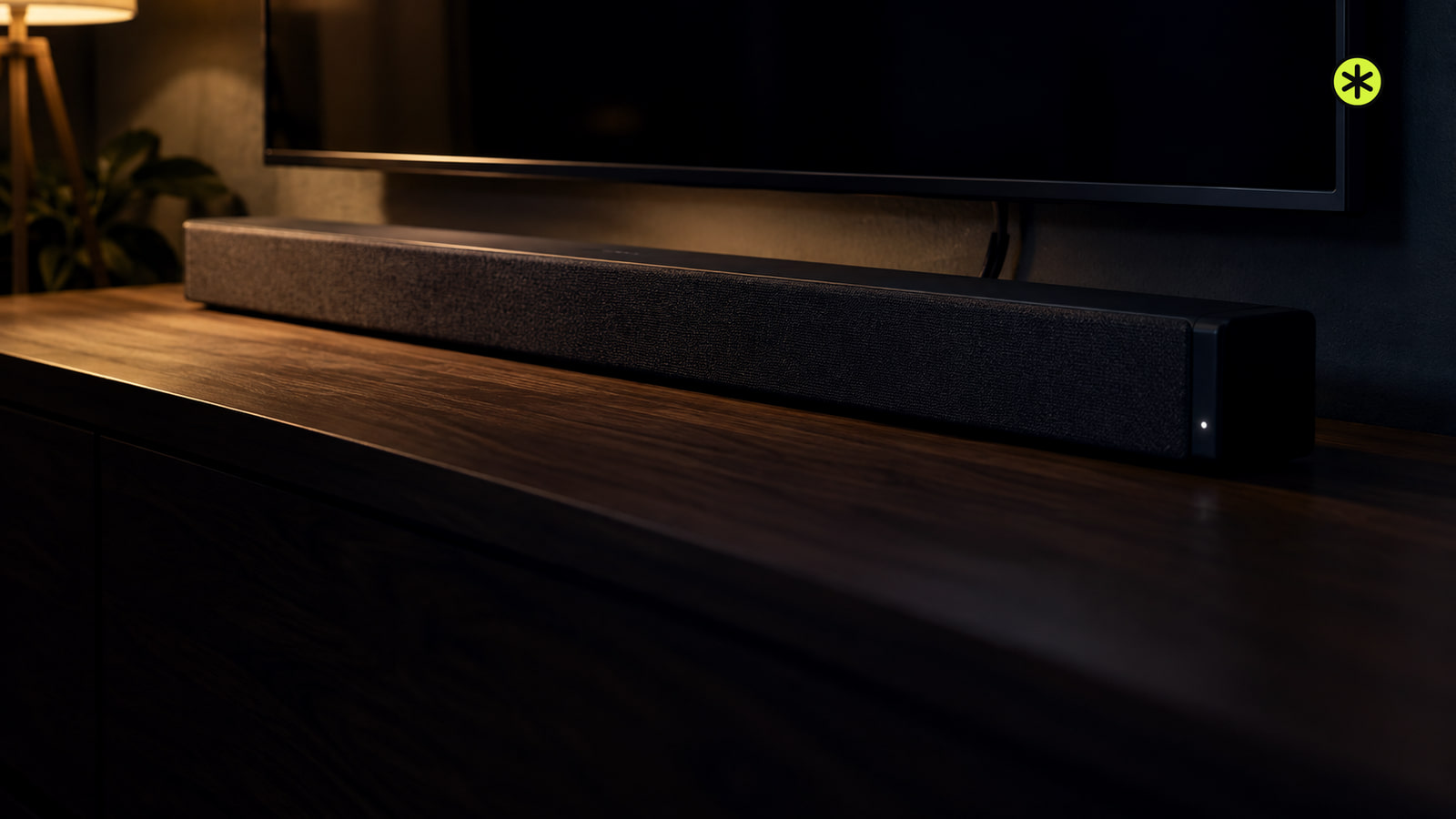
When the voices sound doubled
When the TV’s built-in speakers and soundbar play at the same time, their sound can overlap. The two devices can process digital audio at different speeds, and a combined speaker output can make the result sound echoey. Select either the TV speakers or the external speaker, rather than playing both.
On a 2021 or later LG TV running webOS 6.0 or later, press Settings and open All Settings > Sound > Sound Out. The listed route for a 2020 LG TV running webOS 5.0 or earlier is also Settings > All Settings > Sound > Sound Out. Choose the soundbar as your output and listen for the doubled voice to disappear.
If you’re revisiting the hookup while choosing an output, use our TV speaker connection steps.
When speech arrives after the lips move
For a Sonos home theater product, reboot the TV and any external source you’re using, such as a game console or cable box. If speech still trails the picture, check the TV’s and source’s audio output settings. Processing on either device can delay sound before it reaches the bar.
On that Sonos setup, test Stereo or PCM output on the TV or source. Some devices add processing for surround sound, and this format change can remove that delay. Replay the same speech after the change to see whether it now meets the picture.
On an LG TV, PCM is another processing-delay check. For 2021 and later TVs with webOS 6.0 or later, press Settings and open All Settings > Sound > Advanced Settings > Digital Sound Output > PCM. For 2020 and earlier TVs with webOS 5.0 or earlier, use All Settings > Sound > Advanced Settings > Digital Sound Out > PCM. LG’s PCM setting reduces processing delay and can help prevent echoing.
If you can’t find how to disable TV or source processing in a Sonos setup, contact that device’s manufacturer for help with its audio output settings. If the problem changes from late sound to no sound, use our home theater no-sound checks.
When speech arrives before the lips move
On a Sonos home theater product, TV Dialog Sync delays audio that arrives ahead of the picture. Use it when you hear a word before you see the matching mouth movement.
- Open the Sonos app on iOS or Android and go to Settings. In the Sonos S1 Controller app, open the Settings tab and select System; your system controls are on screen.
- Under Your System, select the home theater product. Open Home Theater > TV Dialog Sync; the timing slider appears.
- Move the slider right until speech meets the lips on screen; the audio now matches the picture.
When your soundbar has a sync control
A soundbar’s own sync control can also bring its sound into line with the picture. On Samsung soundbars, the buttons depend on the model, so use the method that matches your remote. Audio Sync is unavailable when Bluetooth or USB is the source; check your model’s instructions before trying one of these controls with another source.
- Press Sound Control, then use Left and Right until the sound matches the picture.
- Or press Audio Sync, then use Skip Forward and Skip Backward until the sound matches.
- Or use + and - under Audio Sync until dialogue lines up.
On an LG soundbar, press AV Sync on the remote, check the soundbar display, then use the Left and Right arrows to adjust the delay until the sound matches the video. Steps and features vary by model. A supported smartphone app may offer the adjustment too; check your soundbar’s manual for its supported apps.
When the trouble stays in one app
On an LG TV, if the mismatch happens only in certain apps, unplug the TV’s power cord, wait one minute, then plug it back in. Check the affected app for an update and install it if one is available.
Play the affected app again and watch a line of speech. The useful result is a voice that lands with the lips, without an echo from a second speaker output.
More in this category