Choose a restart or a clean setup
- If you want to restart your speaker, use the reboot instructions before considering a factory reset.
- To factory reset, follow your model's button-and-power sequence below. The button changes between speaker families.
- A factory reset erases product information. Once it finishes, follow the Sonos setup guidance to add the speaker back.
If you're trying to get an unresponsive speaker going again, we'd choose a reboot first because a factory reset deletes information and Sonos specifically recommends against using it for troubleshooting. Restarting the speaker and returning it to factory settings are separate operations.
A factory reset makes sense when you're transferring ownership. Your Sonos app may also recommend one if it can't find the product during setup. Those are different reasons to proceed from deciding to wipe a speaker whenever something goes wrong.
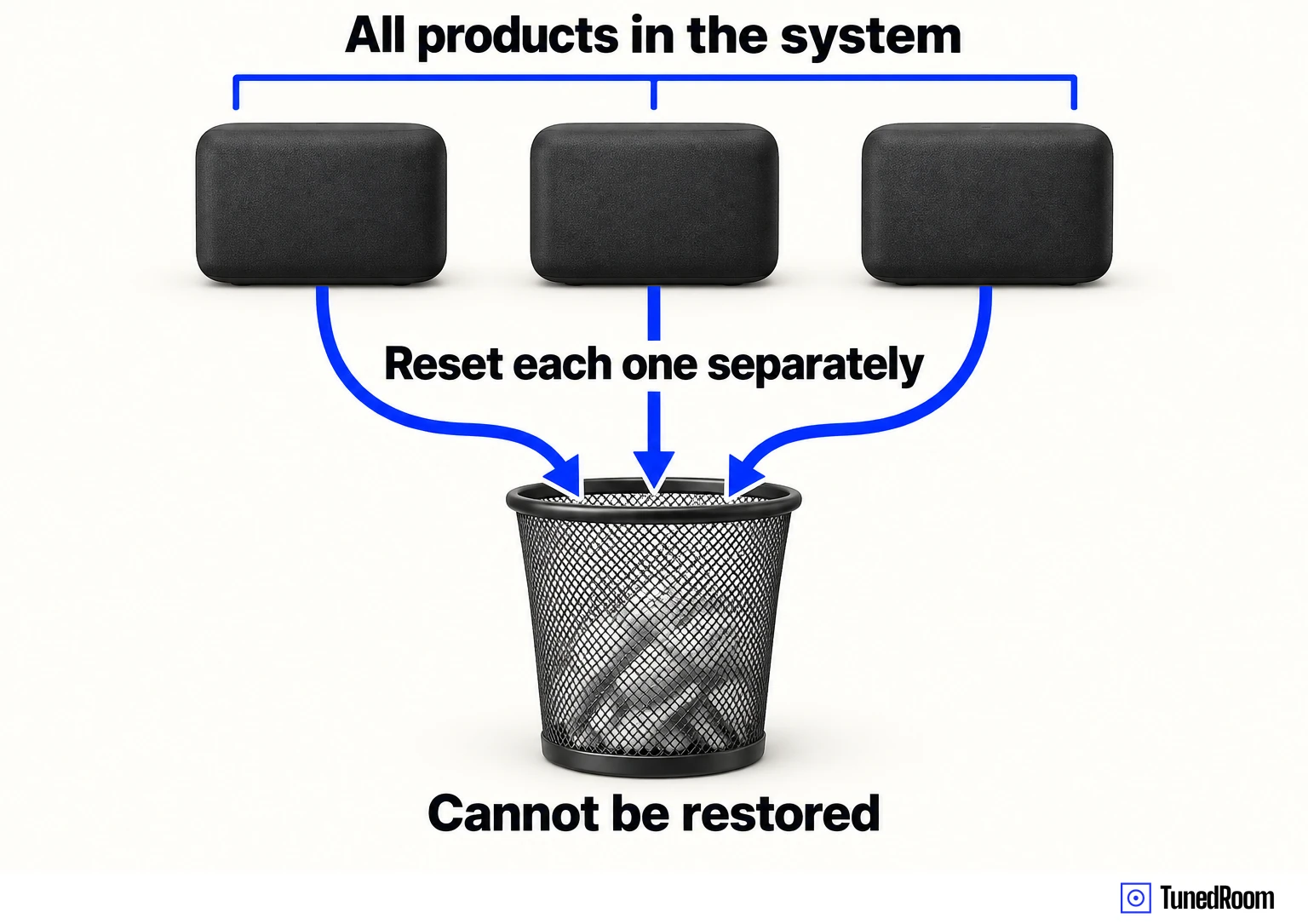
Before following a reset sequence, know what you're erasing: registration information, content saved to My Sonos, and content services on that product. If you intend to erase several products, you'll need to reset each one separately.
Reboot a plugged-in speaker, Move or Play
For speakers other than Move, Move 2, Play and the Roam family, unplug the power cord and leave it disconnected for 10 seconds. Reconnect it, then allow one minute for the speaker to boot up. This is the power-cycle route in Sonos's US reboot instructions (opens in a new tab).
For a Sonos Move, Move 2 or Play, first lift the speaker off its charging base. Hold the Power button for at least five seconds, or until the status light turns off. Taking it off the base comes before the shutdown, so complete that part before beginning the button hold.
Wait 10 seconds after that shutdown. Then press the Power button or put the speaker back on its charging base to turn it on again. Use this restart sequence when you want a reboot of one of those three models.
Reboot a Roam, including a frozen one
On Roam, Roam SL and Roam 2, begin a standard reboot by disconnecting charging cables and taking the speaker off any wireless charger. Then hold the power button on the back for at least five seconds, until you hear the power-off tone and the light above the Sonos logo goes out.
With the speaker off, wait 10 seconds. Press the rear power button to turn it back on.
If your Roam product is stuck or frozen, use the separate force-reboot option: hold the button on the back for 15 seconds, or until the light above the Sonos logo turns on again. Sonos's US Roam reboot guidance (opens in a new tab) gives this option specifically for a stuck or frozen product.
Reset other speakers with Join, Play/Pause or Mute
For other Sonos speakers and components outside the named Bluetooth-button and portable families, unplug the power cord. Press and hold the Join button while reconnecting power. If your product doesn't have a Join button, use its Play/Pause or Mute button instead.
Keep holding the selected button until the light flashes orange and white. The light will flash green when the reset has finished and the product is ready for setup. You can check this sequence in Sonos's US reset guidance (opens in a new tab).
Give older products time to finish. Boost, Connect, Connect:Amp, Play:1, Play:3, Sub (Gen 1) and Sub (Gen 2) can take longer to reset than other products.
Factory reset a Roam, Roam 2 or Roam SL
On Roam, Roam 2 or Roam SL, hold the rear power button for five seconds to switch the speaker off. You'll hear a chime, and the status light on the front will go out. That powered-off state comes before the reset button combination.
Next, hold Play/Pause and, while keeping it held, press and release the power button. Continue holding Play/Pause until the front light flashes orange and white.
Wait for flashing green to confirm the reset has completed. Use Sonos's US Roam reset sequence (opens in a new tab) for this process, which uses a different power-button action from the Sonos Play sequence below.
Factory reset Sonos Play
Take the speaker off its charging base first, then hold the power button for five seconds to power it off. This procedure is for the model named Sonos Play.
Now press and hold Play/Pause while holding the power button again for five seconds, until the status LED starts flashing orange and white. Keep the two-button action together during this part of the reset.
The light will flash green when the process finishes and Play is ready to be set up. Sonos's US Play reset instructions (opens in a new tab) use that flashing light as the completion cue.
Factory reset Move or Move 2
The original Move and Move 2 share a power sequence but use different reset buttons. Choose the button for your model in Sonos's US Move reset guidance (opens in a new tab) before powering it back on.
- Take your Move or Move 2 off its charging base. Hold the rear power button for at least five seconds, until you hear a chime and the status light turns off.
- While the speaker is off, hold Join on Move or Bluetooth on Move 2. Keep that button held as you press and release the rear power button, or place the speaker on its charging base, and continue holding until the status light flashes orange and white.
- Wait for the status light to flash green. The factory reset is complete at that point.
Add the speaker back after the reset
To add the reset product back to your system, follow the add-product setup guidance linked from Sonos's US factory-reset page (opens in a new tab).
For Move or Move 2, use the corresponding model's setup article linked there to add it back to your Sonos system.
More in this category