New buds pair themselves, used ones need a nudge
- Brand-new buds: put them in the case, close the lid for 5-6 seconds, then open it. They go into pairing mode on their own.
- Paired before? You'll have to put them into pairing mode by hand, and how you do that depends on your model.
- Then finish in Galaxy Wearable on Android, in the Buds app on an iPhone (Buds+ and Buds Live only) or in the device's Bluetooth settings.
- Second device won't connect? Turn off Bluetooth on the first one. You don't need a reset.
Here's where most people get stuck: opening the case only does the job if the buds have never been paired. Before anything else, we'd figure out whether your buds have ever been paired with a phone, tablet or laptop, because that answer tells you whether the lid does the work or you need your model's gesture.
Galaxy Buds can connect to phones, tablets, PCs, TVs and smartwatches, but only one device at a time. It helps to decide which device you're pairing with before you start.
Which pairing gesture your buds use
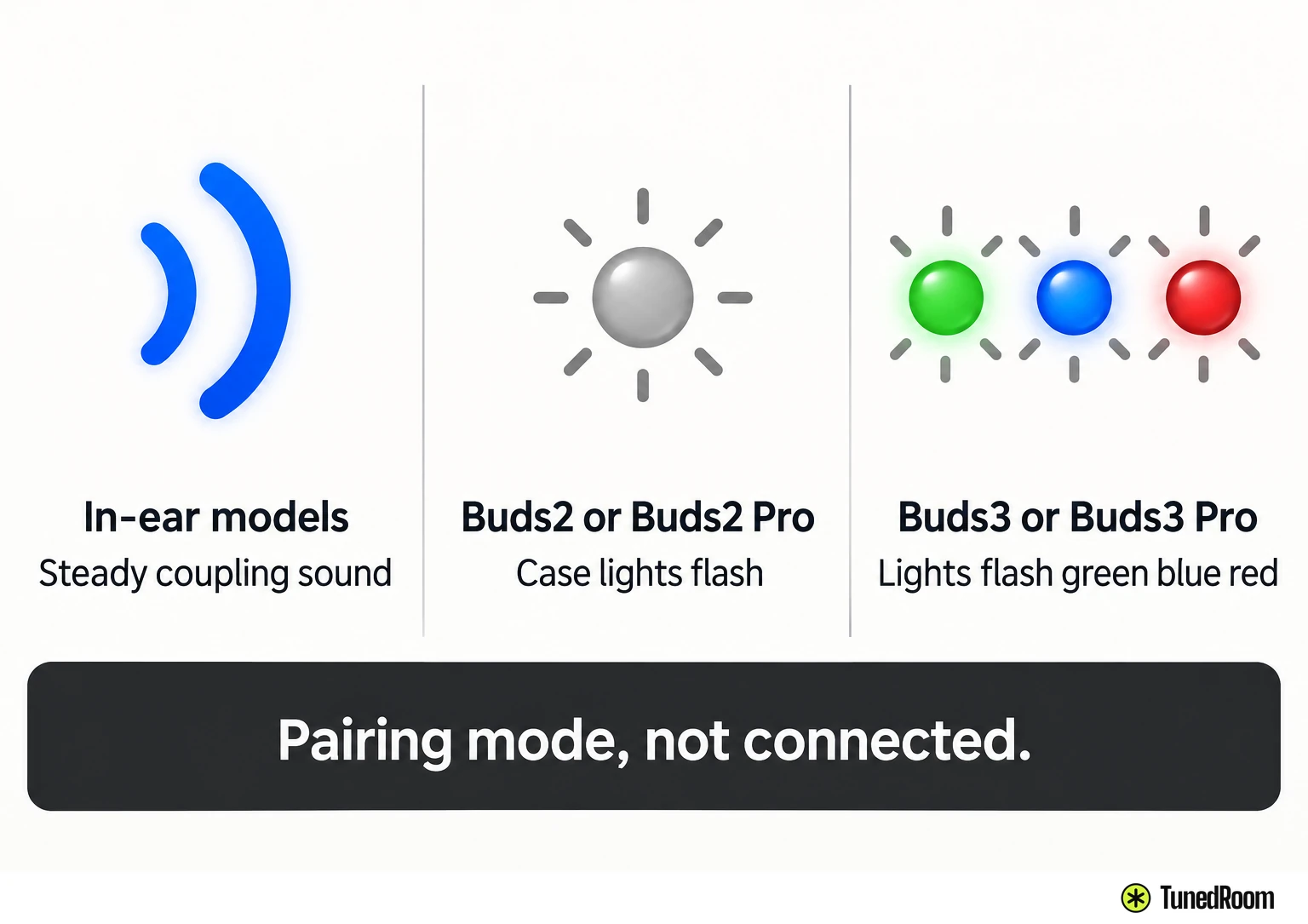
For the eight models in the table, Samsung gives three pairing gestures. Find your model, then use that row's gesture and watch for that row's signal.
| Model | What to do | How you know it worked |
|---|---|---|
| Galaxy Buds, Buds+, Buds Live, Buds Pro | Put them in your ears and hold both touchpads for a few seconds | A first sound, then a steady coupling sound |
| Buds2, Buds2 Pro | Leave both buds in the case and touch and hold both touchpads at the same time for three seconds | The lights on the case flash |
| Buds3, Buds3 Pro | With the buds in the case, close the lid, reopen it, then press and hold the Connect button on the bottom of the case for three seconds or more | The lights flash green, blue and red |
Those lights and sounds mean the buds are discoverable, not connected yet. The pairing finishes on the phone, tablet or computer, either in the app or in Bluetooth settings.
Setting up buds that have never been paired
Straight out of the box, the case handles pairing mode for you. You won't need a button or a touchpad yet.
- Put both earbuds in the charging case and close the lid.
- Wait 5-6 seconds, then open the case. The buds go into Bluetooth pairing mode on their own.
- Pick the buds from your phone's app or Bluetooth list, using the steps for your device below.
If the buds were ever paired with something else, the lid trick won't make them discoverable. Go back to the table and use your model's gesture.
Pairing on an Android phone or tablet
Use the Galaxy Wearable app. It runs on phones and tablets with Android 6.0 or higher and works with Galaxy Buds, Buds+, Buds Live, Buds Pro, Buds2, Buds2 Pro, Buds3 and Buds3 Pro. It also gives you the best experience, with full control over your music.
- Open Galaxy Wearable and tap Start.
- Put the buds in the case, close the lid for 5-6 seconds, then open it.
- When your buds show up, select them. Pairing and setup start.
- Tap OK on the pop-up to confirm the pairing.
Those steps only work if this is the first device you're pairing through the app. After that, just opening the case reconnects them, and some app features only show up once the buds have connected at least once.
To add a second phone or tablet, tap the app's Menu icon, then Add new device. Put the buds in pairing mode and select them from the list of available devices.
Pairing with an iPhone
Only Galaxy Buds+ and Buds Live work with the Samsung Galaxy Buds app on iOS, and you need an iPhone 7 or later running iOS 10 or higher. Samsung also lists a compatible device and a software update as requirements for that app. Notifications, Gaming mode and Spotify integration aren't available on iOS.
Every other model (the original Galaxy Buds, Buds Pro, Buds2, Buds2 Pro, Buds3 and Buds3 Pro) pairs with an iPhone through regular Bluetooth instead. You still get music, calls and touchpad controls.
- On Buds+ or Buds Live, open the Buds app and tap Get started.
- Put the buds in the case, close the lid for 5-6 seconds, then open it.
- Turn on Bluetooth if it's off, then select your buds when they show up. Pairing and setup start.
- Review the information, choose whether to send diagnostic information, tap Agree, then tap Got it.
- Tap Confirm when the buds finish pairing. You can now control your earbuds from the app.
For a second device in the Buds app, tap More options (the three vertical dots), then Connect new device. Put the buds in your ears, hold both touchpads until they go into pairing mode, and select them from the list.
Laptops, other Androids and anything without the app
If a device can't run Galaxy Wearable, use your buds like any other Bluetooth headphones. Put them in pairing mode (open the case if they're new, use your model's gesture if not), then pair them in that device's Bluetooth settings, following its maker's instructions.
That includes iPhones, other Android phones, computers and watches. You may need the device's manual to find the right Bluetooth menu.
Samsung TVs use different Bluetooth menus depending on the TV model, and Samsung's connection guide (opens in a new tab) lists them by year.
When they won't show up or won't connect
We'd go through these checks in order. The first two only take a look at the buds themselves, and they cover the most basic thing: whether the buds are actually discoverable.
- Think about whether the buds were ever paired with something else. If they were, opening the case won't make them discoverable, so use your model's gesture.
- Make sure the gesture matches your model and watch for its signal: a steady coupling sound on the in-ear models, flashing case lights on Buds2, green-blue-red on Buds3.
- If the buds were connected to another device and the new one won't connect, turn off Bluetooth on the first device and try again.
- Make sure your phone supports the route you're using. Galaxy Wearable needs Android 6.0 or higher, and the iOS Buds app only works with Buds+ and Buds Live on an iPhone 7 or later.
- If the app won't work with your setup, pair through the device's Bluetooth settings instead.
Moving your buds to another device, such as a PC, doesn't require a reset.
Some devices, especially ones that haven't been tested or approved by the Bluetooth SIG, may not work with the earbuds at all. If the buds won't pair with anything even after the right gesture, contact Samsung through online chat or the Samsung Members app, and tell them your model and what the lights or sounds did.
Several saved devices, one connection at a time
Samsung says the earbuds can't connect to multiple devices simultaneously, even though you can pair them with more than one. Think of each extra pairing as a saved device you switch to.
Paired with two phones or tablets through Galaxy Wearable? Open the app on the one that isn't connected and the buds should connect automatically, or tap Connect if the app is already open.
To switch back, tap the buds in the second device's Bluetooth settings to disconnect them there. Then tap them in the first device's Bluetooth settings, and they reconnect to it.
More in this category