Check the sound menu before you buy anything
- Put your earbuds in pairing mode, then open the TV's Sound or Audio Output settings and look for a Bluetooth device list.
- Pick the earbuds from that list and confirm the connection.
- No Bluetooth audio option? Plug a Bluetooth transmitter into the TV's AUX, RCA or optical audio output and pair the earbuds with the transmitter instead.
- Then play the show you actually want and listen for it in the earbuds.
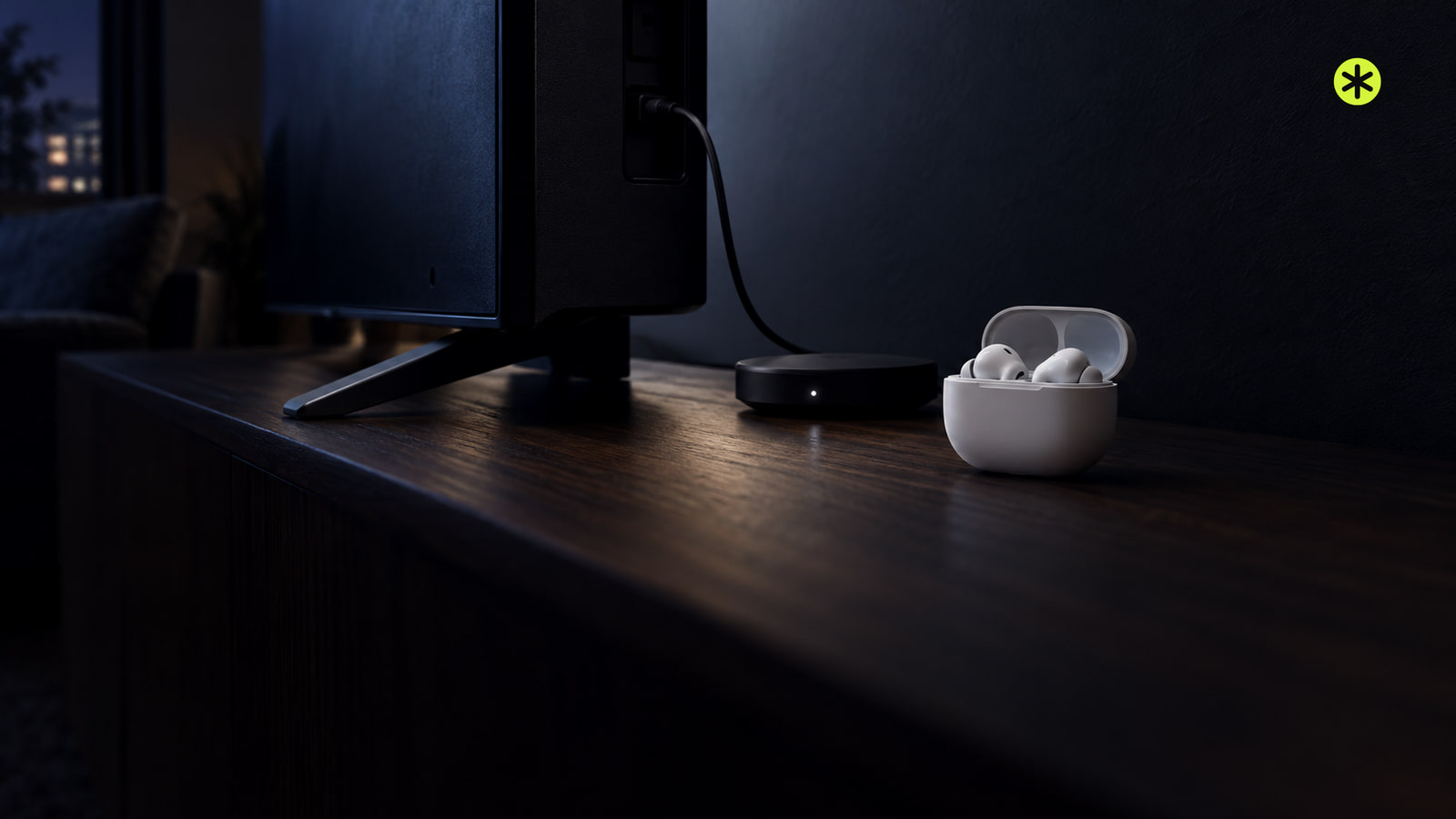
There are two ways to get TV sound into earbuds: the TV sends Bluetooth audio itself, or a small box on one of its audio outputs does it for the TV. We'd look for a Bluetooth option in the sound menu first, because if it's there you don't need any extra hardware, and we'd only reach for a transmitter when it's missing.
Keep your earbuds' manual handy before you start. Every pair goes into pairing mode its own way, and the TV can only find them once they're discoverable.
Which route fits your TV
Bluetooth headphone support varies from set to set, and the earbuds matter too. Some Bluetooth headphones are designed only for phones and other mobile devices and won't pair with a TV, and devices that haven't been tested or approved by the Bluetooth SIG can be incompatible with some earbuds.
| What you find on the TV | Route to use | What the earbuds pair with |
|---|---|---|
| A Bluetooth device or audio list in the Sound or Audio Output settings | Pair the earbuds directly | The TV |
| No Bluetooth audio, but an AUX, RCA or optical audio output | A Bluetooth transmitter plugged into that output | The transmitter |
The transmitter route depends on the ports on your TV, so look before you buy. Not every transmitter works with every TV, and the one you pick has to plug into an audio output your set actually has.
If you'd rather the whole room hear the TV, those same audio outputs are how you connect speakers or a soundbar.
Pairing earbuds straight to the TV
Pairing works from both ends: the earbuds make themselves discoverable, and the TV goes looking for them.
- On the TV, open Settings, then Sound or Audio Output, and look for Bluetooth Devices or a pairing option. If it's there, your TV is ready for the next step.
- Put the earbuds into Bluetooth pairing mode the way their manual describes. On earbuds with a pairing button, you hold it until the indicator light flashes, which shows they're ready to connect.
- Choose Add Bluetooth Device or Pair New Device (or the closest match) and wait for the earbuds to appear in the list.
- Select the earbuds and confirm. You should hear a confirmation sound or see an on-screen message once they're paired.
Menu names change between brands and model years, so read those labels as signposts. If your TV works differently from the two examples below, your TV maker's own instructions will have the exact path.
When the list is called Bluetooth Speaker List
On Samsung TVs, the earbuds go into the Bluetooth Speaker List under Sound Output on most recent sets, but the path moves around by model year.
| Samsung TV years | Menu path |
|---|---|
| 2020, 2021 and 2022 | Menu, Settings (All Settings), Sound, Sound Output, Bluetooth Speaker List |
| 2017, 2018 and 2019 (including R, N and M models) | Home, Settings, Sound, Sound Output, Bluetooth Speaker List |
| 2016 (K models) | Home, Settings, Sound, Expert Settings, Wireless Speaker Manager, Bluetooth Audio Devices |
| 2015 (J models) | MENU, Sound, Additional Settings, Bluetooth Audio |
| 2014 (H models) | MENU, Sound, Speaker Settings, TV Sound Output, Bluetooth Headphone |
Once the TV spots the earbuds, they show up marked Needs Pairing. Highlight them and choose Pair and Connect. These paths only apply to Samsung sets, and the earbud pairing steps for Samsung TVs (opens in a new tab) list them by year.
Lip-sync errors can turn up with Bluetooth audio on these sets, so a small gap between voices and the picture can come with the direct route.
When the TV pairs through Remotes and accessories
On Sony TVs, only Google TV and Android TV models that support the A2DP profile can connect to Bluetooth audio devices. Some older Sony Android TVs don't support A2DP, and for those sets the way in is a wireless transmitter on the TV's optical output.
- Press Quick Settings on the remote and select Settings. No Quick Settings button? Press HOME and select Settings.
- Pick whichever path your menu shows: Remotes and accessories, then Pair accessory; Remotes & Accessories, then Bluetooth settings, then Add device; or Bluetooth setting, then Add device. Press Enter and the TV goes into pairing mode.
- Put the earbuds in pairing mode within 1 meter of the TV. Their name appears at the upper right of the screen when the TV detects them.
- Select the name and press ENTER. You're done when the text under the name changes to Paired and a message says the Bluetooth connection is complete.
You only pair once on these sets, so the earbuds won't need the whole routine next time. Menus vary with the Android version, and if yours look different, the Bluetooth headphone steps for Sony TVs (opens in a new tab) point you to your TV's web manual.
One volume quirk here: the TV remote changes the earbud level, but the number on screen won't match what you actually hear.
No Bluetooth audio on the TV? Add a transmitter
A Bluetooth transmitter fills in for the radio your TV is missing. It plugs into an AUX, RCA or optical audio port and sends that sound wirelessly, so in this setup the earbuds pair with the transmitter rather than the TV.
- Plug the transmitter into an audio output port on the TV, using a connection type both the TV and the transmitter support.
- Turn the transmitter on and put it in pairing mode, following its own instructions.
- Put the earbuds in pairing mode too. With both in pairing mode, they should find each other and connect on their own.
- Play something on the TV and listen for it in the earbuds.
If optical is the output you'll use, our guide to connecting an optical audio cable covers the cable run from the TV's output to your device's input.
The earbuds won't show up or keep cutting out
Go back to the earbuds first, since the TV or transmitter can only find them while they're discoverable. Put them back into pairing mode, following their manual, and search again.
If the earbuds were last used with a phone or tablet, that device can grab the connection first. Turn off Bluetooth on it and try pairing again.
If the sound cuts out after it's been working, look at distance first, because the TV and a Bluetooth device can disconnect depending on how far apart they are. Walls, corners and partitions in between, or nearby gear on the same frequency band such as microwave ovens and wireless LANs, can also make a Bluetooth device hum or malfunction. Move closer, with fewer obstructions in the way, and listen again.
Making sure the sound really lands in your earbuds
Paired doesn't always mean the TV is sending sound there yet. If your TV keeps its Bluetooth settings separate from its audio output settings, open the audio output settings and choose Bluetooth audio as well.
Then use the TV remote to pick the program or connected input you actually want to watch, and listen for it in the earbuds. A short connection tone from the earbuds along the way is a good sign.
Some earbuds won't respond to the TV's volume control at all. When that happens, set the level on the earbuds themselves, along with the balance if they offer it.
More in this category